Integration with Instagram allows you to receive messages in ChatApp from:
— Direct
— story replies
— comments on posts and Reels
All inquiries are displayed in Scenario Dialogs — the workspace for handling chats.
Instagram supports buttons in messages — see the instructions for details.
To connect Instagram to ChatApp, you need access to the Instagram account and a Facebook business page.
In ChatApp, you can connect an unlimited number of accounts — each Instagram account is connected as a separate channel. Each account requires a separate Facebook business page.
Connecting Instagram to ChatApp
2. Scroll down to “Account type and tools” → “Switch to professional account” → “Continue”.
3. Select a business account category → “Done”.
4. Choose the professional account type — “Business” and tap “Next”.
If you select “Creator”, the Instagram* integration will not work.
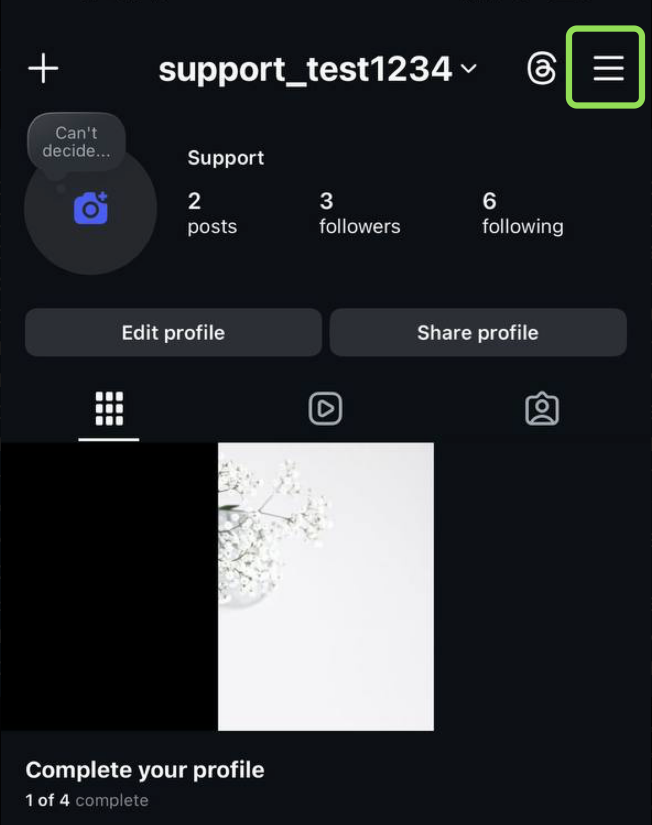
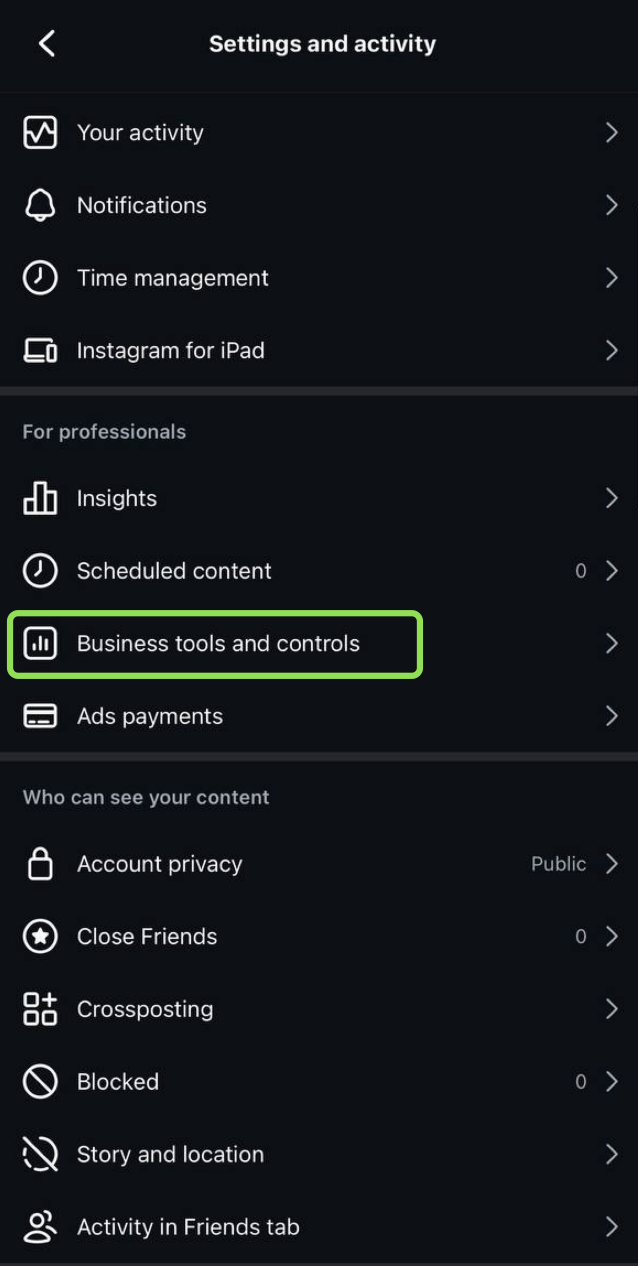
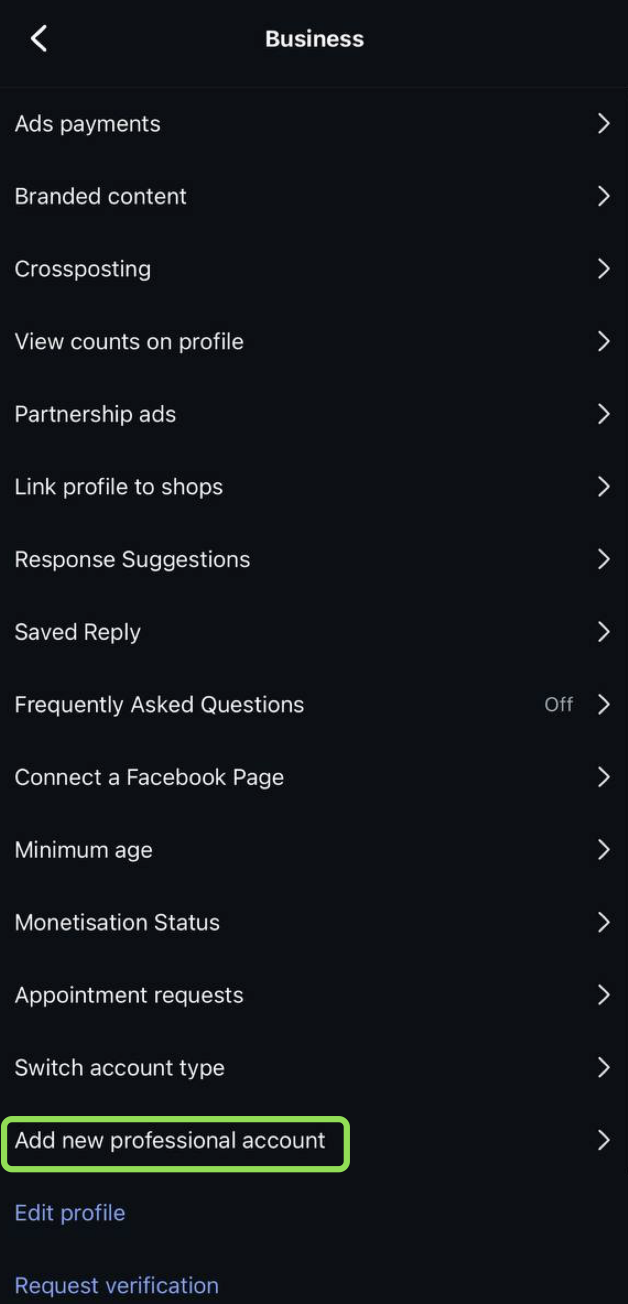
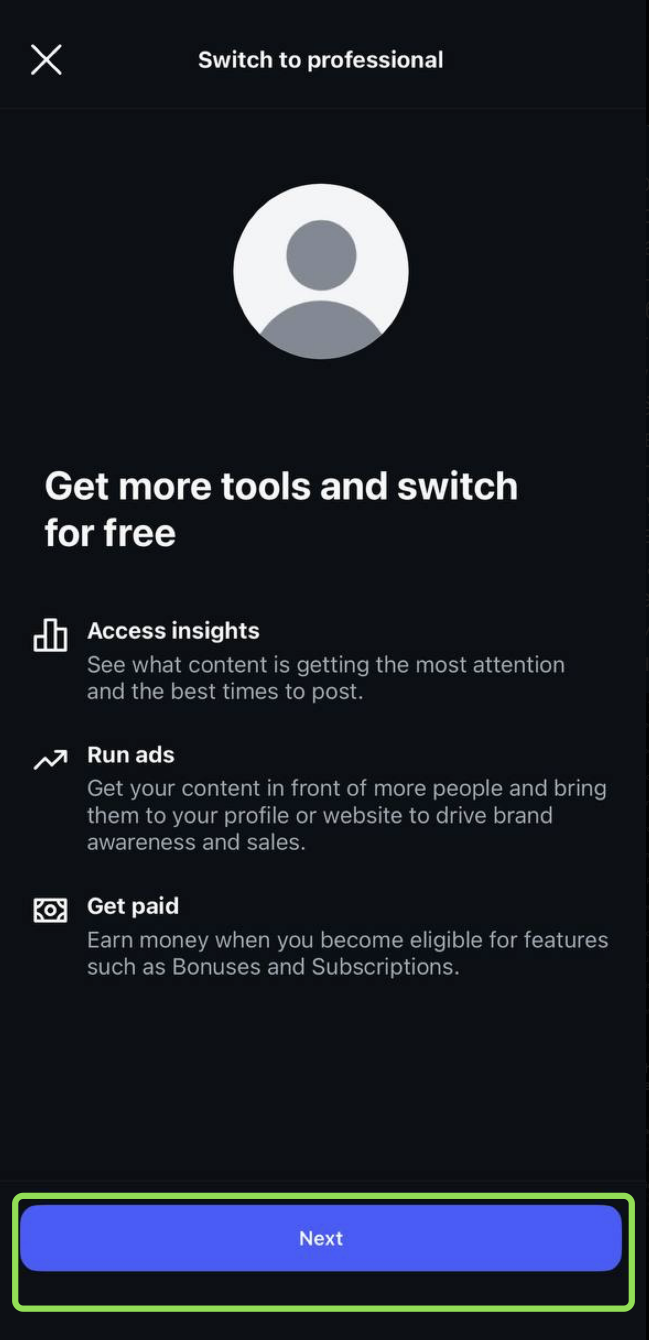
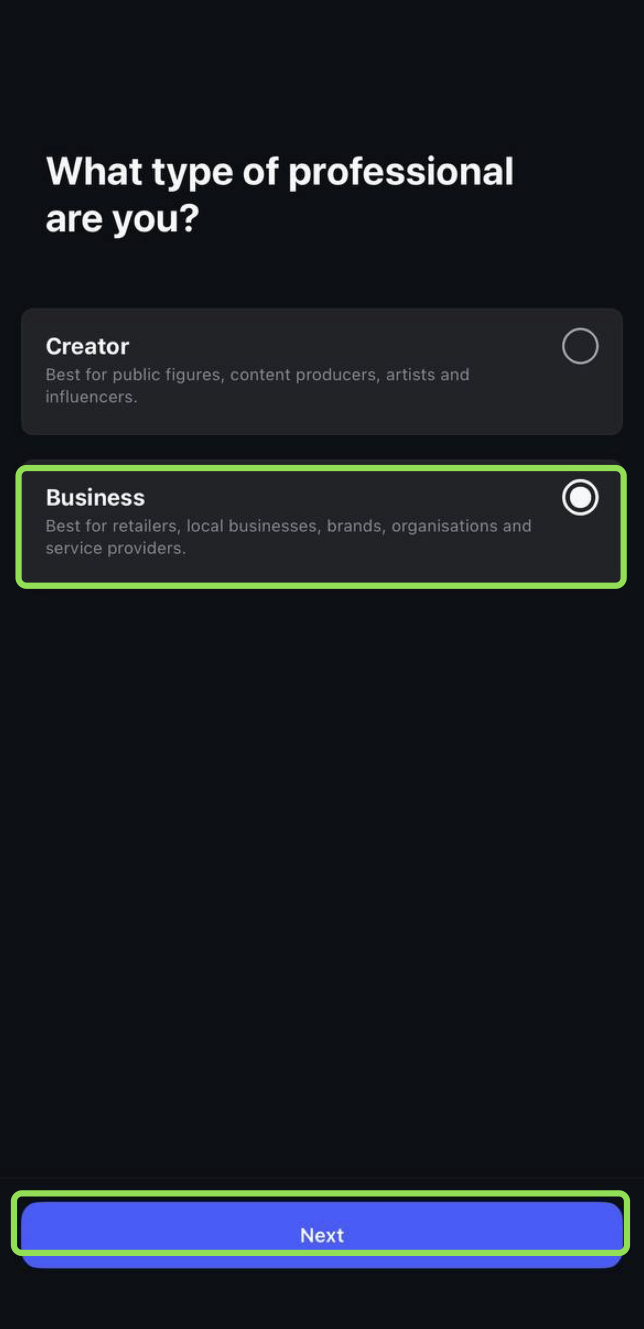
5. Check your contact details → “Next”.
6. If prompted to connect to the Accounts Center — tap “Skip” (this is not required for connecting the channel).
-
Open your personal Facebook* account → go to the “Pages” section in the left panel.
-
Click “Create new Page”, fill in the details → “Create Page”.
Done! Your Facebook* Business Page has been created! Proceed to configuration.
If you already have a Facebook Business Page:
-
Go to your Facebook profile → “Pages” in the left panel → select the required Business Page.
-
Click “Settings” → “Linked accounts” → Instagram → “Connect account” → “Confirm connection”.
-
Leave the toggle “Allow access to messages” enabled → “Confirm”.
The Instagram* channel will not work if this toggle is disabled. If you accidentally turned it off, go to the Instagram* app: “Settings” → “Messages and story replies” → “Message controls” → enable “Allow access to messages”.
-
Log in to your Instagram account. After successful linking, a confirmation window will appear indicating that Instagram has been connected to the Facebook Business Page.
To connect Instagram*, you must authorize via Facebook*. If you are located in Russia, enable an IP address changing tool, as Facebook* login is unavailable without it.
-
In your personal account, open the “Lines” section and select the line with the Instagram channel.
-
In the line settings, click “Link” next to the Instagram channel.
-
Click “Log in with Facebook” and log in to the Facebook account used to create the Business Page.
-
Several permission request windows will open.
Choose one of the access options:
• Grant access to all current and future Pages. (no additional settings required).
• Grant access to specific Pages — select the linked items: Facebook Business Page, Facebook Business Portfolio, Instagram account.
If you are connecting multiple Instagram accounts:
Each time you connect a line, grant access to all Facebook Pages and Instagram accounts that you plan to use in ChatApp.
For example, if you have two Instagram accounts, each linked to its own Facebook Business Page, when connecting lines you must grant access to both accounts and both Business Pages at once.
-
After granting access, select the Instagram account and click “Connect”.
Done! Instagram* is connected to the line.
Instagram comments in CRM
By default, when connecting the Instagram integration to a CRM, comments under posts and Reels, as well as story replies, are enabled. If necessary, they can be disabled in the connected CRM:
Step 1. Go to the Instagram connector settings.
Step 2. Open the “Chat settings” section.
Step 3. Check the box “Disable comments”.
If necessary, you can also disable story replies here.
Step 1. Go to ChatApp settings in amoCRM.
Step 2. Open the “Chat settings” section.
Step 3. Enable the toggle “Disable comments”.
After this, comments under Instagram posts and Reels will no longer be sent to ChatApp and the CRM.
-
You cannot message a client first — a conversation is only possible after the client has messaged you.
-
You can reply to messages only within 24 hours from the client’s last message.
-
Supported file formats in Instagram*:
Images: JPEG, GIF, HEIC, PNG — up to 8 MB
Audio: AAC, M4A, WAV — up to 25 MB
Video: MP4, MOV (recommended formats)
Connect ChatApp to your CRM:
so that deals are automatically created for new messages, and conversations are saved in the CRM.
- Connecting ChatApp to Bitrix24
- Connecting ChatApp to amoCRM
