Connecting Telegram Bot
In this article, we cover:
• connecting a Telegram Bot to ChatApp
• instructions: how to create a Telegram Bot
• Telegram Bot features
• comparison: Telegram vs Telegram Bot
• connecting a Telegram Bot in Telegram Business
A Telegram Bot receives incoming inquiries and helps automate communication with clients.
Set up automation so that chats are distributed between departments or specific employees. Telegram Bot supports message buttons — see the instructions for details on how to send them.
Step 1. Open Telegram and go to the @BotFather bot.
Step 2. Enter the command /newbot.
Step 3. Follow BotFather’s instructions to configure the bot.
Step 4. Save the API token sent by BotFather.
In ChatApp, you can connect a Telegram Bot from a Telegram Business account. Before connecting, make sure that a line with a Telegram Bot is already connected in your personal account.
Step 1.
1. Open your Telegram profile settings.
2. Go to “Telegram Business” → “Chatbots” → enter the chatbot link or username.
3. Enable the “Replies to messages” permission.
Step 2.
Open the chat with BotFather → go to Bot Settings → enable Business Mode.
Done. After configuration, the Telegram Bot channel settings will display the Business ID and the business account owner’s name.
Connecting a Telegram Bot to ChatApp
To connect to ChatApp, you will need the Telegram Bot token.
Step 1. In your personal account, open the “Lines” section and select the line with the Telegram Bot channel — the line settings window will open.
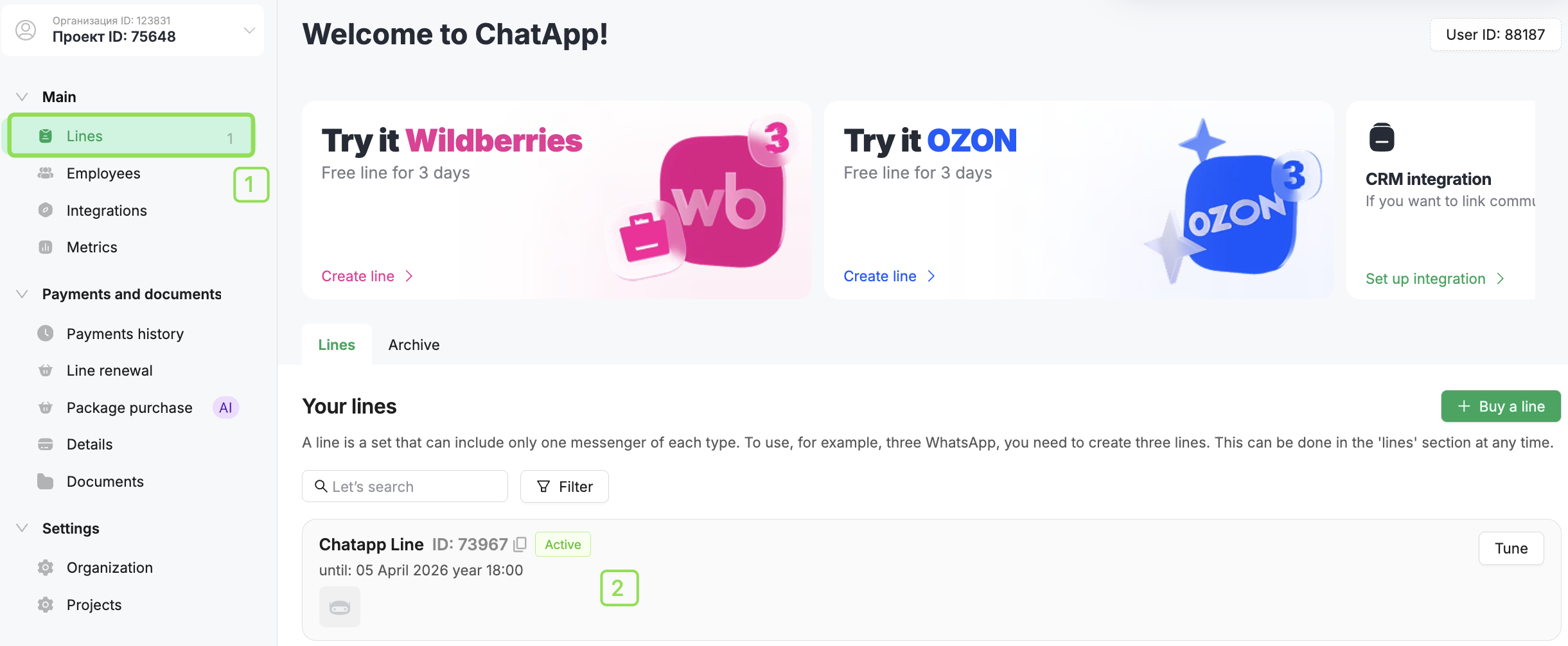 Step 2. Click the “Link” button next to the Telegram Bot channel.
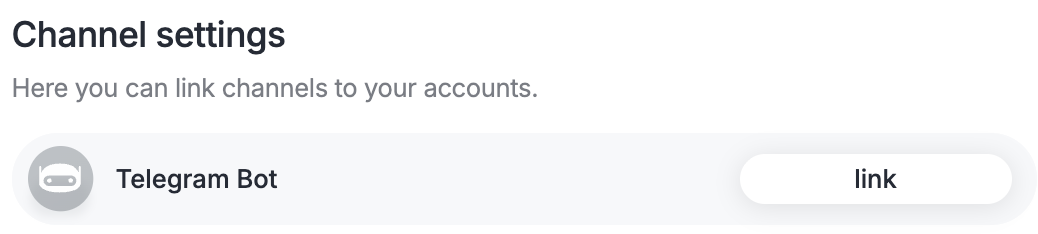
Step 3. Paste the token and click “Save”.
Done! After connecting, the Telegram Bot username will be displayed next to the channel.
Chats will appear in Scenario Dialogs as soon as clients start messaging you.
Telegram Bot Features
• The bot can send messages only after a user has subscribed.
• You can contact a client only by username.
• It is not possible to obtain a client’s phone number through the chat — the bot does not transmit this data.
• Message statuses (“Read / Unread”) are not available.
• File limits: sending — up to 50 MB; receiving — up to 20 MB.
• A Telegram Bot can delete messages under the following conditions:
— Regular messages can be deleted if no more than 48 hours have passed since sending.
— Messages with a “dice 🎲” in private chats can be deleted only after 24 hours.
(A dice message is an animated “🎲” game dice.)
• In private chats — both incoming and outgoing messages can be deleted.
• In channels — messages can be deleted if the bot has the can_post_messages permission.
• If the bot is a group administrator, it can delete any messages.
• If the bot has the can_delete_messages permission in a supergroup or channel, it can delete any messages.
Telegram and Telegram Bot Capabilities:
| Feature | Telegram | Telegram Bot |
|---|---|---|
| Message a client first by phone number or @username | Yes | No |
| Receive incoming messages and reply | Yes | Yes |
| Communicate in group chats | Yes | Yes |
| Create broadcasts to a client database | Yes | No |
| Track sending and delivery statuses | Yes | No |
| Collect contacts from Telegram groups | Yes | No |
| Integrate Telegram with a CRM | Yes | Yes |
| Connect Robots in Bitrix24 and Salesbot in amoCRM | Yes | Yes |
| Use a contact database of phone numbers or @username | Yes | No |
Connect ChatApp to Your CRM
Connect ChatApp to your CRM so that deals are created for new inquiries, conversations are saved in both the CRM and Scenario Dialogs, and when employees work through Scenario Dialogs in their personal accounts, team performance metrics are generated for the manager.
- Connecting ChatApp to Bitrix24
- Connecting ChatApp to amoCRM
