Creating a WACA Template
A template is a pre-created message layout approved by Meta.
Templates may include:
- text;
- media files (images, videos, documents);
- buttons;
- variables.
A template message is a message sent to a client based on an approved template.
A company can initiate a conversation only using a template message.
When a client replies to a WhatsApp Cloud API template message, a 24-hour session opens, during which the company may continue the conversation using regular (non-template) messages.
How to Create a Template
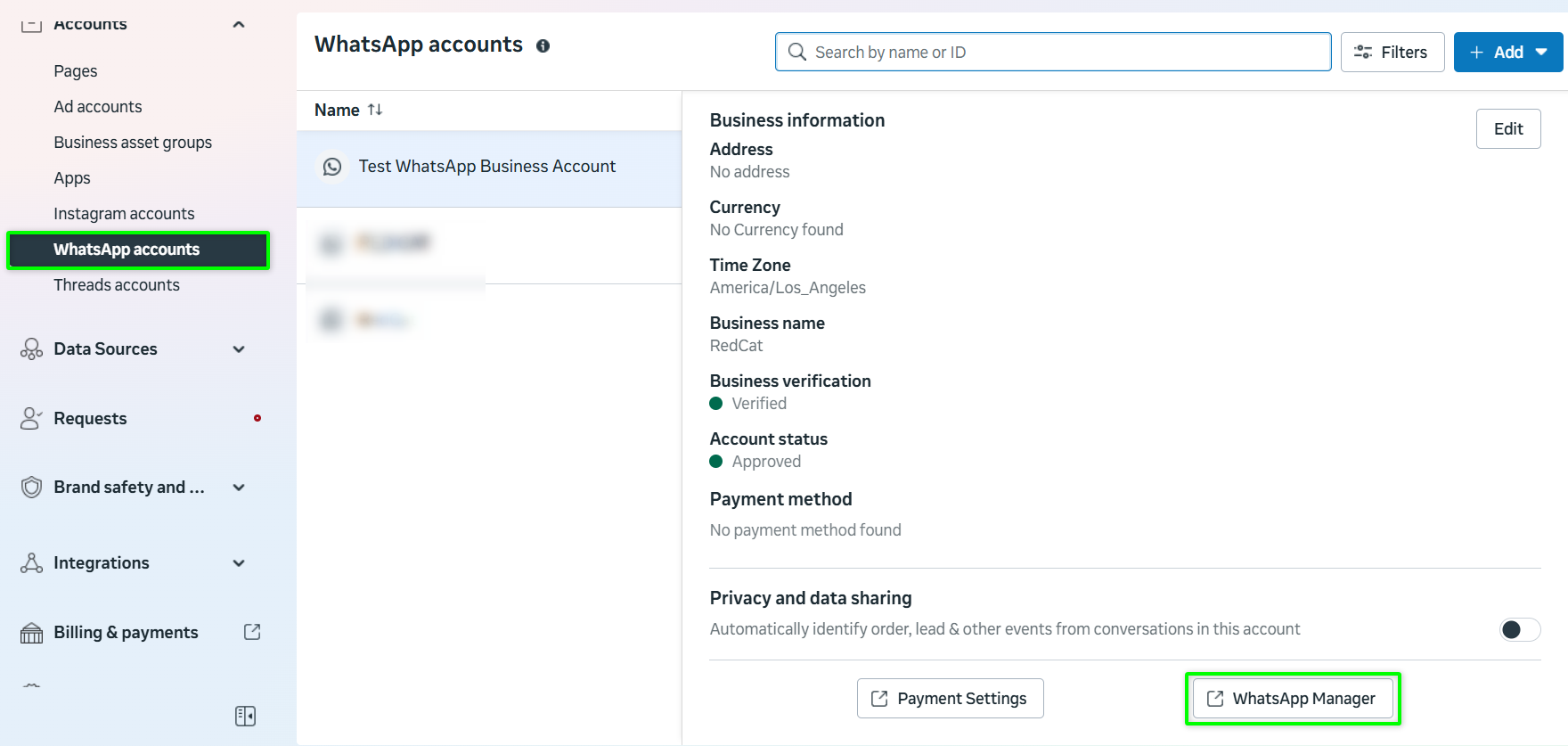
- In the Facebook interface, click the menu icon and select «Business settings».
- Go to «WhatsApp accounts» and select the required account.
- Open the «Summary» section and click «WhatsApp Manager» (bottom-right corner).
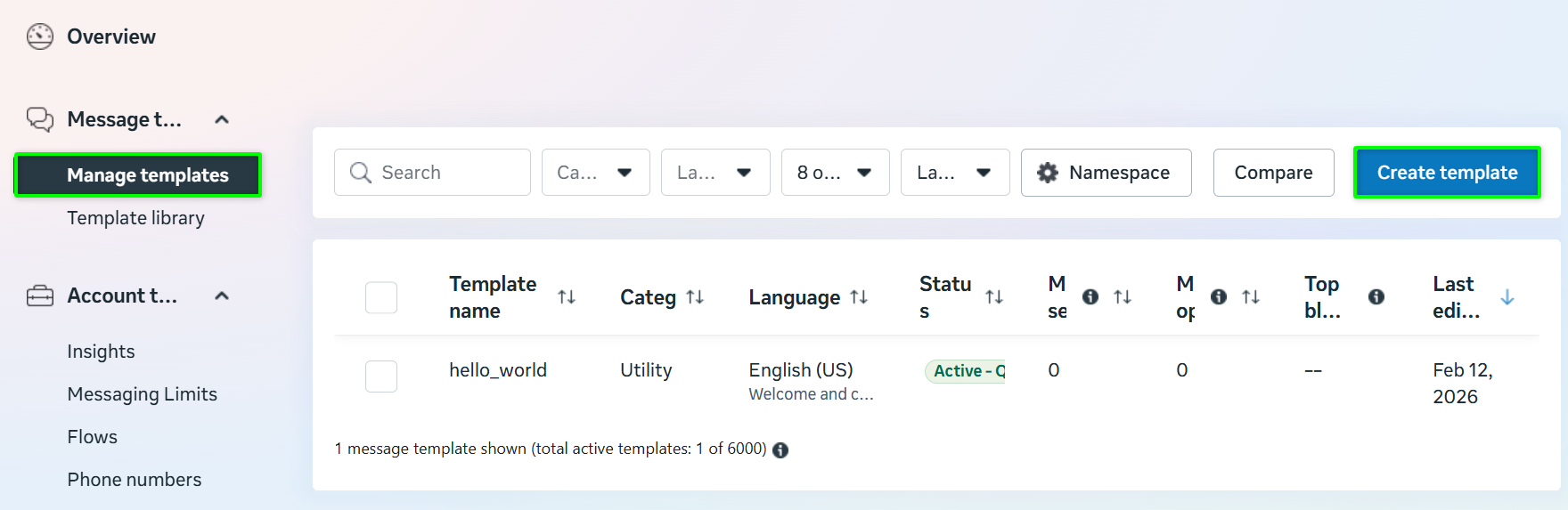
- In the left-hand menu, select «Template management».
- Click «Create template».
Template Parameters
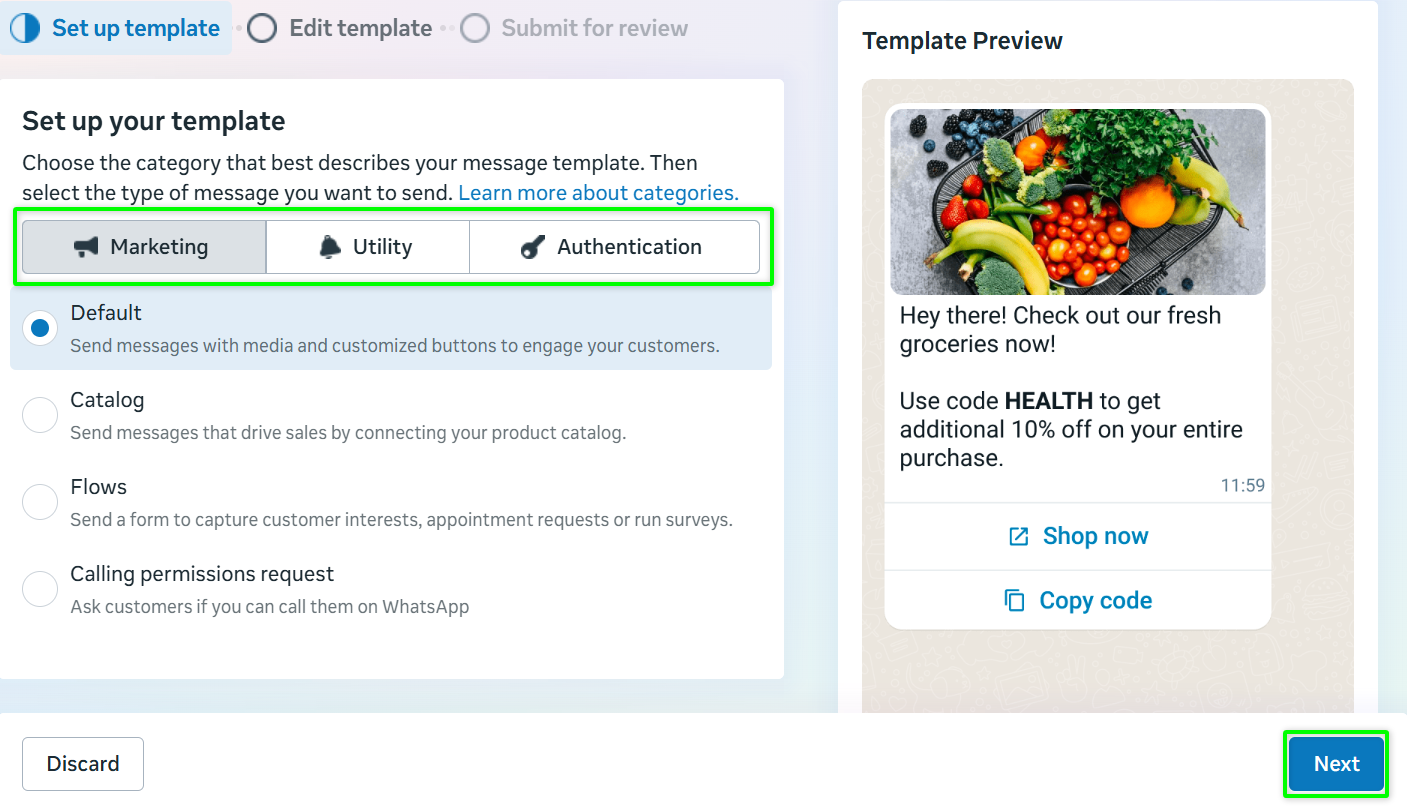
Category
- Marketing — promotional broadcasts and any non-service or non-authentication messages.
- Utility — transaction, account, order, or user-request-related messages.
- Authentication — one-time passwords (OTPs).
Name
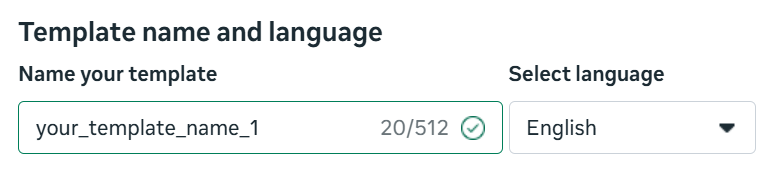
- Only lowercase Latin letters, numbers, and underscores (_) are allowed.
- Spaces are not supported.
Languages
- You can select one that will be used in the message text of the template.
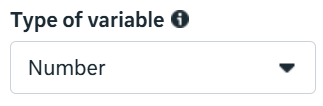
Variables
Variables are placeholders used for dynamic data insertion.
Currently, only numeric variables are supported.
Variable format in text:
{{1}}, {{2}}, {{3}} …
When sending a template message, variables are replaced with actual values, such as: customer name; company name; order number; other dynamic data.
Media Sample
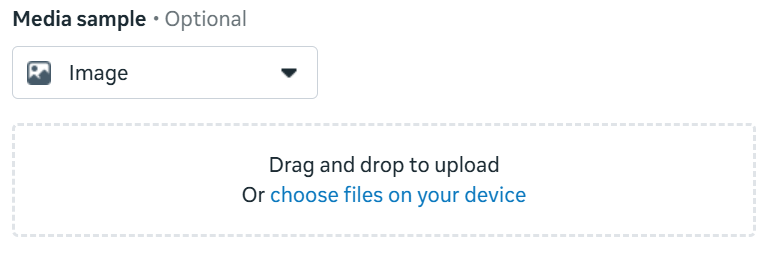
If the template contains media (image, video, or document), you must upload a test media file during template creation.
Important:
- The test file is used only for moderation.
- Meta does not store the media file uploaded during creation.
- When sending the template message, you may attach any other media file.
Without a test media file, a template containing media will not pass moderation.
Header
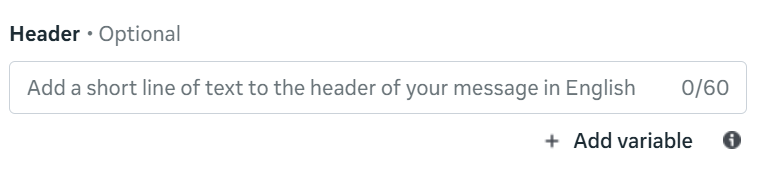
- Text header;
- Maximum length — 60 characters;
- Optional;
- Emojis are not supported.
Body Text
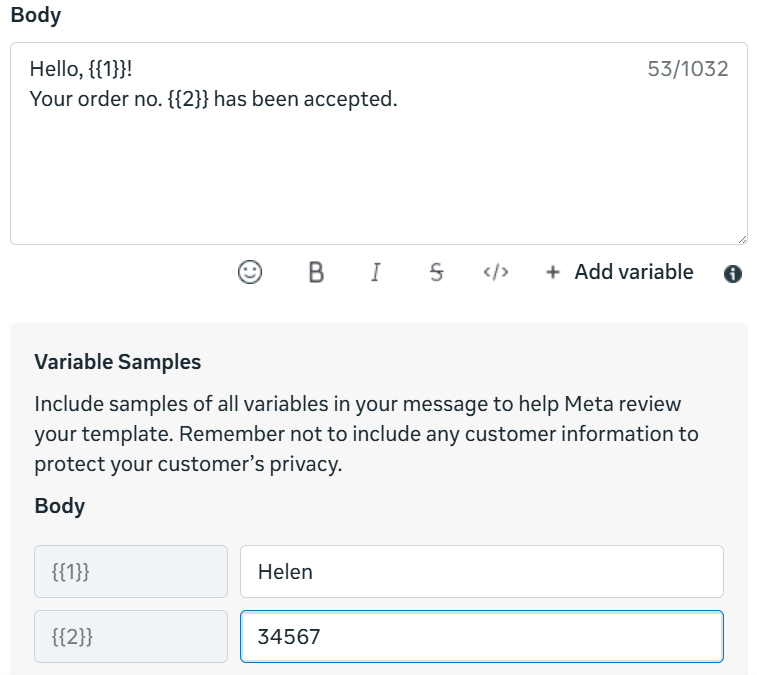
- Maximum length — 1024 characters;
- Emojis supported (up to 10);
- Variables supported.
Footer
- Complements the main message;
- Maximum length — 60 characters;
- Variables are not supported.

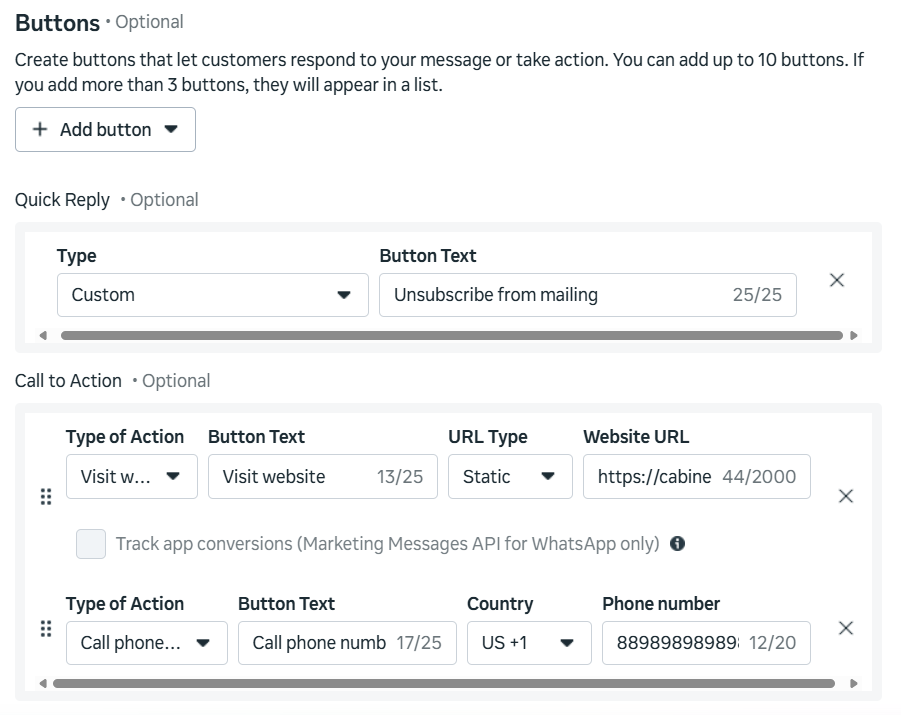
Buttons
Buttons allow the client to perform an action or respond to a message.
Up to 10 buttons can be added.
If more than 3 buttons are added, they are displayed as a vertical list.
Available Button Types
- URL
- Opens a link;
- Maximum 2 buttons.
- Phone number
- Initiates a call;
- Maximum 1 button.
- Quick reply
- Predefined reply options;
- Maximum 10 buttons.
Submitting for Moderation
After completing the setup, click «Submit».
The template will be sent for review.
Moderation Stages
- Automatic review — format and field validation;
- Manual review — detailed analysis by Facebook* specialists.
Moderation time — up to 24 hours.
The result is displayed in WhatsApp Manager and sent via email to Business Manager administrators.
Moderation speed depends solely on Facebook and cannot be accelerated.
Submit templates for moderation one at a time.
Mass submission may increase waiting time.
Reasons for Rejection
A template may be rejected if:
- there are spelling or grammatical errors;
- variables are incorrectly formatted;
- parameter purpose is unclear from context;
- the template language does not match the selected language;
- the content violates WhatsApp policies.
If rejected, the template must be recreated with corrections.
Template Management
Approved templates can be:
- edited;
- used in campaigns;
- deleted.
Templates with status «Under review» can only be deleted.
Universal templates
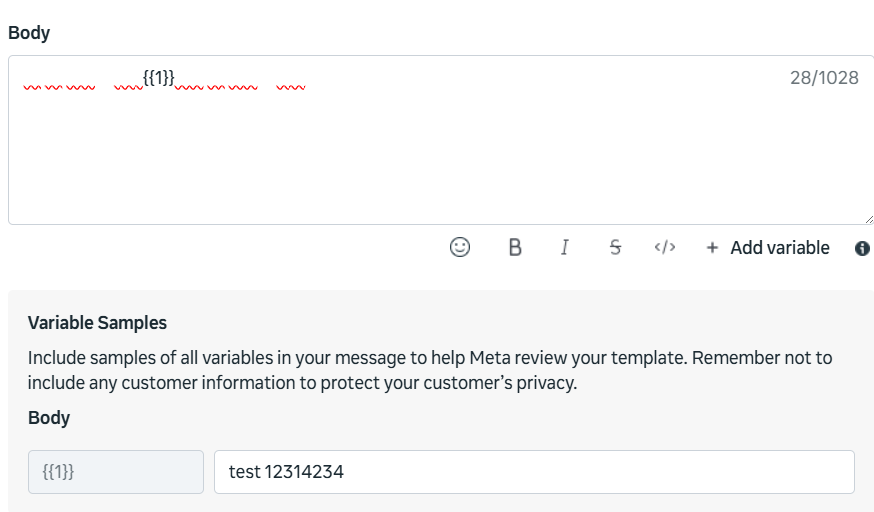
WhatsApp Cloud API allows the use of empty templates — templates without predefined text.
Such a template contains only a variable and allows sending arbitrary text during message dispatch.
Creating and using empty templates may result in blocking of the official WhatsApp account.
- In the Facebook interface, click the menu icon and select «Business settings».
- Go to «WhatsApp accounts» and select the required account.
- Open the «Summary» section and click «WhatsApp Manager» (bottom-right corner).
- In the left-hand menu, select «Template management».
- Click «Create template».
- Select a category Marketing and click «Next».
- Specify:
- template name;
- language;
- numeric variable.
- In the «Body text» field, paste: «ㅤ ㅤ ⠀ㅤ ⠀ ㅤ⠀{{1}}⠀ㅤ ㅤ ⠀ㅤ ⠀ ㅤ⠀» Insert the text exactly between the quotation marks.
- Submit the template for approval.
