Creating and Configuring an Organization
Organization Configuration
In the left-hand menu, select the «Organization» section.
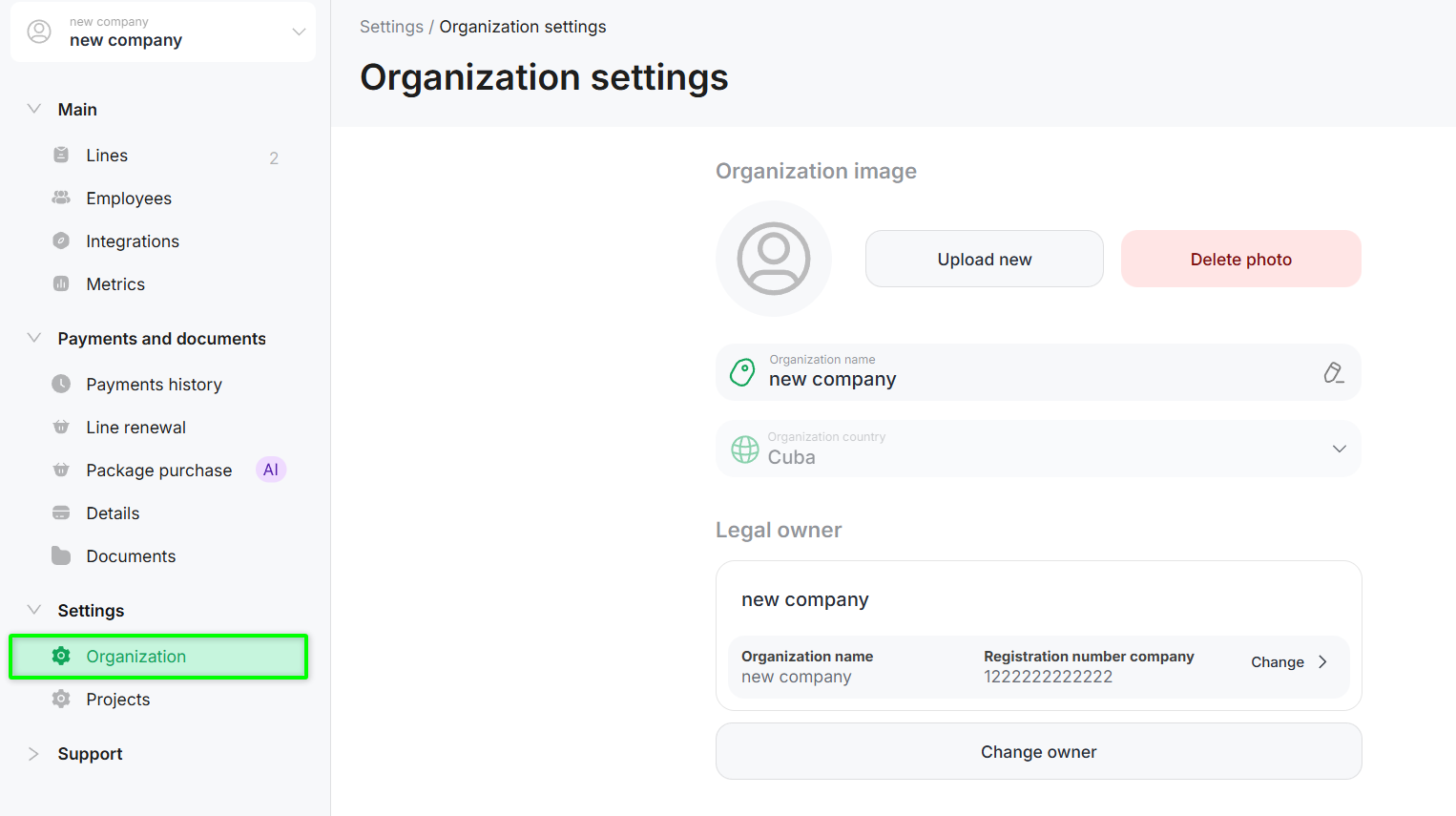
Set an image for the Organization
To set or change the organization image, click «Upload new».
To remove a previously set image, click «Delete photo» — the image will be removed from the account.
Change the Organization name
To change the organization name, click the edit icon and enter a new name.
Change the legal owner’s organization details
In the row with the organization details, click «Edit».
In the opened legal owner details form, you can change:
- registered address;
- email;
- phone number.
After making changes, click «Save».
Change owner of the Organization
The organization owner is automatically assigned to the user who made the first payment in ChatApp.
Changing the owner is allowed only once.
To change the owner:
- click «Change owner»;
- download the application form and complete all fields;
- Send the completed copy to the technical support chat.
Creating an Organization
You can create multiple organizations within a single personal account.
This is used when a single owner manages multiple legal entities.
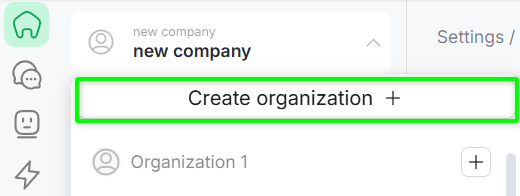
- In the upper-left corner of the personal account, open the dropdown list of organizations and projects and click «Create organization +».
- In the opened form, enter the organization name and click «Save».
To cancel creation, click «Cancel».
