CRM Integration
CRM integration allows you to:
- retrieve the list of employees from the CRM and match them with ChatApp employees (required to synchronize responsible users across CRM entities);
- add CRM-related blocks to the bot builder (available for amoCRM and Bitrix24);
- open the corresponding CRM record directly from a Scenario Dialogs chat.
CRM integration is configured at the project level within an organization.
If you need to synchronize two different CRM portals, you must create two separate projects.
Integration Setup
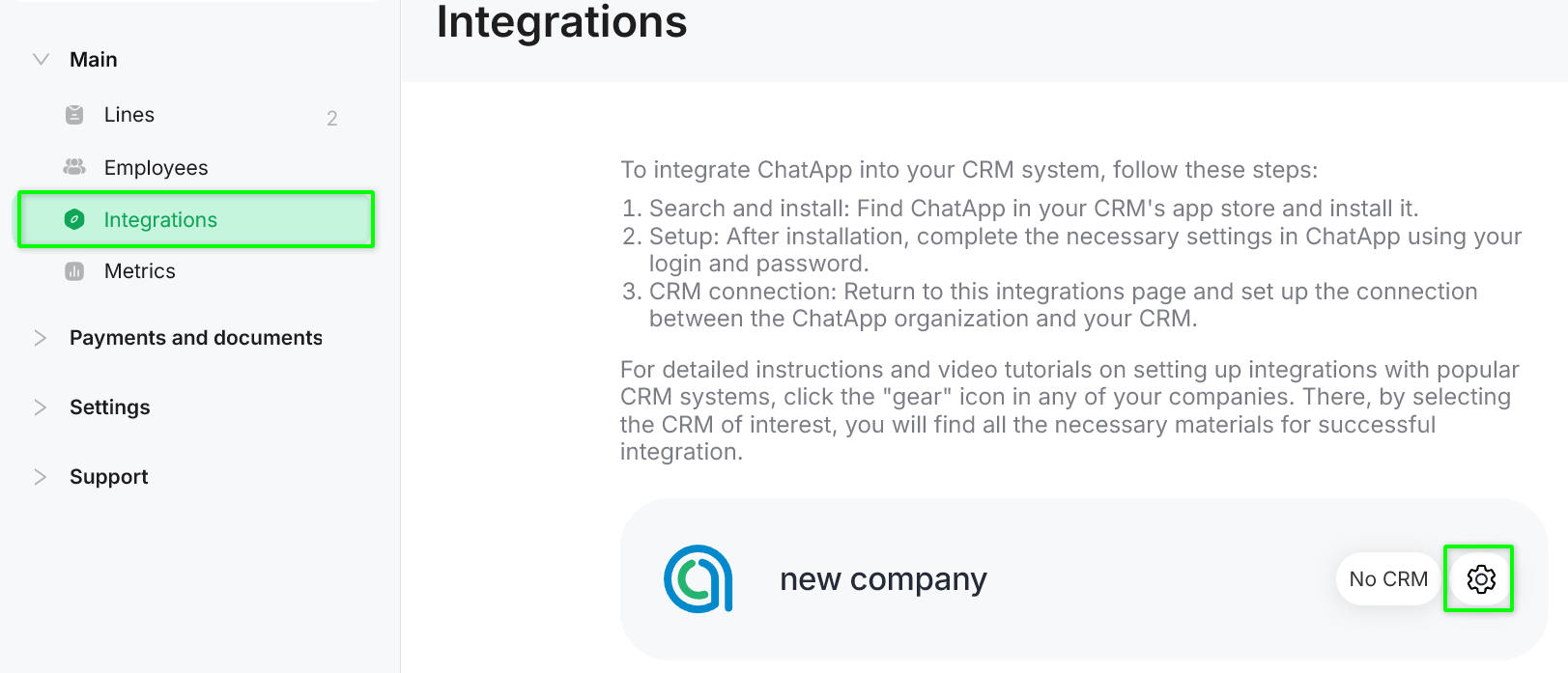
1. In the left-hand menu, go to the «Integrations» section.
2. Select the required project.
3. Click the gear icon to open the integration settings.
Bitrix24
- Install the ChatApp application and log in using your ChatApp username and password.
For detailed instructions, see the article. - In the «Portal type» field, select «Bitrix24».
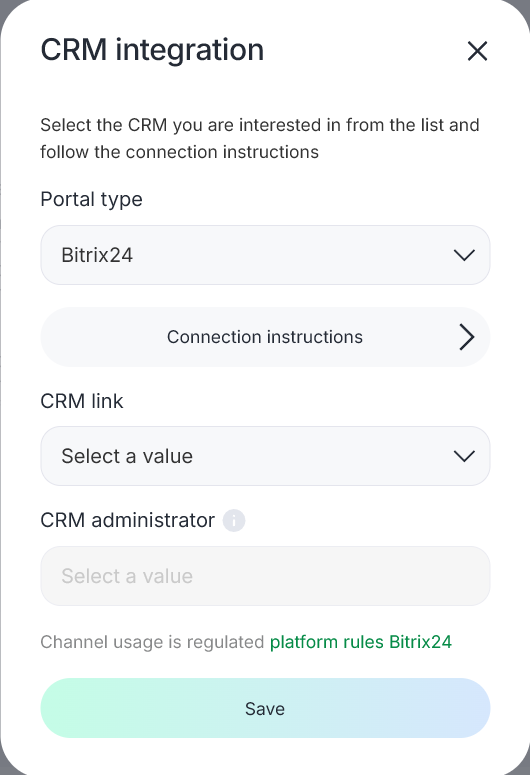
- In the «CRM link» field, select your Bitrix24 account.
- Specify the CRM administrator.
- Click «Save».
amoCRM
- Install the ChatApp application and log in using your ChatApp username and password.
For detailed instructions, see the article. - In the «Portal type» field, select «amoCRM».
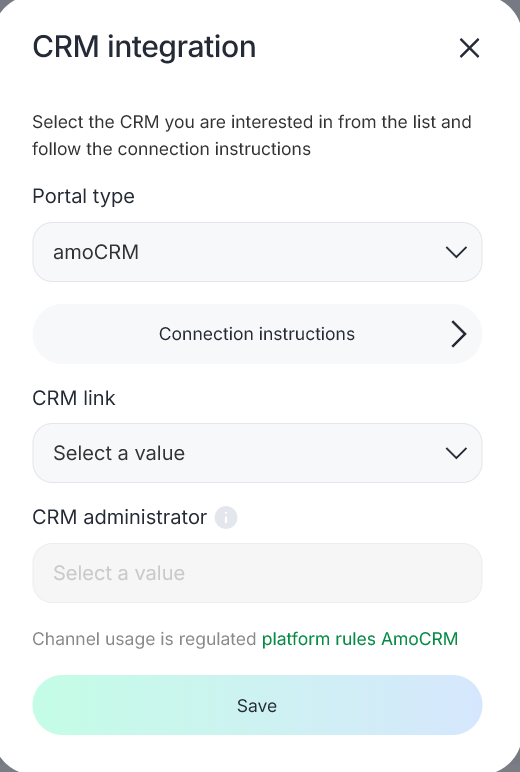
- In the «CRM link» field, select your amoCRM account.
- Specify the CRM administrator.
- Click «Save».
Altegio
- Install the ChatApp application and log in using your ChatApp username and password.
For detailed instructions, see the article. - In the «Portal type» field, select «Altegio».
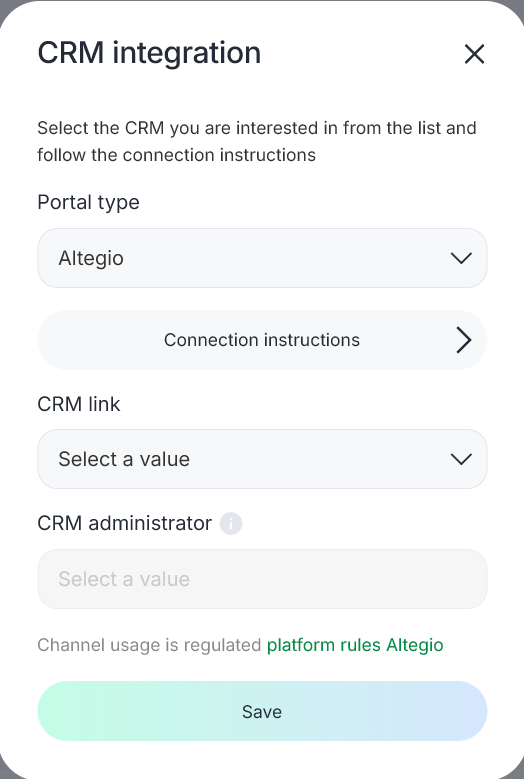
- In the «Portal link» field, select the Altegio branch.
- Specify the CRM administrator.
- Click «Save».
