Dialog metrics
Dialog analytics helps track the following metrics:
- number of open and closed dialogs;
- minimum, maximum, and average dialog handling time;
- performance rating of the employee responsible for dialogs;
- number of unanswered dialogs.
Metric Collection Conditions
To ensure correct analytics collection, a dialog processing bot must be configured.
The bot must include the following steps:
- opening dialogs;
- routing dialogs;
- closing dialogs.
Instructions for creating and configuring a bot are available in the article «Bot Creation».
Metrics are collected only when employees work via Scenario Dialogs.
If dialogs are handled directly in the CRM, data is not transmitted to the ChatApp personal account.
A metric is counted only if all of the following conditions are met:
- the chat was opened;
- the chat was routed;
- the responsible employee sent a message via Scenario Dialogs;
- the chat was closed.
Metrics are not collected for group chats.
Only one-to-one chats are included in metric calculations.
Viewing Dialog Analytics
Dialog metrics are used to assess employee workload and performance.
1. Select the required Project in the left-hand menu.
2. Open the «Metrics» tab.
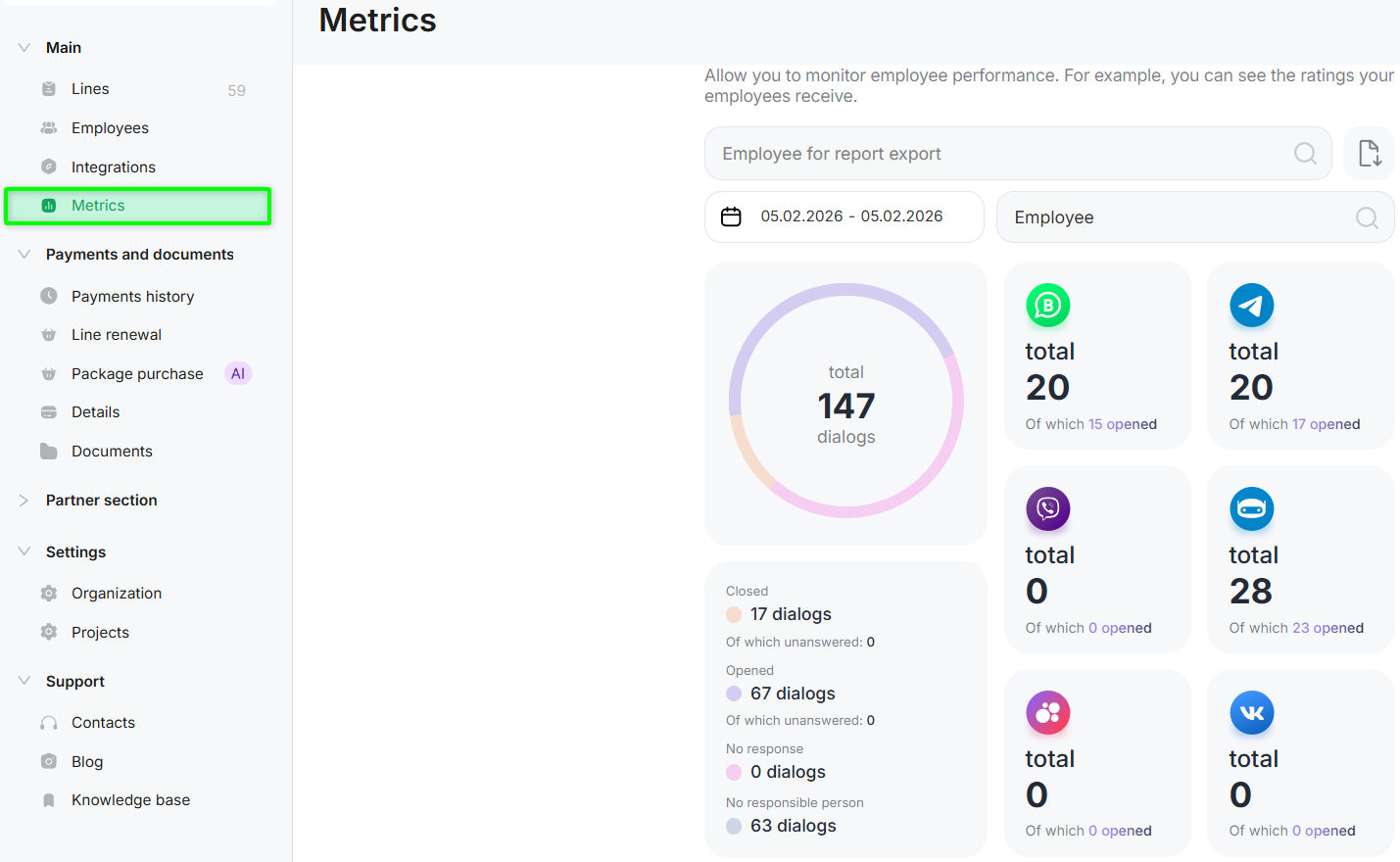
3. The following filters are available for analyzing indicators:
Period: Allows you to select the date range for which metrics are displayed.
Participants:
- Individual employee
Displays statistics for the selected employee. - Employee (overall statistics)
Displays aggregated statistics for the project. - All employees
Used to compare performance metrics between employees.
Exporting Analytics to Excel
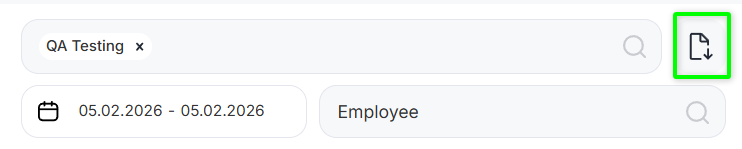
You can export statistics for selected employees to an Excel file for further analysis.
1. In the «Employee for report export» field, select one or more employees.
2. Click the export button — the file download will start.
Additional Metrics
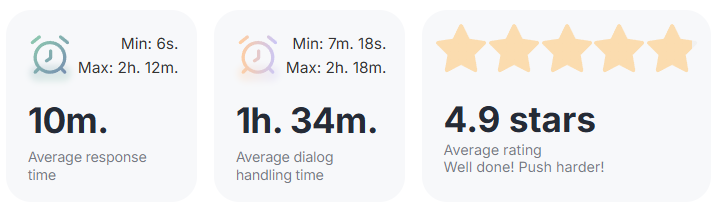
Average response time
Displays the minimum, maximum, and average time from dialog opening to the first message.
Average dialog handling time
Displays the minimum, maximum, and average time from dialog opening to dialog closure.
Performance rating
A rating can be requested for each chat.
The metrics display the average rating across all dialogs.
Both open and closed dialogs are stored in metrics.
This can be useful when reviewing disputed cases or training employees.
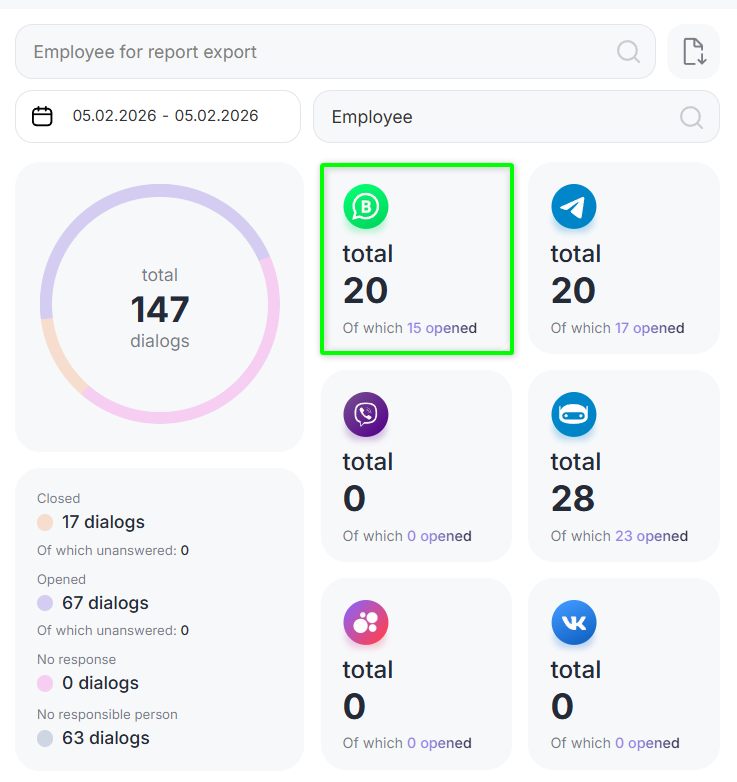
Click the messenger icon to open the list of dialogs.
Select the required dialog from the list.
The dialog will open in Scenario Dialogs.
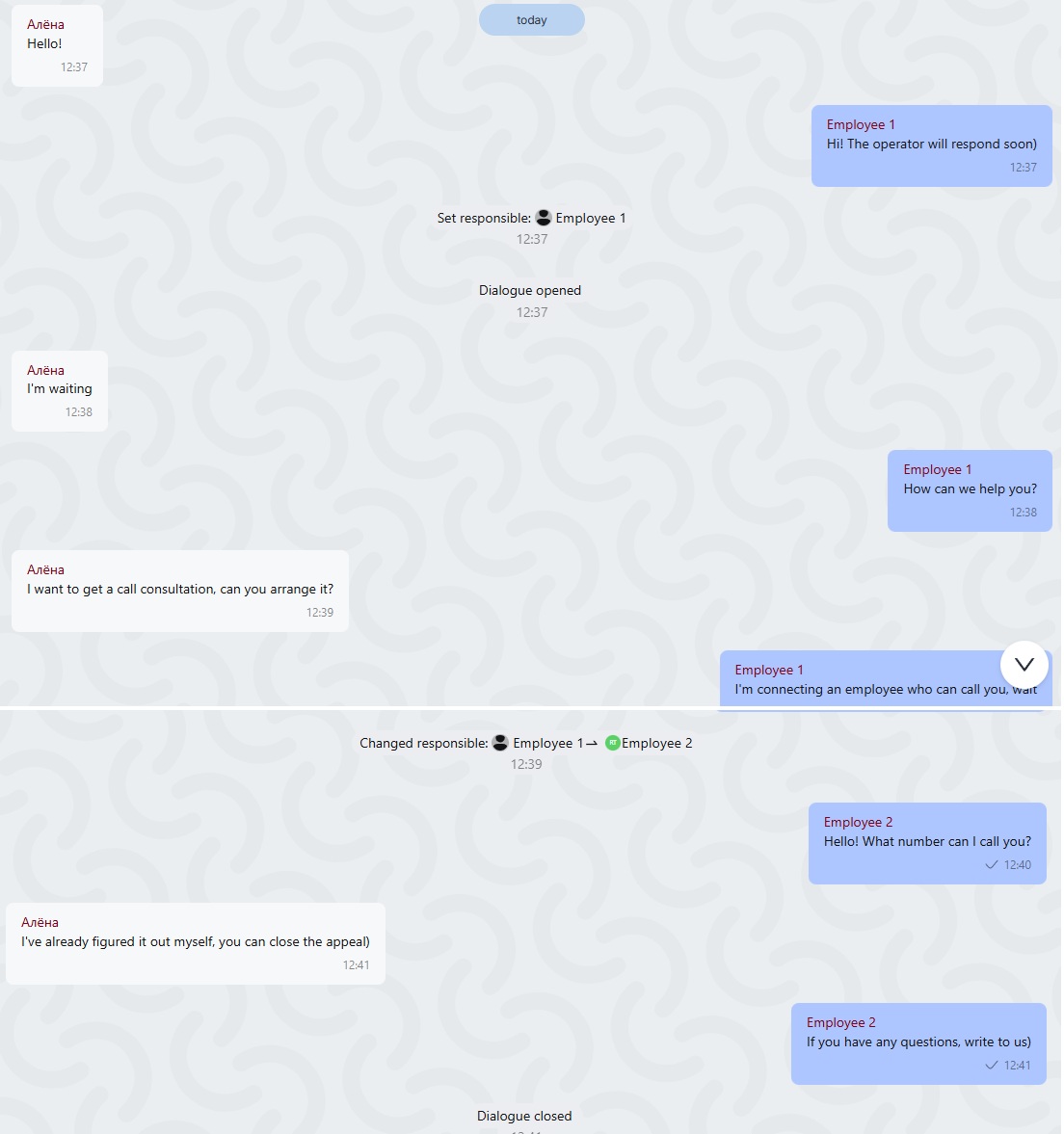
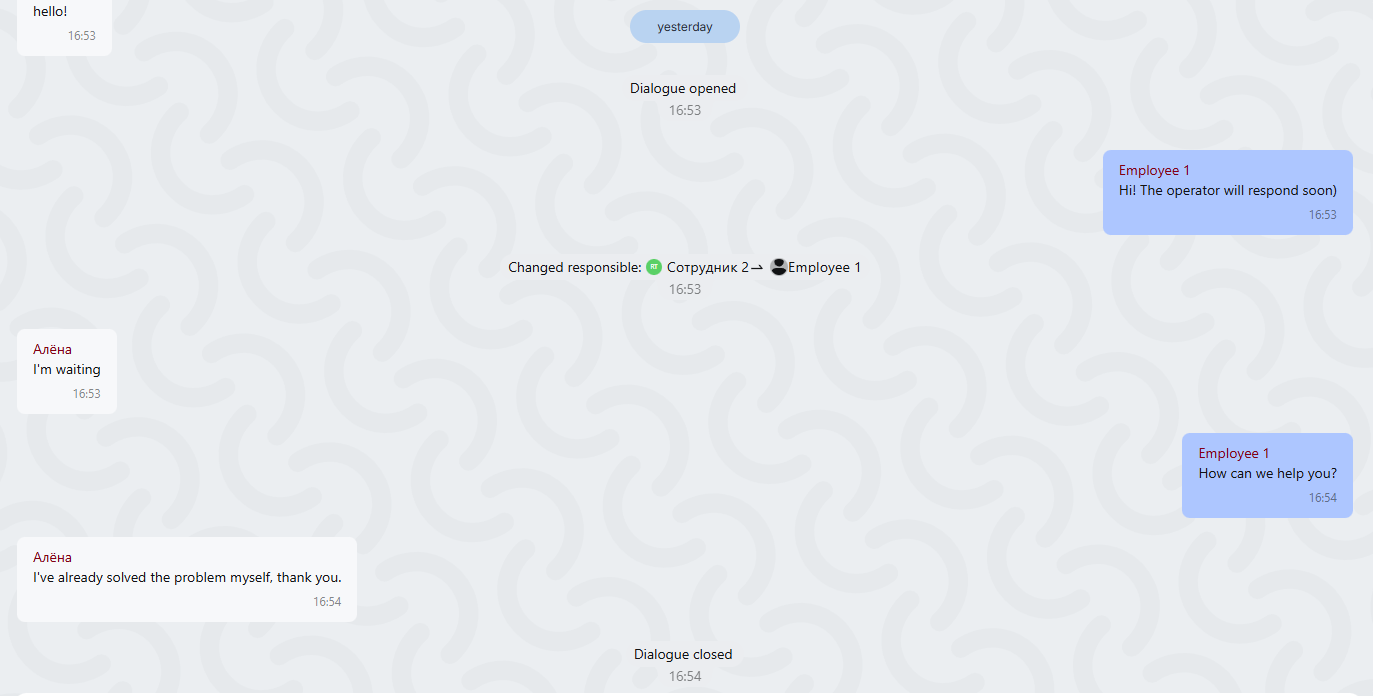
Example 1. Single employee workflow
The chat was opened and routed to employee 1.
The employee replied to the client via Scenario Dialogs and closed the chat.
In this case, the dialog is included in the metrics of employee 1.
Example 2. Multiple employee workflow
The chat was opened and routed to employee 1, who replied to the client via Scenario Dialogs.
The chat was then transferred to employee 2, who also replied via Scenario Dialogs and closed the chat.
In this case, the dialog is included in the metrics of both employees.