System Notifications
Enable system notifications to respond promptly to important events—for example, to quickly reconnect a deauthorized channel and avoid service downtime.
Notifications are sent to the ChatApp personal account, Telegram, and email.
To view notifications, click the bell icon in the lower-left corner of the screen.
The «All notifications» section displays the event history.
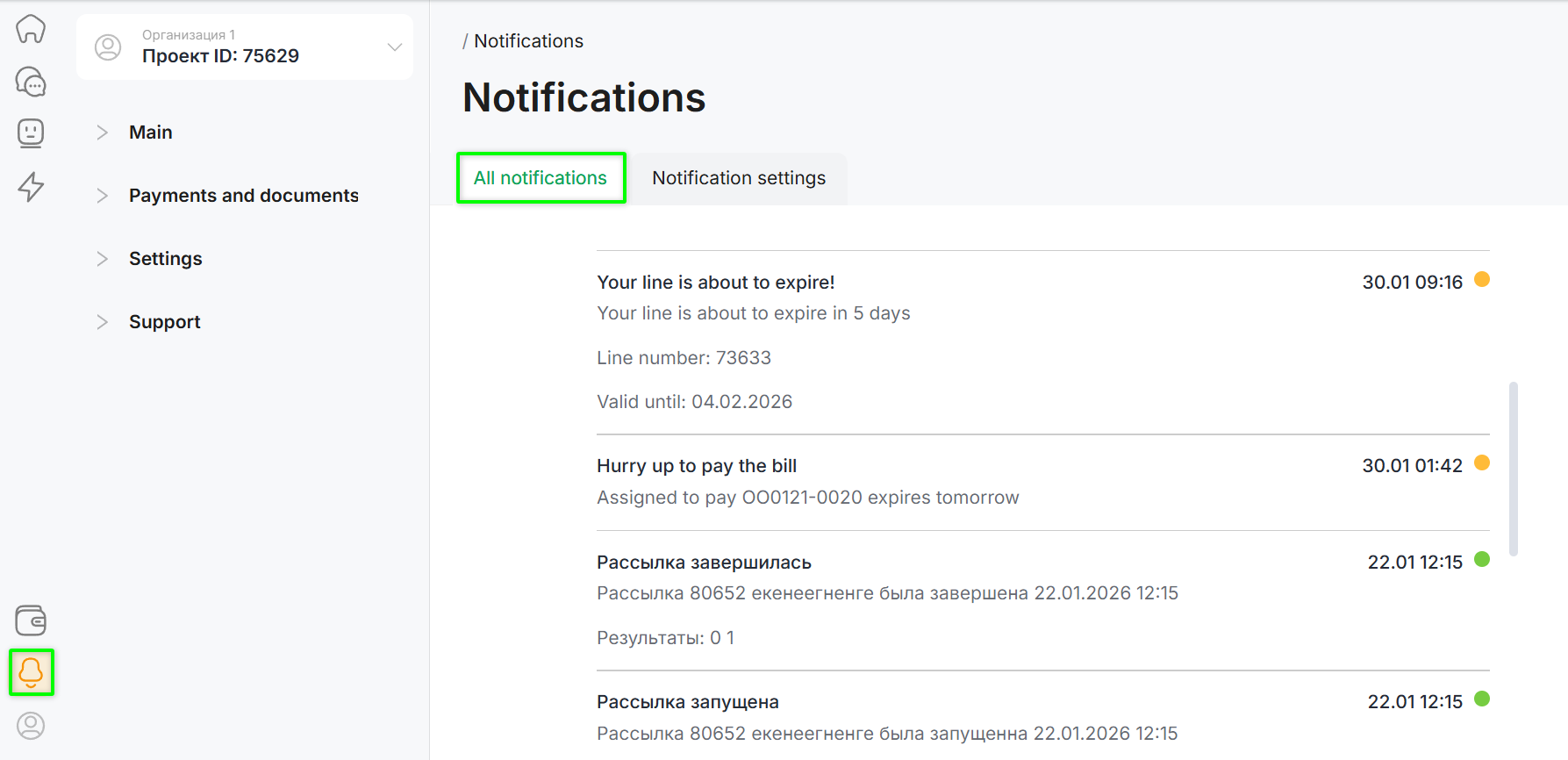
In the «Notification settings» section, you can configure which types of notifications you receive and through which channels.
Please note: system notifications and feature update notifications cannot be disabled.
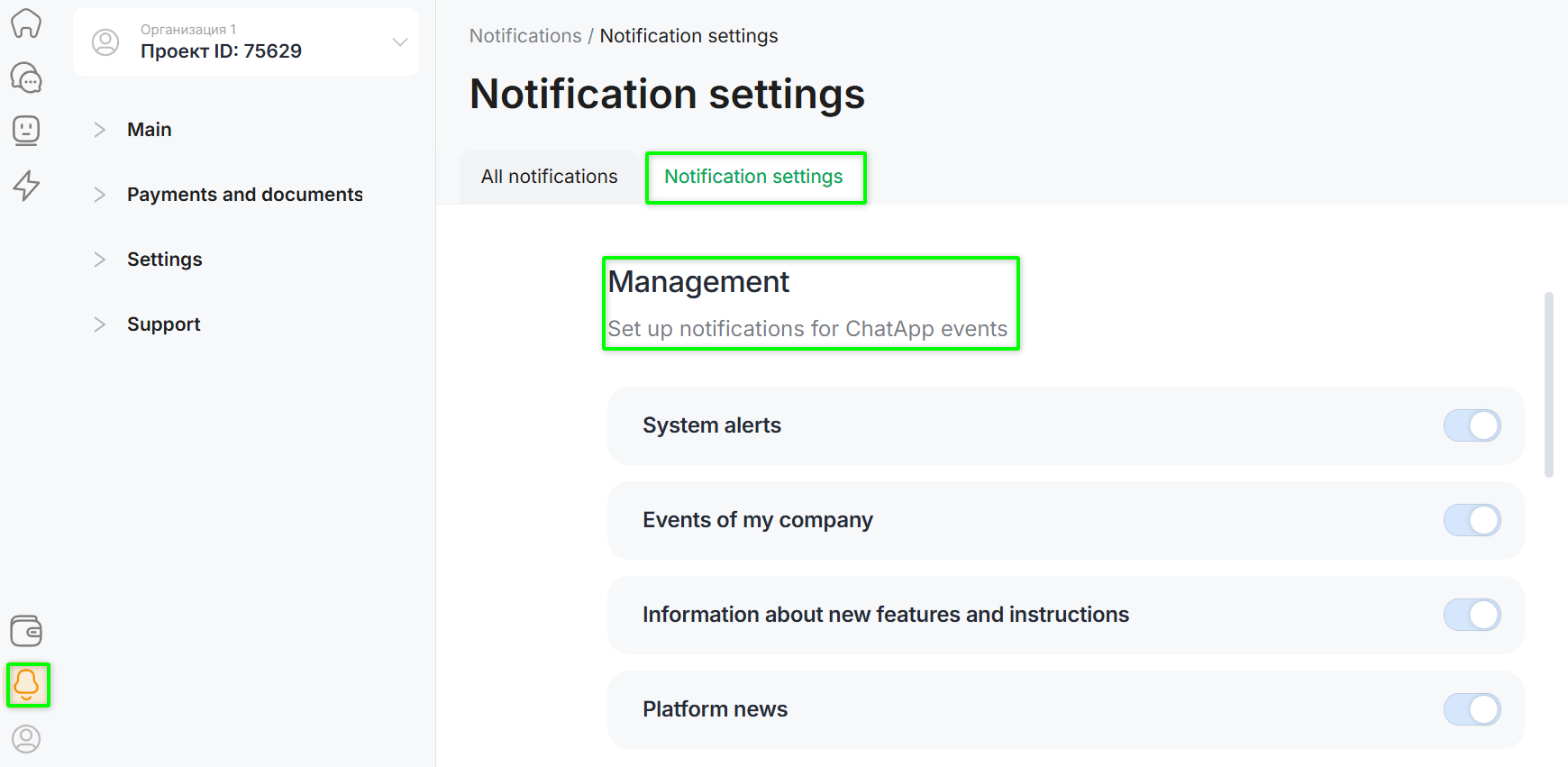
- System alerts — inform about channel statuses (authorization/deauthorization), password changes, and profile updates;
- Events of my company — reflect actions within projects: inviting and removing employees, launching campaigns;
- Information about new features and instructions — notify about ChatApp feature updates and usage instructions;
- Platform news — include case studies, webinars, and platform events from ChatApp.
In the «Channels» section, you can choose where it is most convenient to receive notifications.
- ChatApp personal cabinet (bell) — cannot be disabled;
- Telegram — sent to the authorized Telegram account;
- Other messengers — messengers other than Telegram;
- Email — sent to the email address specified during account registration.
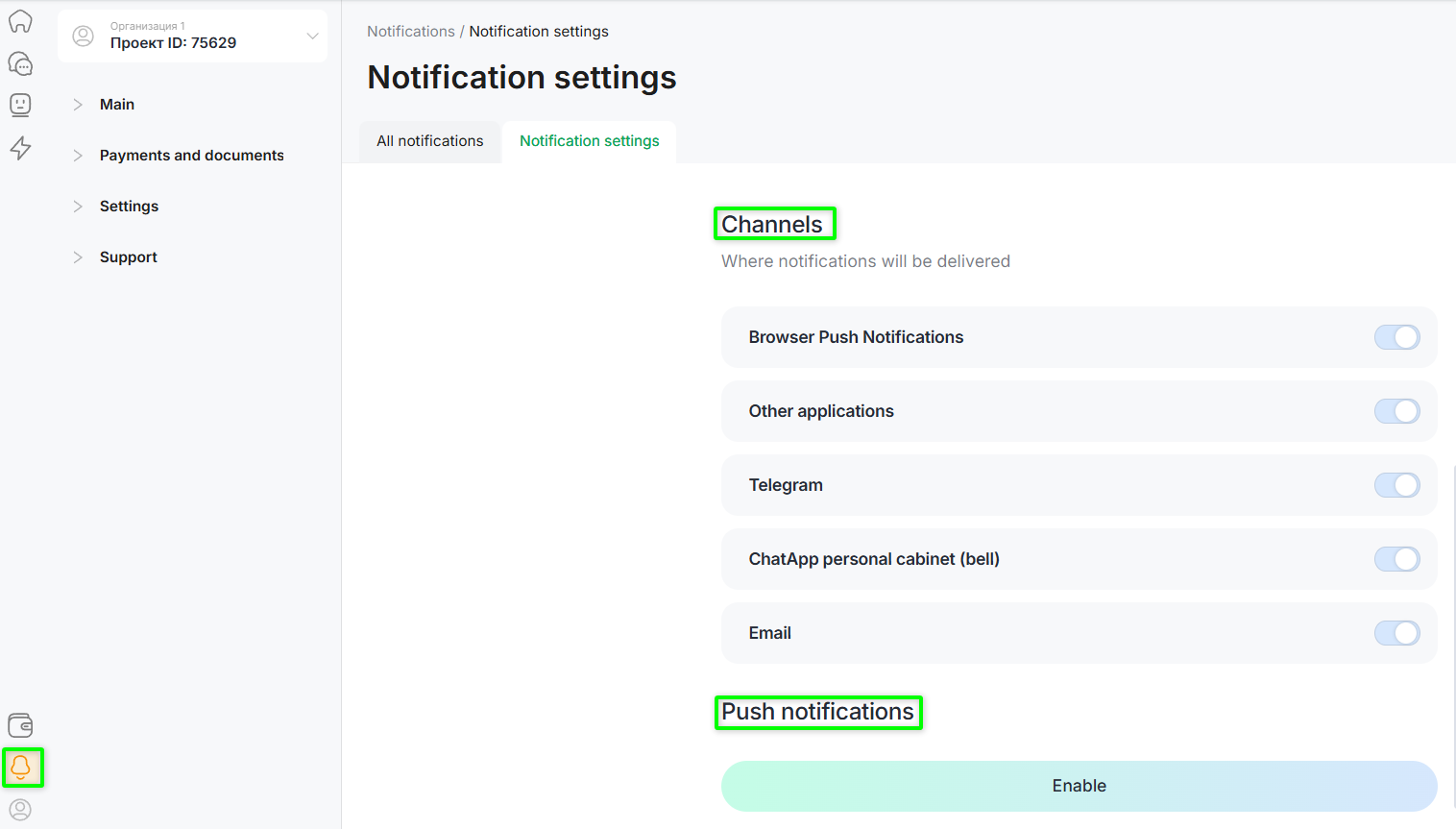
Push notifications — browser pop-up notifications (can be enabled or disabled).
Telegram Notifications
Enable Telegram notifications to receive alerts related to specific lines.
Telegram notifications include: line expiration, channel status changes (authorization/deauthorization), a 7-day warning before line expiration, and line archiving.
Step 1. Go to the «Notifications» section by clicking the bell icon in the lower-left corner of the screen.
Step 2. Open the notification settings.
Step 3. In the authorization section, click «Log in with Telegram» and enter the phone number of your Telegram account.
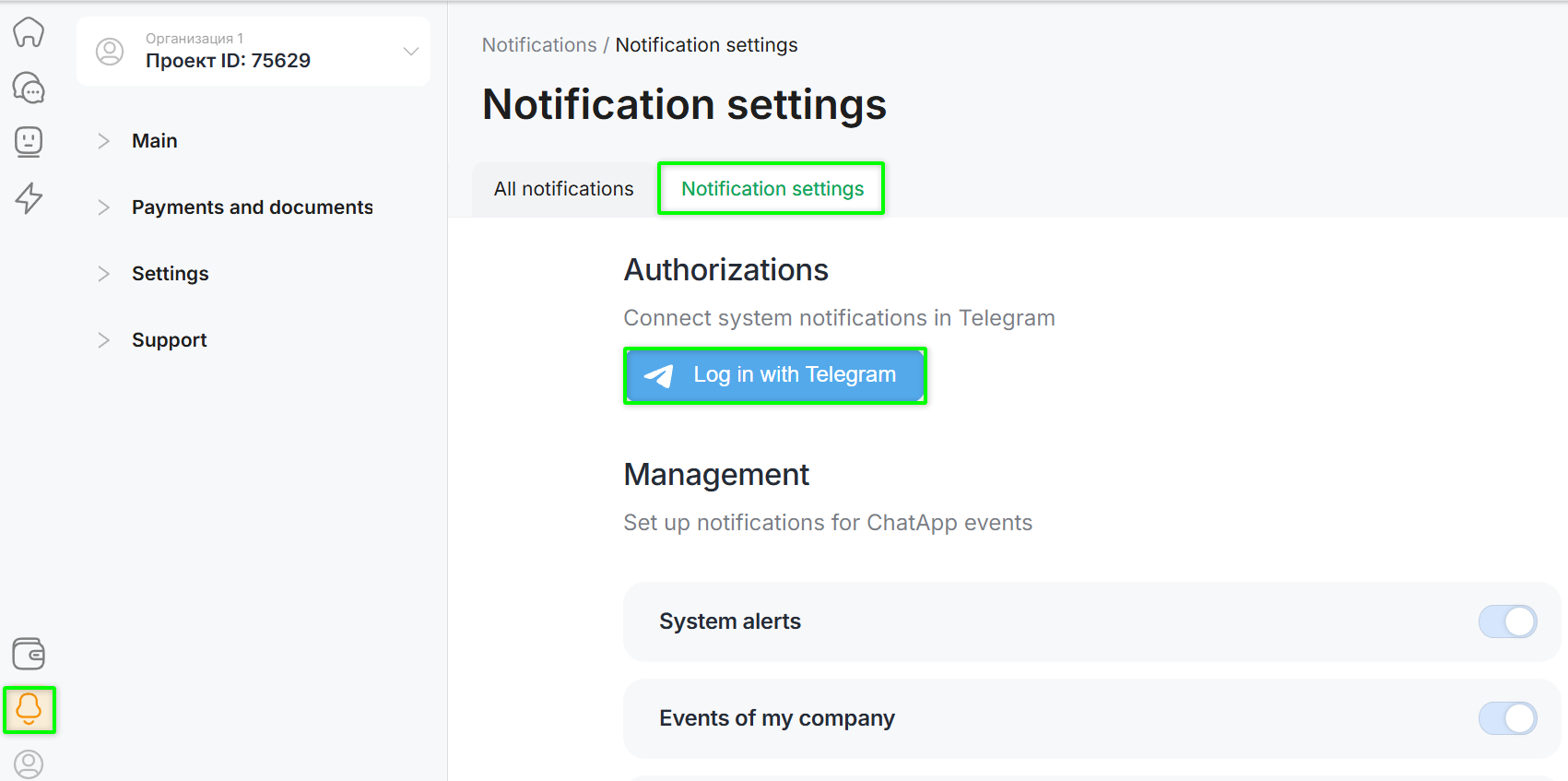
Step 4. You will receive an authorization request message in Telegram—confirm it.
Step 5. Confirm the request in the ChatApp personal account as well.
Step 6. Go to the line settings and scroll to the bottom of the page.
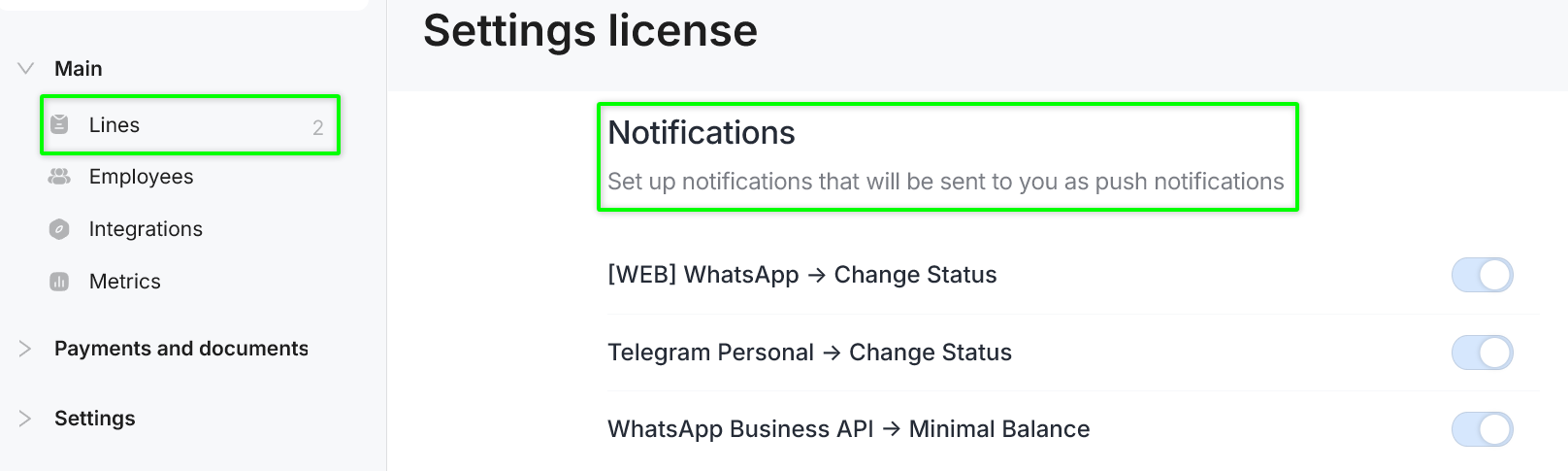
Step 7. In the «Alerts» section, enable the required notifications.
Connecting a New Telegram Account for Notifications
To connect a new account, you must terminate the active Telegram session.
- Open the Telegram account currently connected for notifications.
- Go to «Settings».
- Open the «Privacy» section.
- Navigate to «Authorized websites».
- Disable «ChatApp Notification».
After the session is terminated:
- authorization will be reset;
- the option to connect a new Telegram account for receiving notifications will become available in the personal account.
