Payment Methods and Invoices
For organizations from other countries (USD currency):
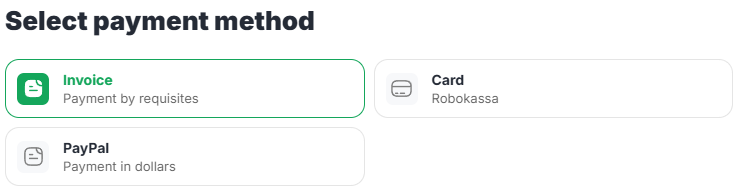
- Select the «Invoice» payment method.
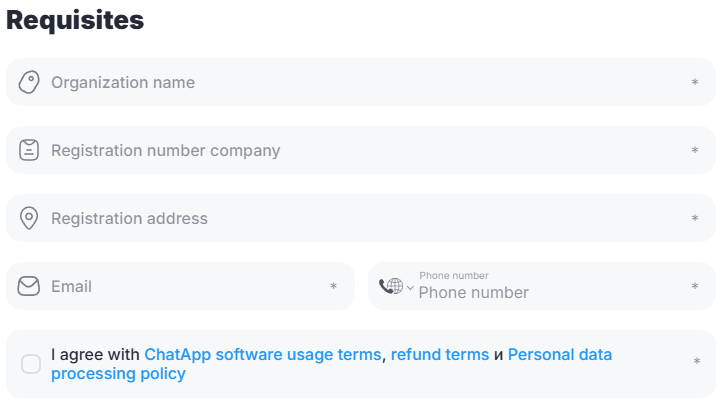
- Enter the organization name, company registration number, and registered address.
- Provide the email and phone number of the user who will receive invoices for the service.
A new invoice is generated and sent 7 days before the line expiration date.
- Review the ChatApp software usage terms, refund terms и Personal data processing policy, and confirm your agreement by selecting the corresponding checkbox.
- Click the «Pay» button — the system will generate an invoice for payment.
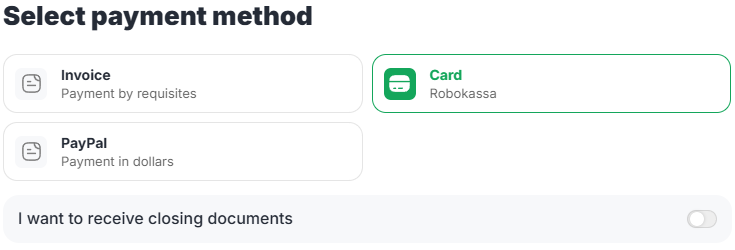
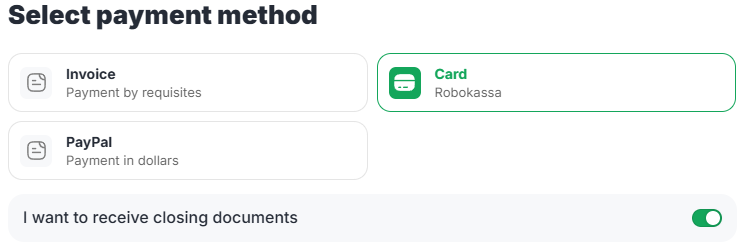
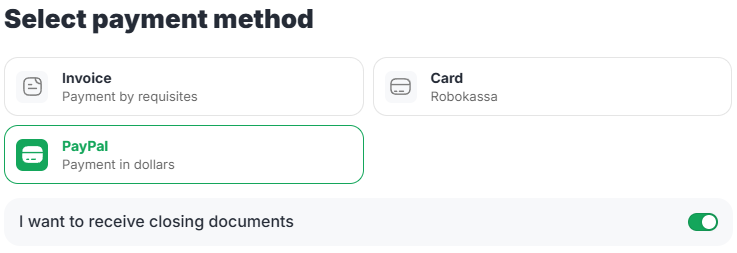
- Select the «Card» payment type.
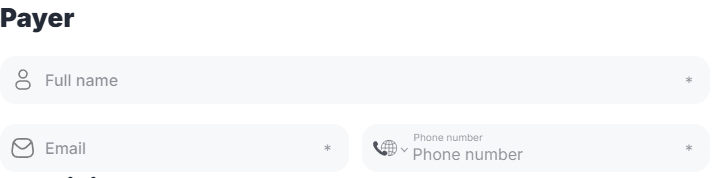
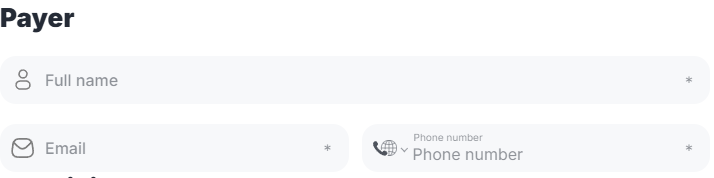
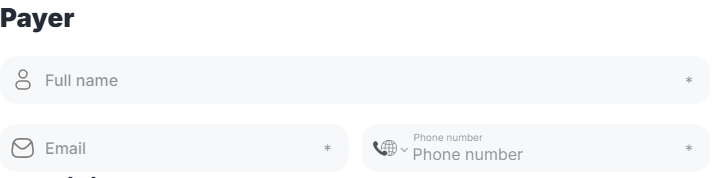
- Enter the payer details by providing the information of the person making the payment.
This information is used by ChatApp to correctly identify the payer.
The payment receipt will be sent to the specified email.
- Click the «Pay» button — the system will generate a payment link.
Payment with the opportunity to receive the closing documents.
-
Enable the «I want to receive closing documents» toggle.
-
Fill in the «Payer» section by providing the details of the entity making the payment.
This information is required by ChatApp to correctly identify the payer.
The payment receipt will be sent to the specified email.
- Enter the organization name, company registration number, and registered address.
-
Provide the email and phone number of the user who will receive invoices for the service.
-
Review the ChatApp software usage terms, refund terms и Personal data processing policy, and confirm your agreement by selecting the corresponding checkbox.
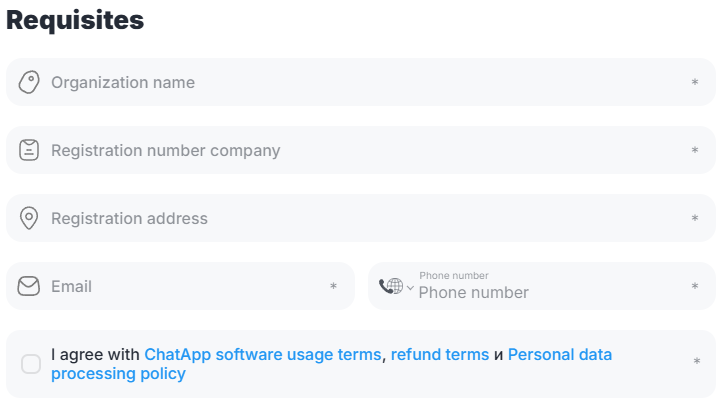
- Click the «Pay» button — the system will generate an invoice for payment.
When paying via Robokassa, the service automatically converts USD ($) to KZT (₸) at the time of payment.
- Select the «Card» payment type.
- Enter the payer details by providing the information of the person making the payment.
This information is used by ChatApp to correctly identify the payer.
The payment receipt will be sent to the specified email.
- Click the «Pay» button — the system will generate a payment link.
Payment with the opportunity to receive the closing documents.
-
Enable the «I want to receive closing documents» toggle.
-
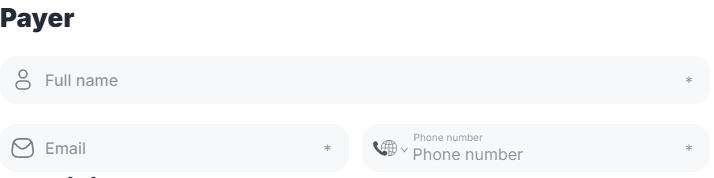
Fill in the «Payer» section by providing the details of the entity making the payment.
This information is required by ChatApp to correctly identify the payer.
The payment receipt will be sent to the specified email.
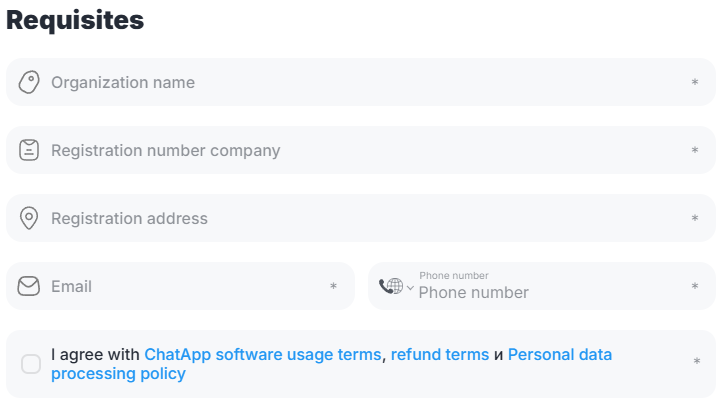
- Enter the organization name, company registration number, and registered address.
-
Provide the email and phone number of the user who will receive invoices for the service.
-
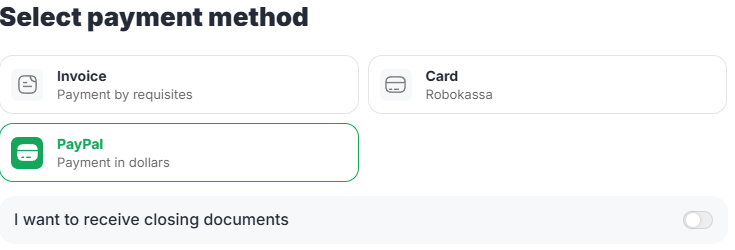
Review the ChatApp software usage terms, refund terms и Personal data processing policy, and confirm your agreement by selecting the corresponding checkbox.
- Click the «Pay» button — the system will generate an invoice for payment.
Autopayment is available when paying via PayPal.
Enable the «Autopayment» toggle to allow recurring charges without manual confirmation.
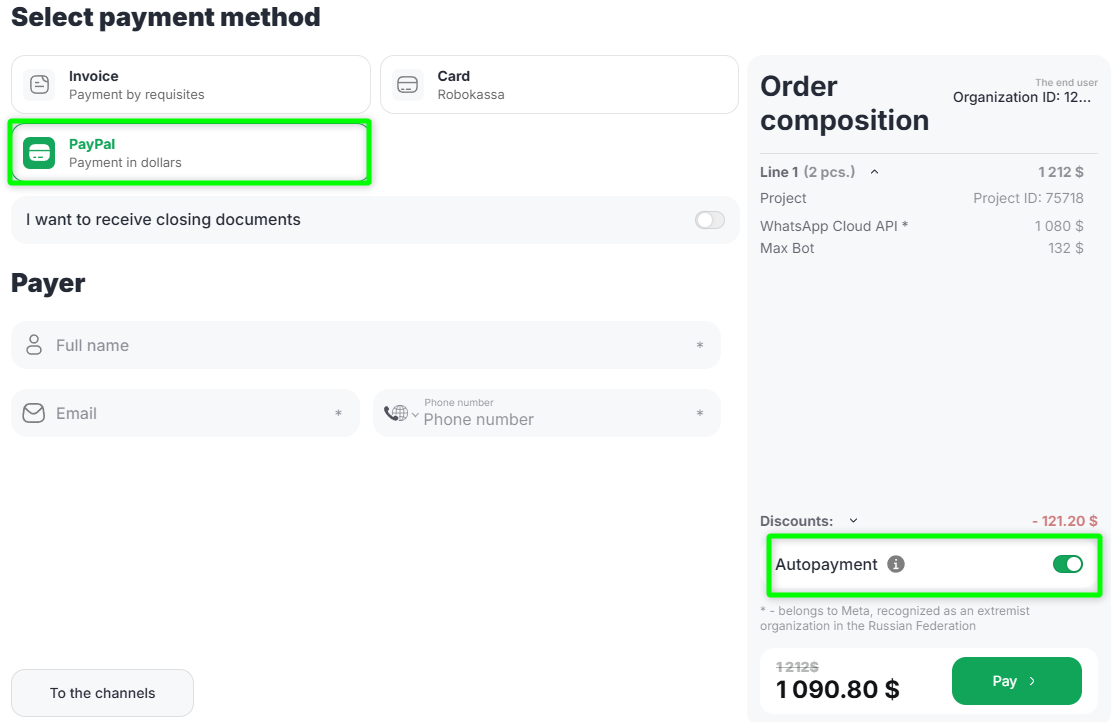
PayPal charges the funds once on the expiration date of the current line period.
Only one charge attempt is made. If the charge fails, automatic payment is disabled.
Please note that automatic payment does not apply to WhatsApp Business API dialog packages or ChatCoins.
- Select the «Bonuses» payment type.
- Click the «Pay» button — the system will deduct funds from your Bonus account.
Bonus payment is available only if there are sufficient funds.
Receiving Closing Documents
If you have not received the closing documents, please contact technical support and specify that you require closing documents, along with the company registration number.
Invoicing documents are provided in the following cases:
-
payment by invoice;
-
card payment, if the option «I want to receive closing documents» was selected during checkout.
