Creating and configuring a Bot Appointment with a specialist
Choose in which licenses the BOT will work. Make sure that the selected messengers are linked to the license
Select the company to which the bot will be linked
Enable the “Status” option, this is the button to turn on the Bot inside the settings
Enable the “Show bot title” option so that customers can see the name of your Bot

Create an Autoclosing Dialog condition and enable the option, “Close Dialogs Created Automatically”
Create a condition “Information collection” and request a phone number
Create a condition “Sign up for specialist”
Add FIO – SA parameter
– In the FIO – SA field, you need to write a phrase, it will be displayed in the Bot when the client selects a specialist, for example: Select a specialist

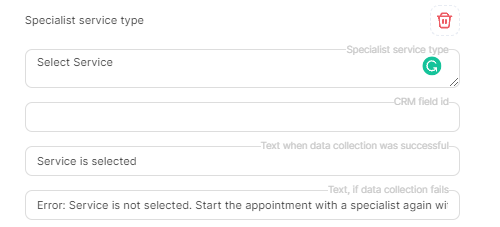
Add a Specialist Service Type parameter
– In the Specialist Service Type field, you need to write a phrase, it will be displayed in the bot when the client selects a service, for example: Select a service
Add the Date of registration of the specialist parameter
– In the Date of registration of the specialist field, write a phrase, it will be displayed in the Bot when the client selects the appointment date, for example: Select the appointment date

Add a Specialist Appointment Time parameter
– In the Specialist appointment time field, write a phrase, it will be displayed in the bot when the client selects the appointment time, for example: Select the appointment time

In the “Text when data collection was successful” field, write a phrase that the client has correctly chosen the service, specialist, time, or date.
In the “Text, if data collection fails” field, write that the data was entered incorrectly, and tell the client how to start recording again. For example, Incorrect data was entered. Start an appointment with a specialist by writing Start again.

When all parameters are added, select a company
Important: The company must be linked to your location in Altegio and the same company as in the main settings of the Bot must be selected.
In the “Text message at start” field, write a title for the head text of the appointment process.
In the “Text of Successful Entry” field, write that the client has successfully signed up for an appointment and how the client can start a new appointment. For example, Thank you, you have successfully made an appointment! To make another one write Start
In the “Text of Unsuccessful Entry”, write that the client failed to make an appointment, and tell him how to start the appointment process again. For example, Something went wrong while making an appointment. Start the meeting with the specialist again using the “Start” command
Enable the options Start on open and Start on command. The first option is to allow the chat to start as soon as the dialogue opens. The second option will allow you to start recording on command.
In the Run on command field, write a word or phrase, after entering this command, the client will start making an appointment.
