Connecting WhatsApp
To connect, you will need a smartphone with the WhatsApp* or WhatsApp Business* application installed and the account to be connected. New messages from WhatsApp are displayed in Scenario Dialogs — a workspace for managing chats. To upload the message history from existing chats, perform a chat history import.
Step 1. Open WhatsApp Business and tap “Agree and Continue.”
Step 2. Enter the landline phone number and tap “Next.”
Step 3. Confirm the action by tapping “OK.”
Step 4. Wait until the buttons become active.
Step 5. Select “Call me.”
Step 6. Tap “Not now.”
Step 7. Answer the incoming call and enter the code dictated by the automated system.
Done — the landline number has been added to WhatsApp and can now be connected to ChatApp.
Connecting WhatsApp to ChatApp
Step 1. In your personal account, open the “Lines” section and click on the line with the WhatsApp channel — the line settings window will open.
Step 2. In the line settings, click the “Connect” button next to the WhatsApp channel.
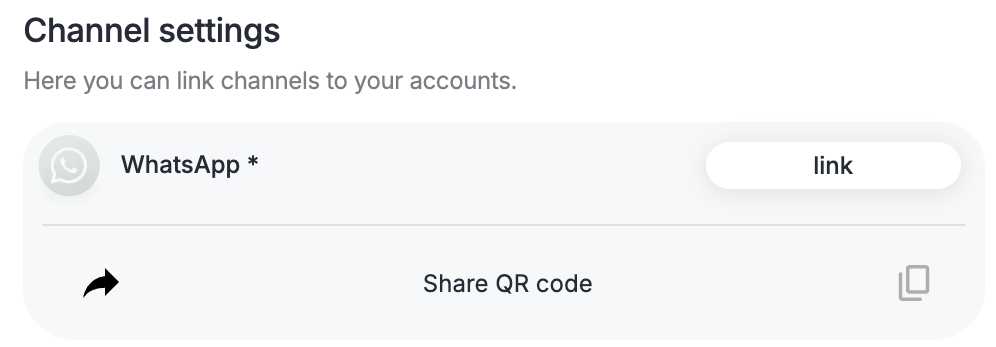
If the device with the WhatsApp account to be connected is with another person, click the “Share QR Code” button and send it to them so the connection can be completed remotely.
Step 3. Scan the QR code using the WhatsApp or WhatsApp Business application.
iOS: Settings → Linked Devices → Link a Device.
Android: three dots in the upper-right corner → Linked Devices → Link a Device.
If the WhatsApp account has just been registered or was connected on a new device before being connected to ChatApp, it is recommended to “warm up” the account within 24 hours by communicating with contacts (at least 10–15 contacts). Connecting a new account immediately after registration may result in a block by WhatsApp.
After successful connection, the connected phone number will be displayed for the WhatsApp channel.

For stable channel operation, open WhatsApp on the phone at least once every two weeks. Otherwise, WhatsApp may disconnect the account from linked devices, and the channel will need to be reconnected.
Set up automation to distribute chats between departments or specific employees. When employees work through Scenario Dialogs, team performance metrics are generated for the manager.
Connect ChatApp to your CRM:
so that deals are created automatically for new messages and conversations are also saved in the CRM.
- Connecting ChatApp to Bitrix24
- Connecting ChatApp to amoCRM
