Connect ChatApp to Altegio to set up automatic notifications for clients about appointments and communicate with clients using ChatApp.
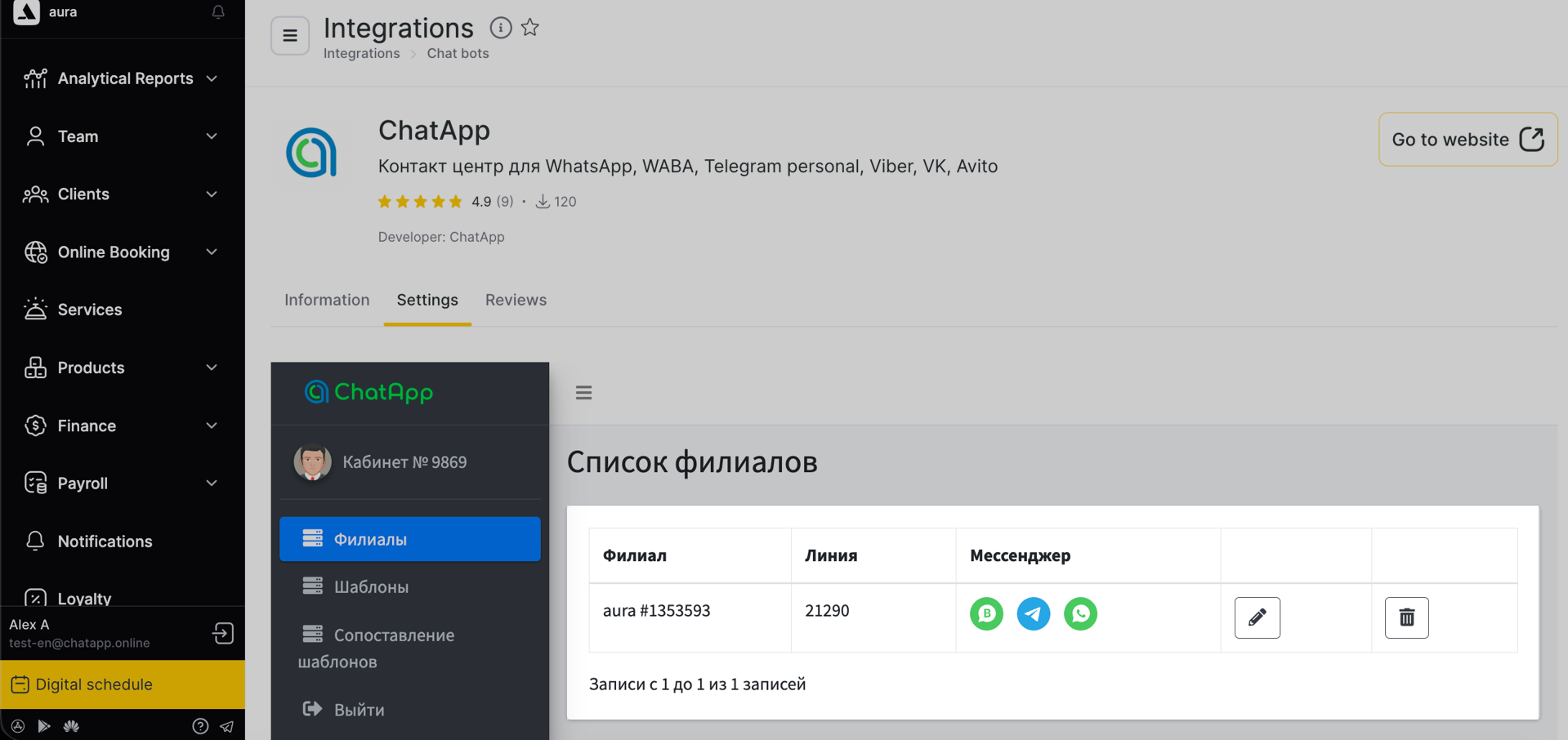
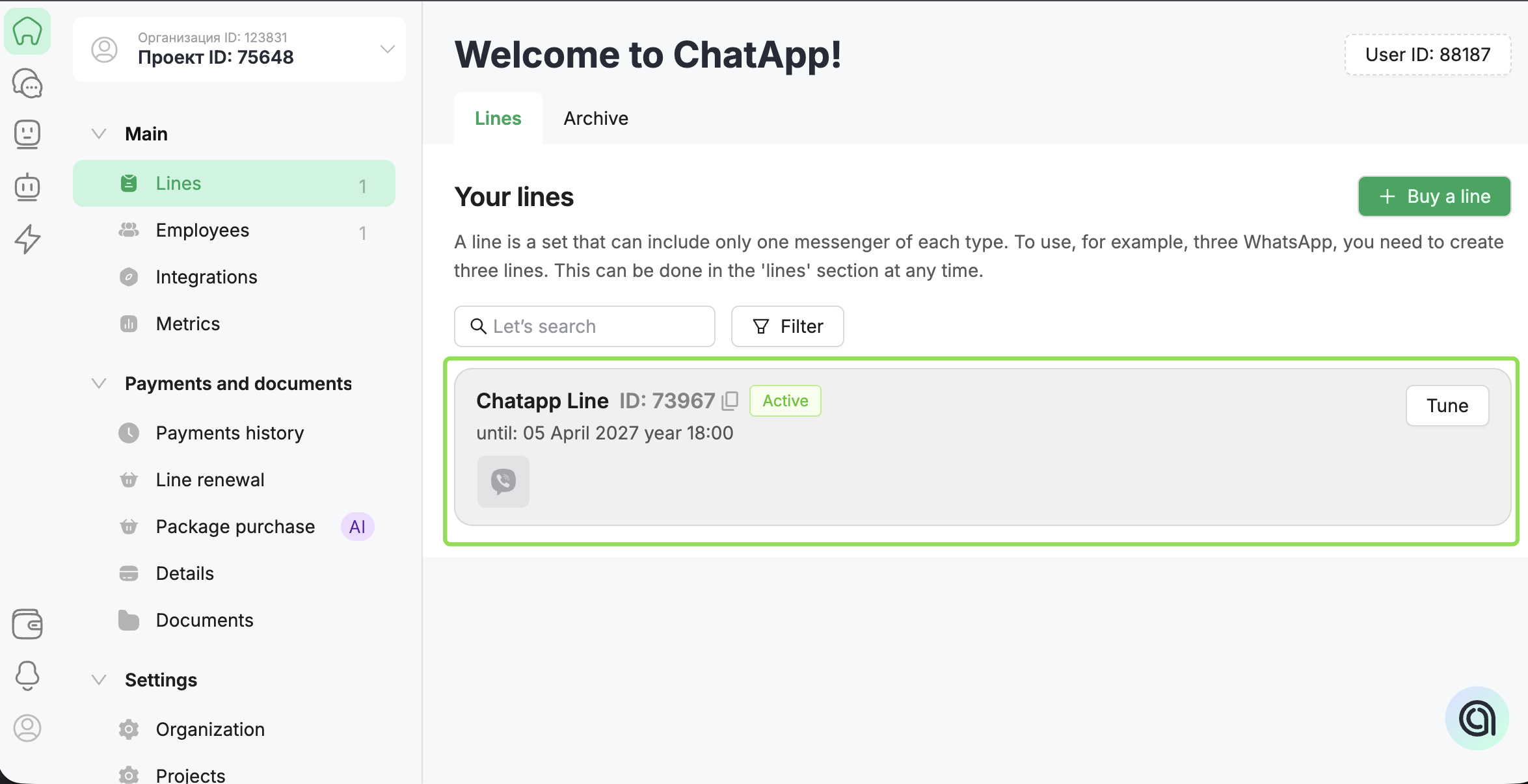
Step 1. In Altegio, go to the “Administration” → “Integrations” section Step 2. In the search, enter ChatApp → “Connect” → “Continue”. Step 3. Enter the login and password for your ChatApp account — the account ID will be displayed. Step 4. In the list of branches, click the pencil icon next to the required branch. Step 5. Select a line → enable the required channels and click “Save”.
After saving the settings, icons of all connected ChatApp channels will appear for the branch.
Activate the Altegio subscription ChatApp in Altegio works in demo mode for 2 days, after which the integration is paused. To avoid interruption of the integration, activate the subscription in your ChatApp account.
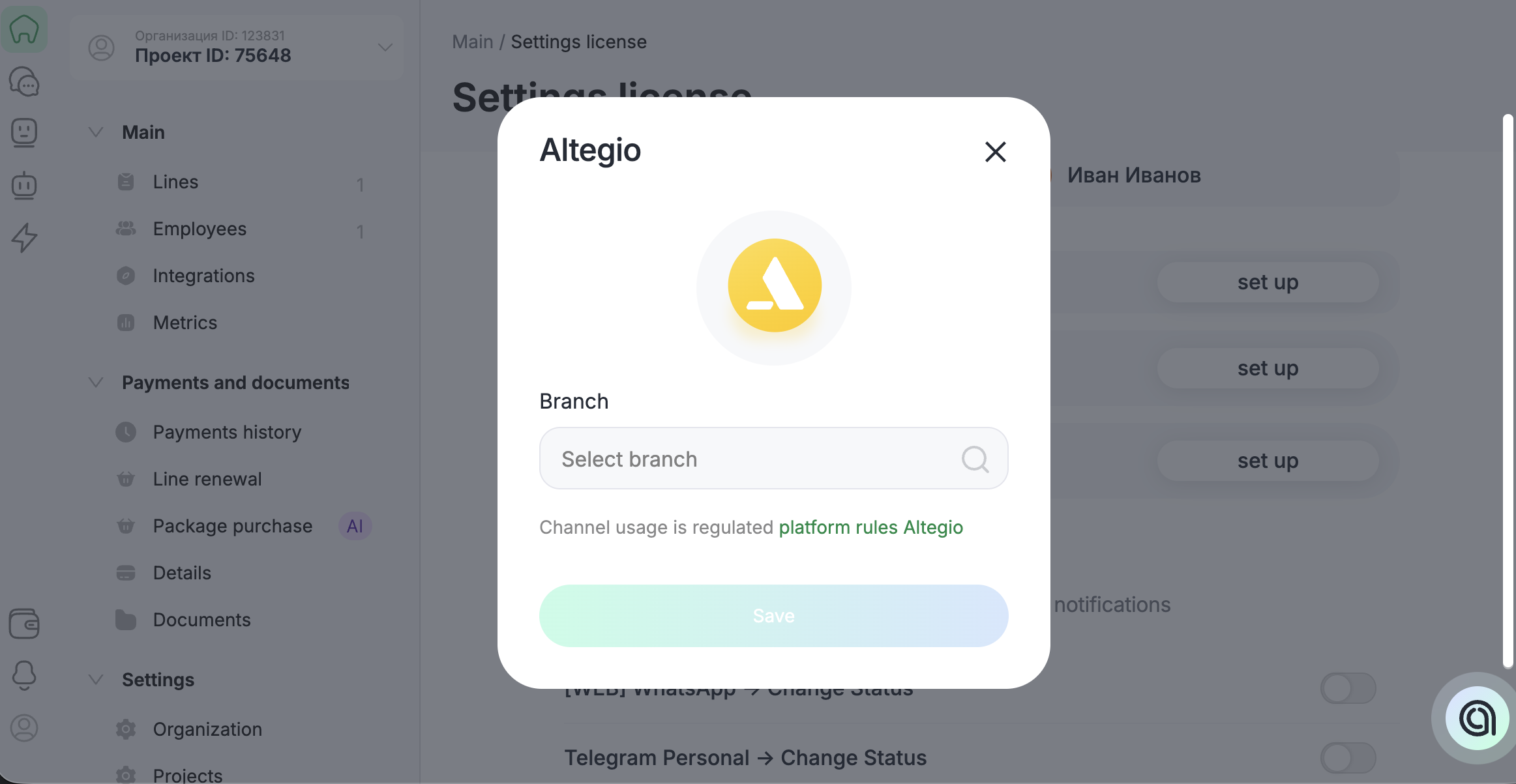
Step 1. In the ChatApp account, go to line settings. Step 2. In the CRM section, link the Altegio branch.
The subscription in Altegio is activated according to the payment date of the ChatApp line. If the subscription in Altegio is not activated — contact ChatApp support.