How to correspond
You can communicate with clients in Bitrix24 in two ways — choose the one that is more convenient for your team.
1. Bitrix24 Open Channel chats.
Managers work through the standard Open Channels interface. Messages from messengers connected via ChatApp are displayed in Open Channel chats.
How to work in Open Channels — read the article.
2. Scenario Dialogs by ChatApp.
A multichannel dialog window where all messages from messengers connected to ChatApp are collected. Managers don’t need to switch between different windows — all communication is handled in one place, which simplifies searching and processing dialogs.
Scenario Dialogs in Bitrix24 can be opened in two ways:
• in an iframe window
• in a separate browser tab
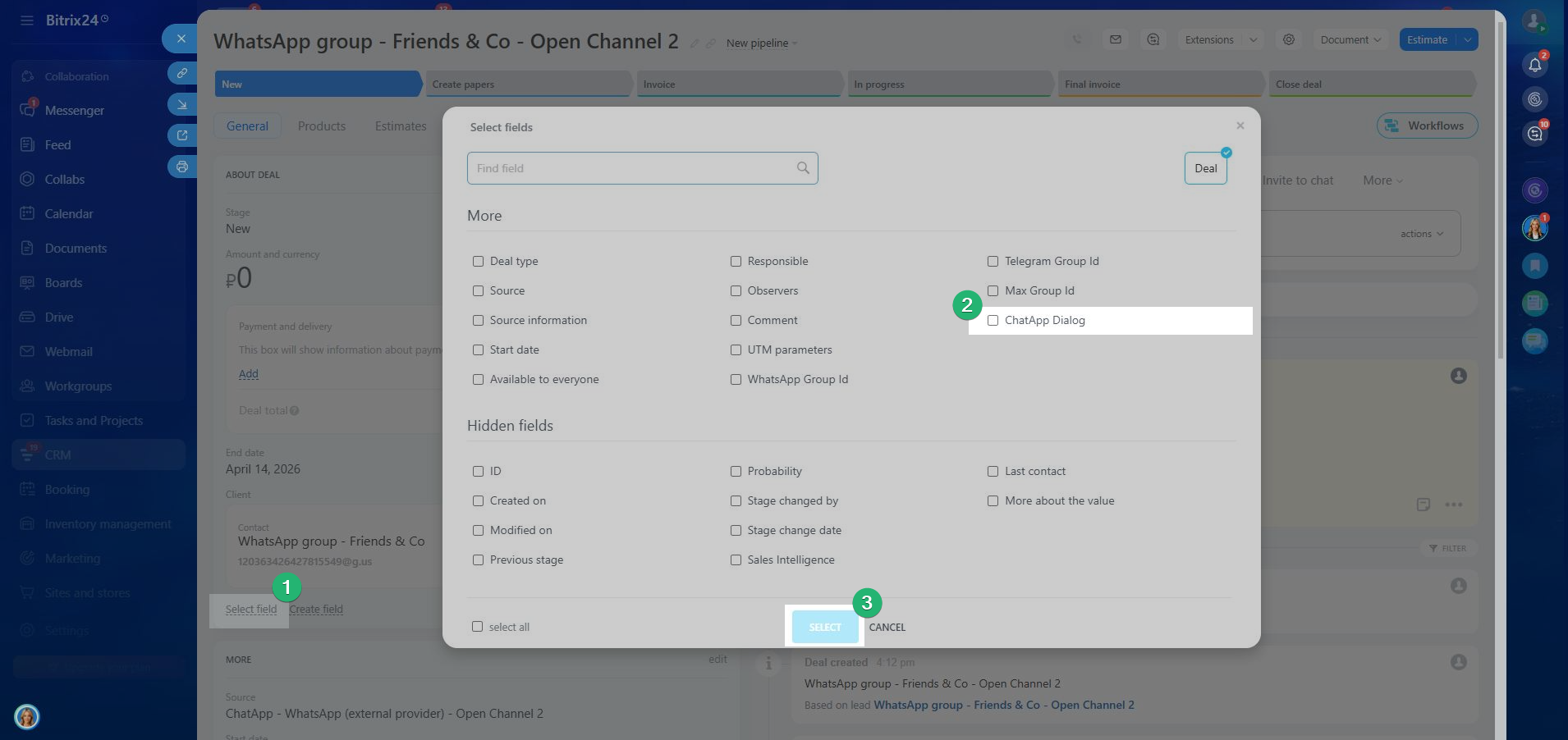
Step 1. Open the client card — lead, deal, contact, or company.
Step 2. In the left part of the interface, where the client card is located, select the section where you want to display the “Scenario Dialogs” button.
Step 3. Click “Select field” and check the box next to the ChatApp Dialog field → click “Select” to save the changes.
After that, the ChatApp Dialog button will appear in the client card.

Click it — a new tab with Scenario Dialogs will open, with a filter applied for the current client. If there is already a dialog with this client, it will be displayed immediately in the chat list. To remove the filter and see all dialogs, click the “Reset” button.
1. From the client card
Open the client card — (lead, deal, contact, or company) — and go to the ChatApp Dialog tab.
Scenario Dialogs will open in an iframe window with a filter applied for the current client. If there is already a dialog with this client, it will be displayed immediately in the chat list. To remove the filter and see all dialogs, click the “Reset” button.

2. Through the Bitrix24 left menu
In the left menu of Bitrix24, click on “ChatApp Dialog”.
Scenario Dialogs will open with all chats without any filters applied. If necessary, you can configure a filter and save it.

3. Through the ChatApp application
In the left menu of Bitrix24, open the “ChatApp” application and click the ChatApp Dialog button.
Scenario Dialogs will open with all chats without filtering. If needed, you can configure and save a filter for working with dialogs.

