Working with helpline chat services
If you use Bitrix24 Open Channel chats, you can start a conversation with a client directly from the CRM card. How to set up Open Channels — read the article.
Step 1. Open the client card — lead, deal, contact, or company.
Step 2. Go to the ChatApp tab.

If multiple Open Channels are connected, a window will appear showing:
• ChatApp line ID and the name of the Open Channel.
Click the arrow next to the name to select another Open Channel.
• client’s phone number;
• messenger icons connected to the selected Open Channel.
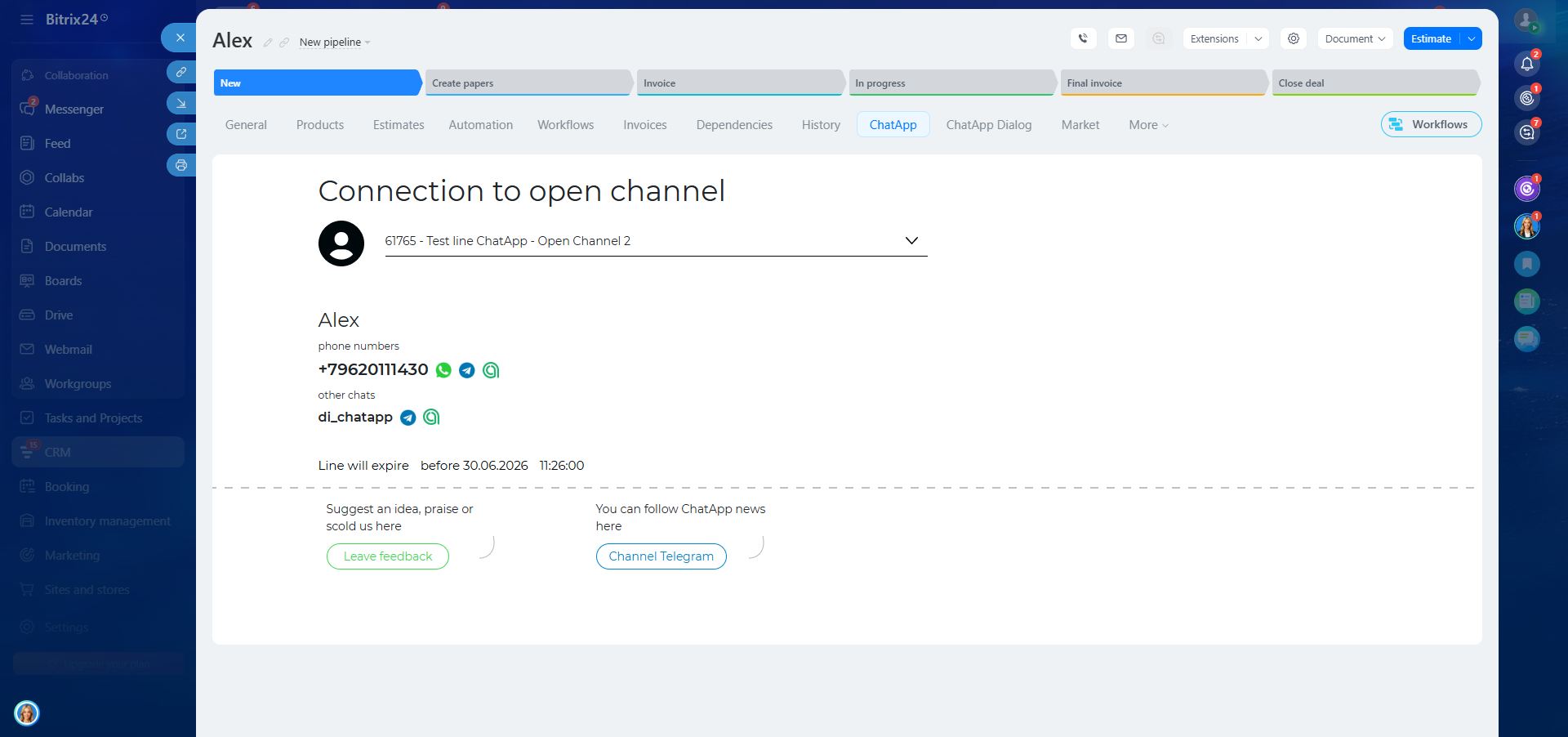
The display of icons depends on which ChatApp channels are connected to the selected Open Channel. Messenger icons can be of two types:
• Colored icon — the client’s number is found in the messenger, you can message the client.
• Inactive icon — the number is not registered in the messenger or you need to check the channel connection in the ChatApp line and the connector for that channel.
When hovering over a grey icon, a tooltip appears explaining why the icon is inactive.
In this window, click the icon of the desired messenger — you will be redirected to the chat with the client in Open Channels, where you can start the conversation.
Step 1. Open the “Contact” entity and enter the client’s username in the E-mail field, adding the required suffix @telegram.chatapp.online.
Example: ivan123@telegram.chatapp.online
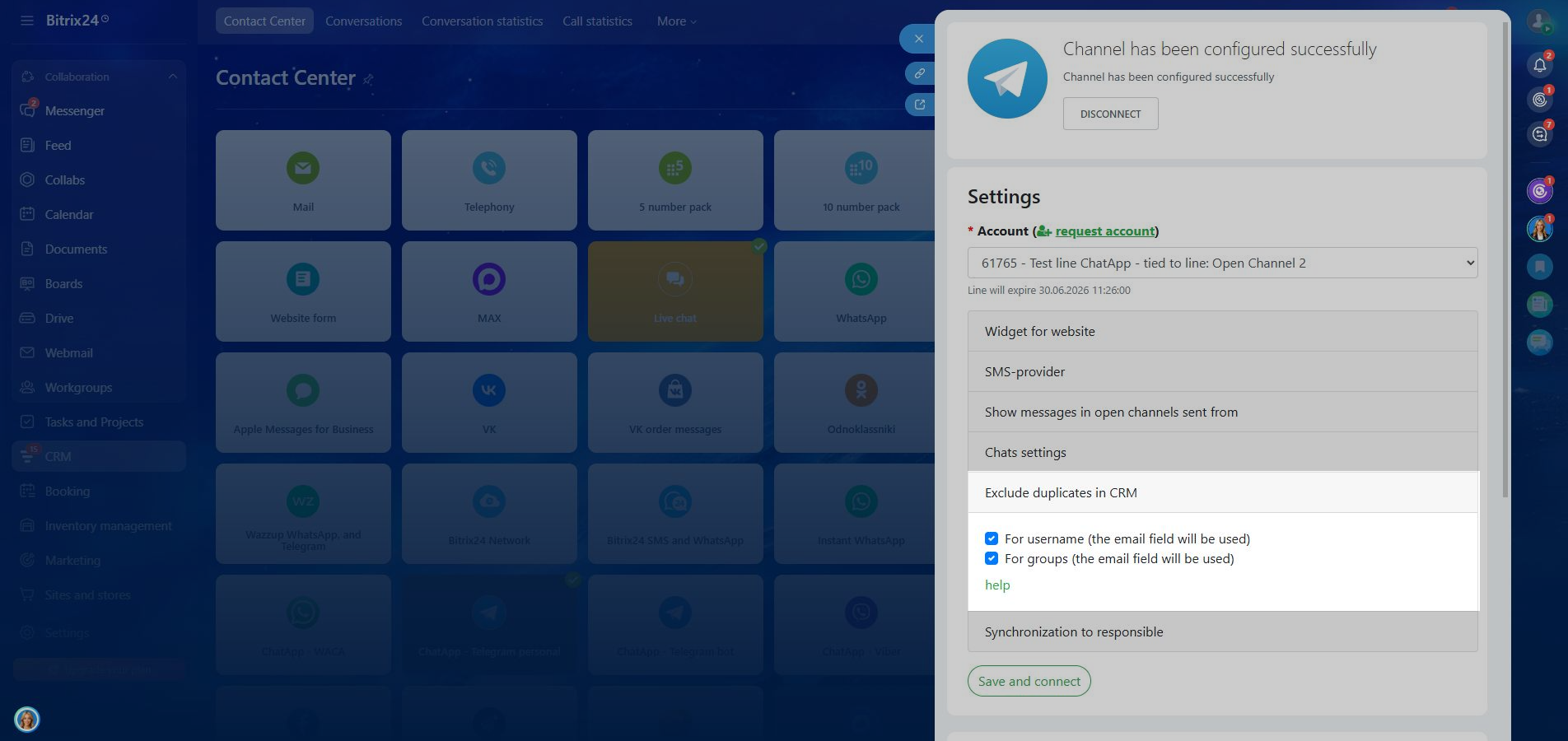
Step 2. Go to the ChatApp-Telegram connector settings and make sure the parameter is enabled: “Exclude CRM duplicates” → “For username”.
This setting allows the system to automatically save the client’s username in the E-mail field if the client writes to the Open Channel and their phone number is hidden but a username is available. If the parameter is disabled, the system will not be able to save the client’s username.

Message a client via username through Open Channels:
Step 1. Open the client card → go to the ChatApp tab.
Step 2. Click the Telegram icon — the Open Channel chat will open.
To select another Open Channel, click the arrow next to the line name.
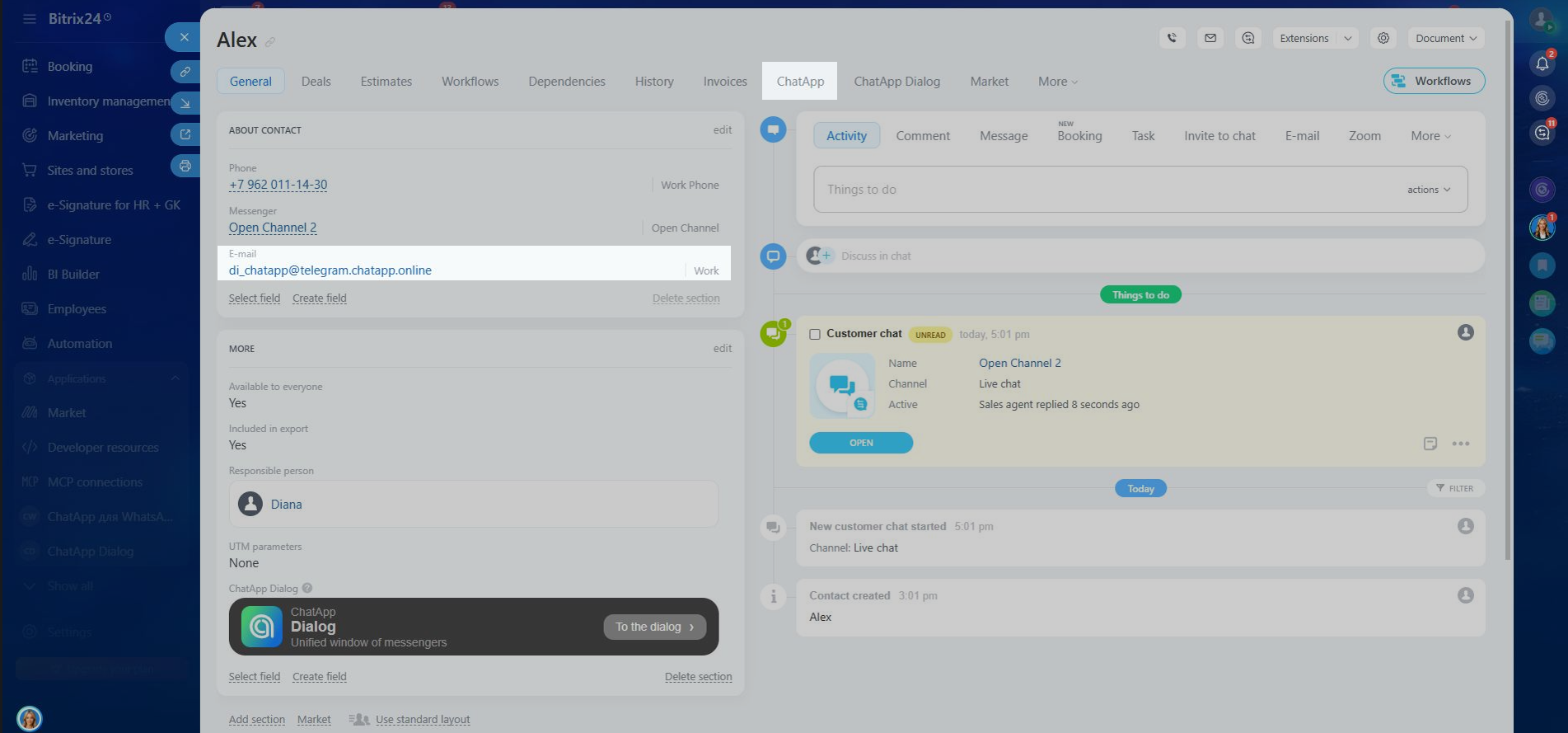
If the Telegram icon is grey — hover over it to see the reason.
The Telegram icon may be grey if:
— Telegram is not connected to the ChatApp line; or
— the Telegram connector is not configured; or
— the username is not found in Telegram.
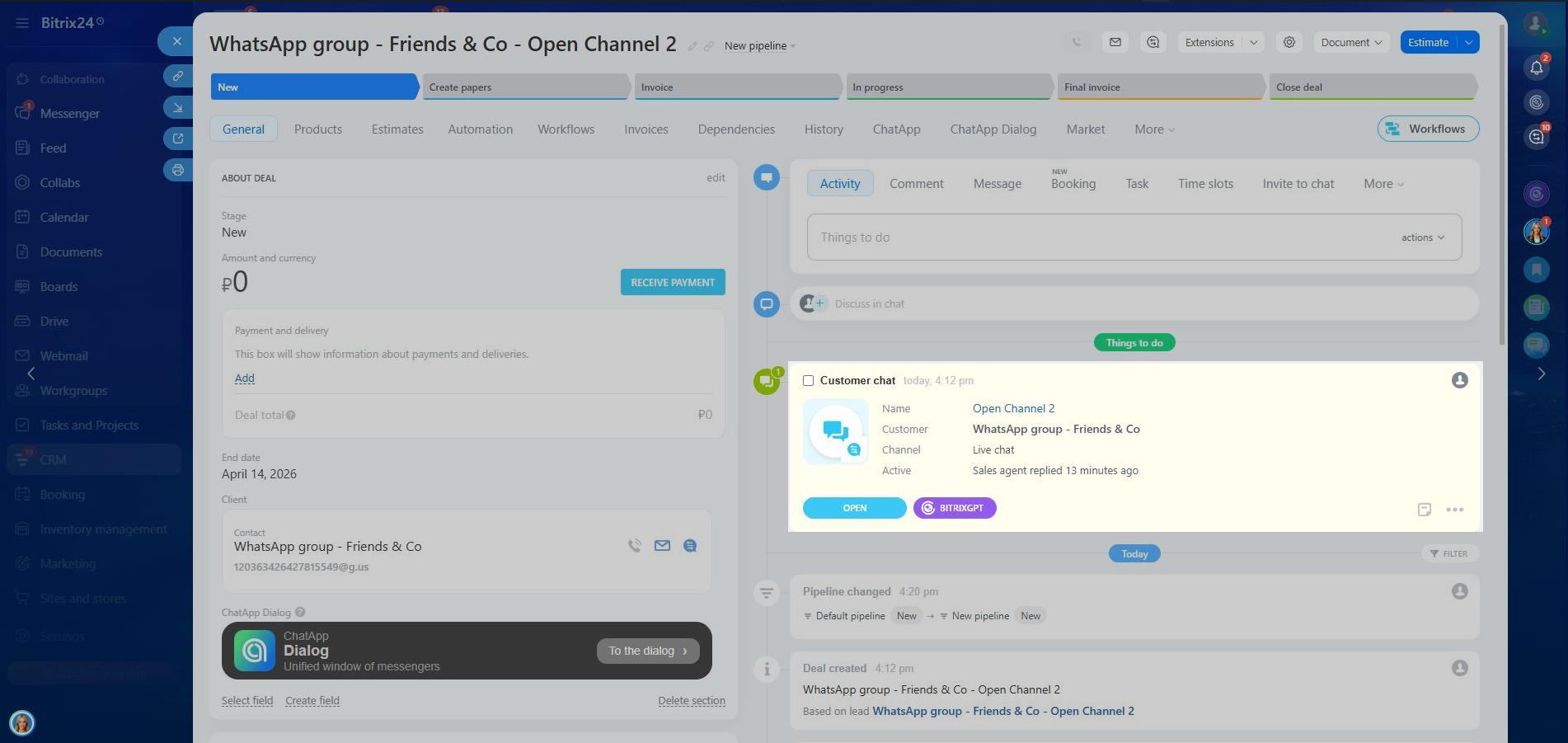
A group chat appears in Open Channels after the first incoming message from the group. After that, you can send messages to the chat.
To open the chat:
open the CRM card linked to the group chat.
There are two ways to open the chat:
— in the timeline, if there is a “chat with client”, click “Open” — the group chat will open;
— or go to the ChatApp tab → click the messenger icon — the same chat will open.


Step 1. Open the Open Channel chat where you want to send a voice message.
Step 2. In the bottom menu, click the icon with windows → select ChatApp — Voice Message → click the record icon (no need to hold) and start recording.
During recording, you can pause or re-record.
Click “Finish” — after that, options “Record again” or “Send” will appear.

Open the client card → go to the ChatApp tab → click the WhatsApp icon. The WhatsApp icon can appear in green, grey, red, or black.
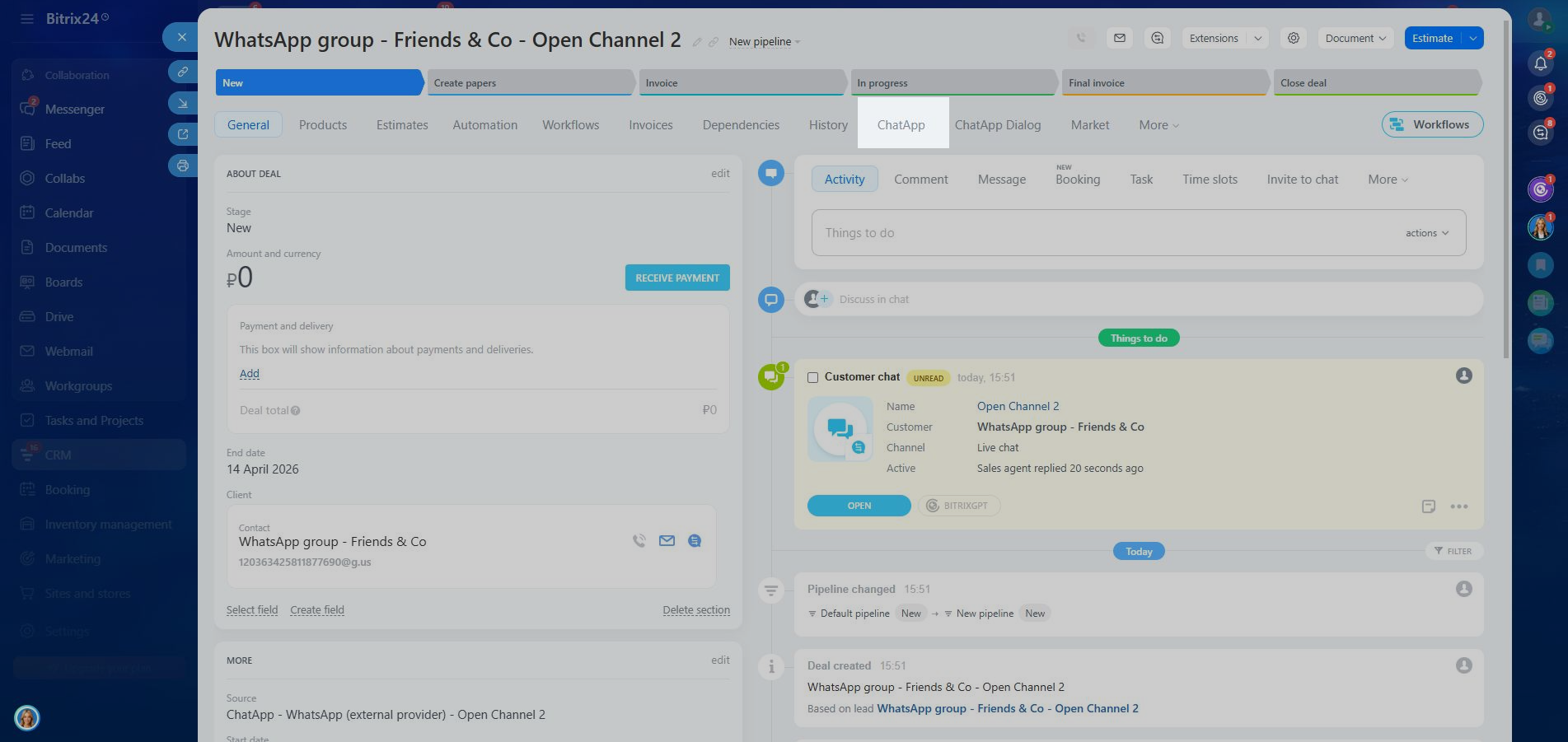
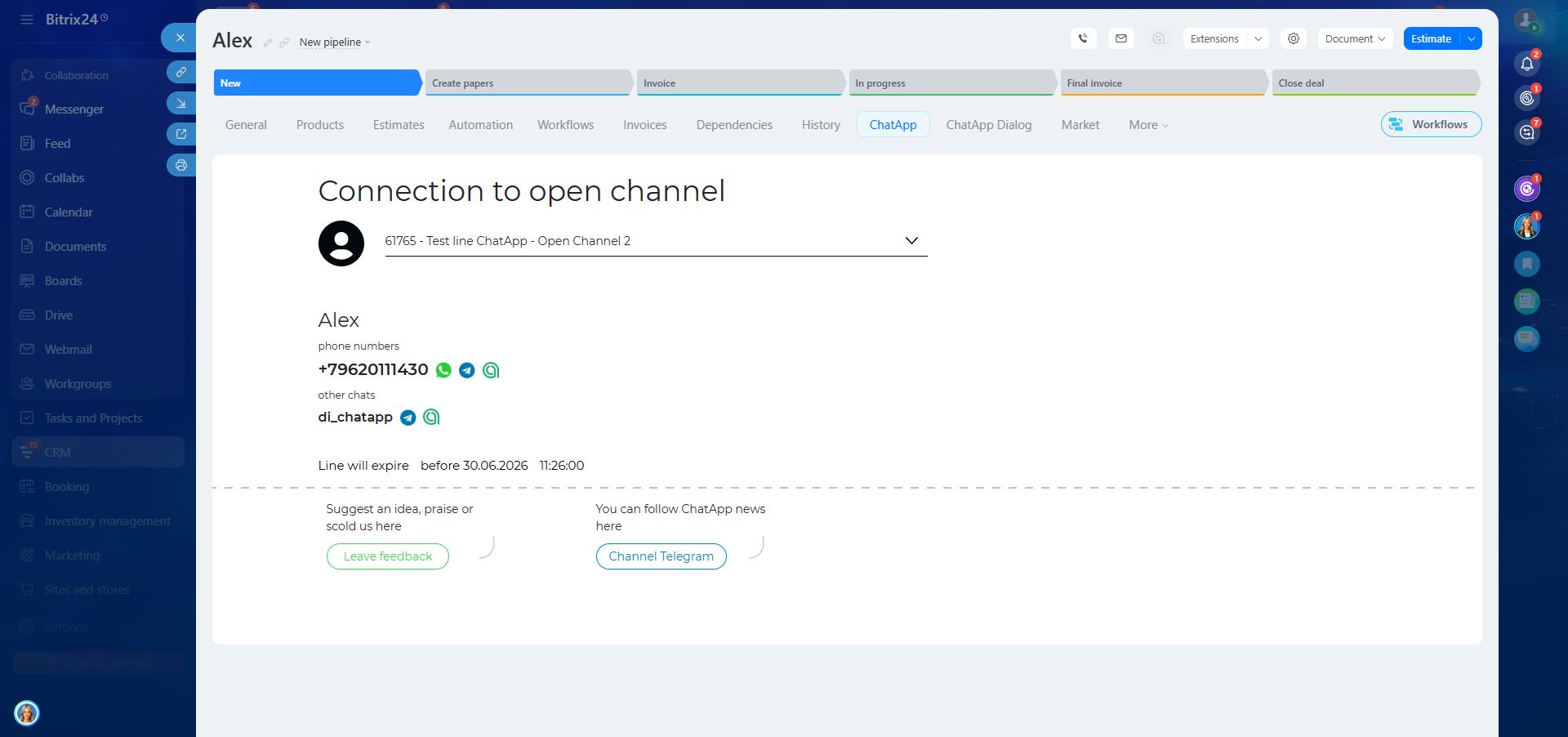
The icon color indicates the status of the 24-hour messaging window:
• Green icon — the 24-hour window is open, you can send messages without a template.
• Grey icon — the number is not registered in WhatsApp (the check works only if WABA or WhatsApp Web is connected in the same Open Channel).
• Red icon — the 24-hour window is closed, send a template message.
• Black icon — there has been no prior conversation with this number.
After clicking the icon, you will be redirected to the Open Channel chat with the client.
In the Open Channel chat, in the message input field toolbar → click the icon with two windows (template selection) → choose:
• ChatApp WABA Templates — if you use WhatsApp Business API;
• ChatApp WACA Templates — if you use WhatsApp Cloud API.
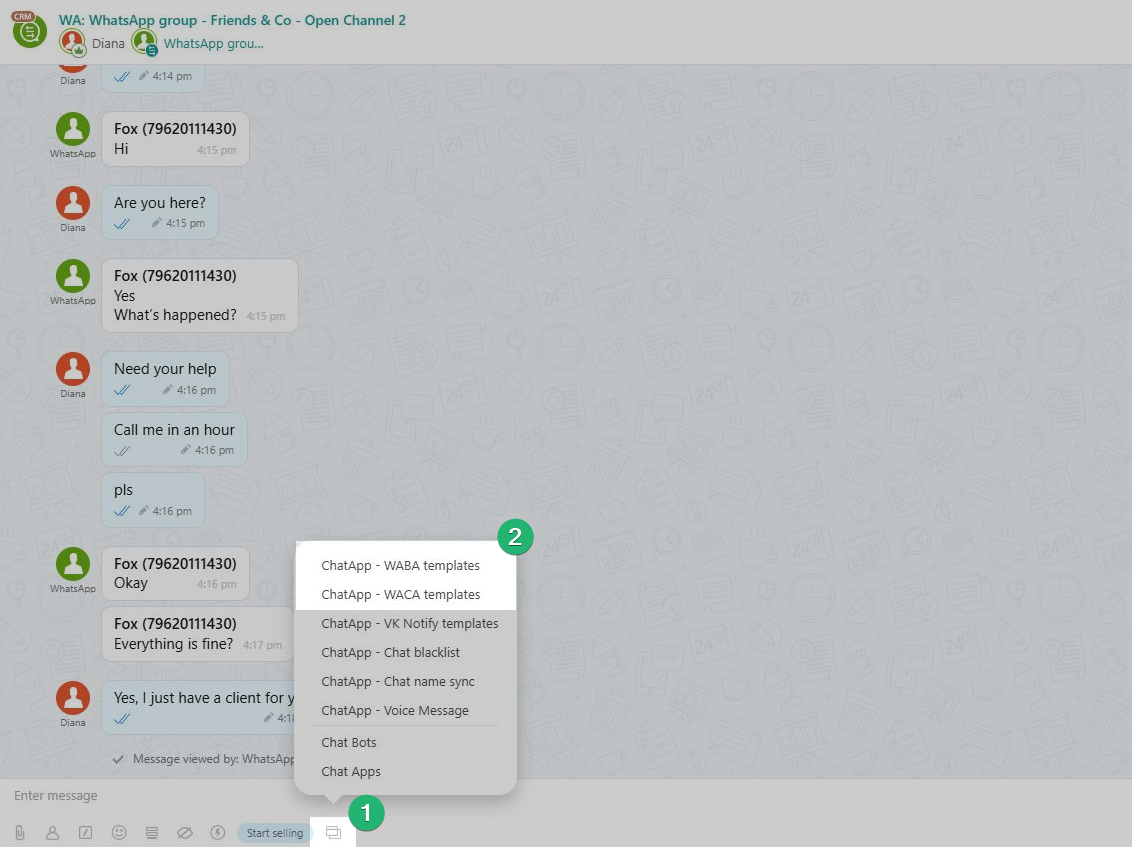
When sending template messages in the Open Channel chat, a system message is displayed: “FTC session opened (valid for 24 hours)”.
If necessary, this notification can be disabled in the connector settings. In the section “Show notifications in Open Channels”, uncheck the option and save the changes.
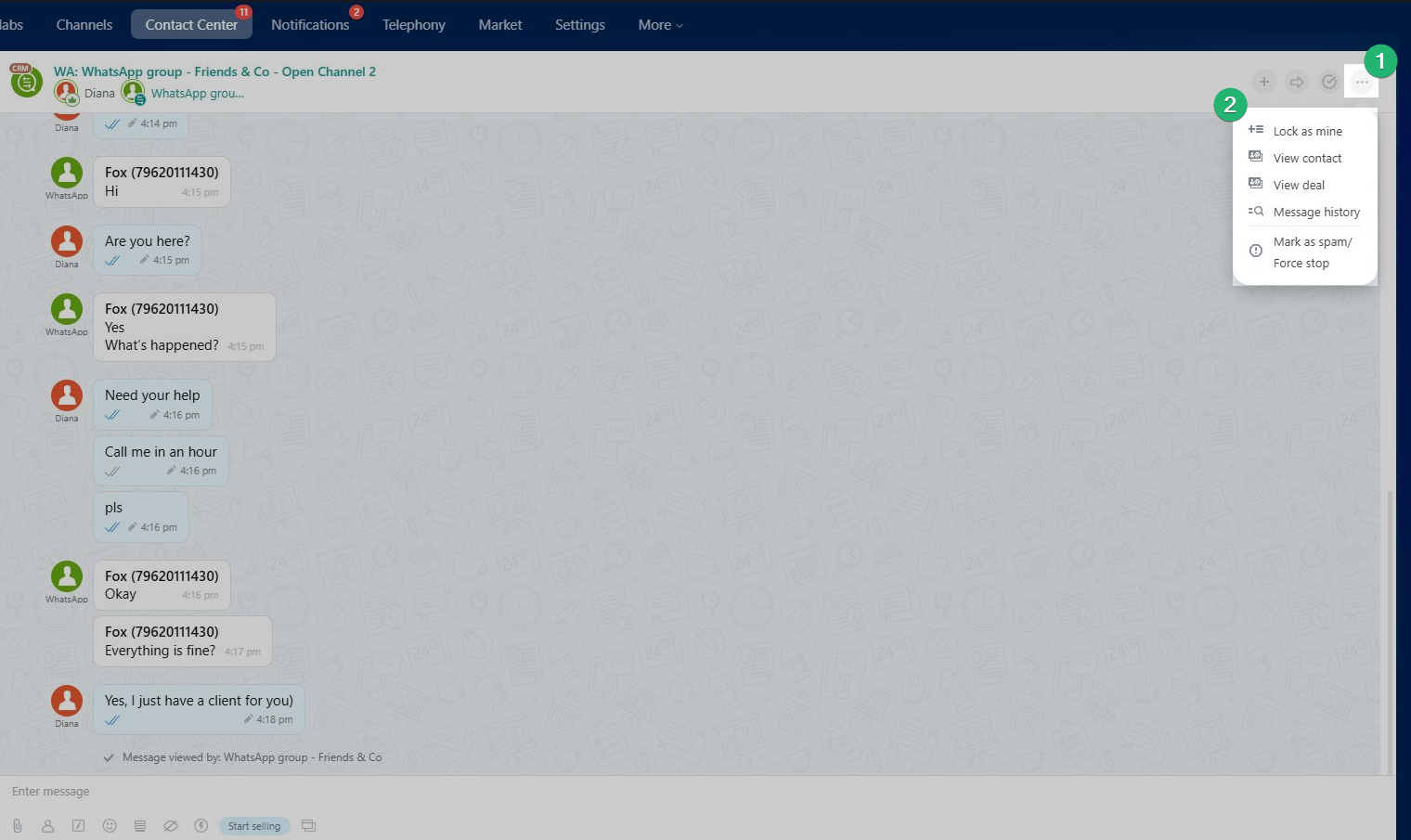
Step 1. Go to the Open Channel chat → click the three dots in the top right corner.
Step 2. The menu will contain a link to the associated entity.
The linked Open Channel chat is also displayed in the CRM card timeline.
You can block a chat directly from the Open Channel chat in Bitrix24.
Step 1. Open the Open Channel chat you want to block.
Step 2. In the bottom menu, click the icon with windows and select:
ChatApp – Chat Blacklist → Block.

The group channel must be connected to the ChatApp line and
the ChatApp connector for the same channel must be connected in the Contact Center.
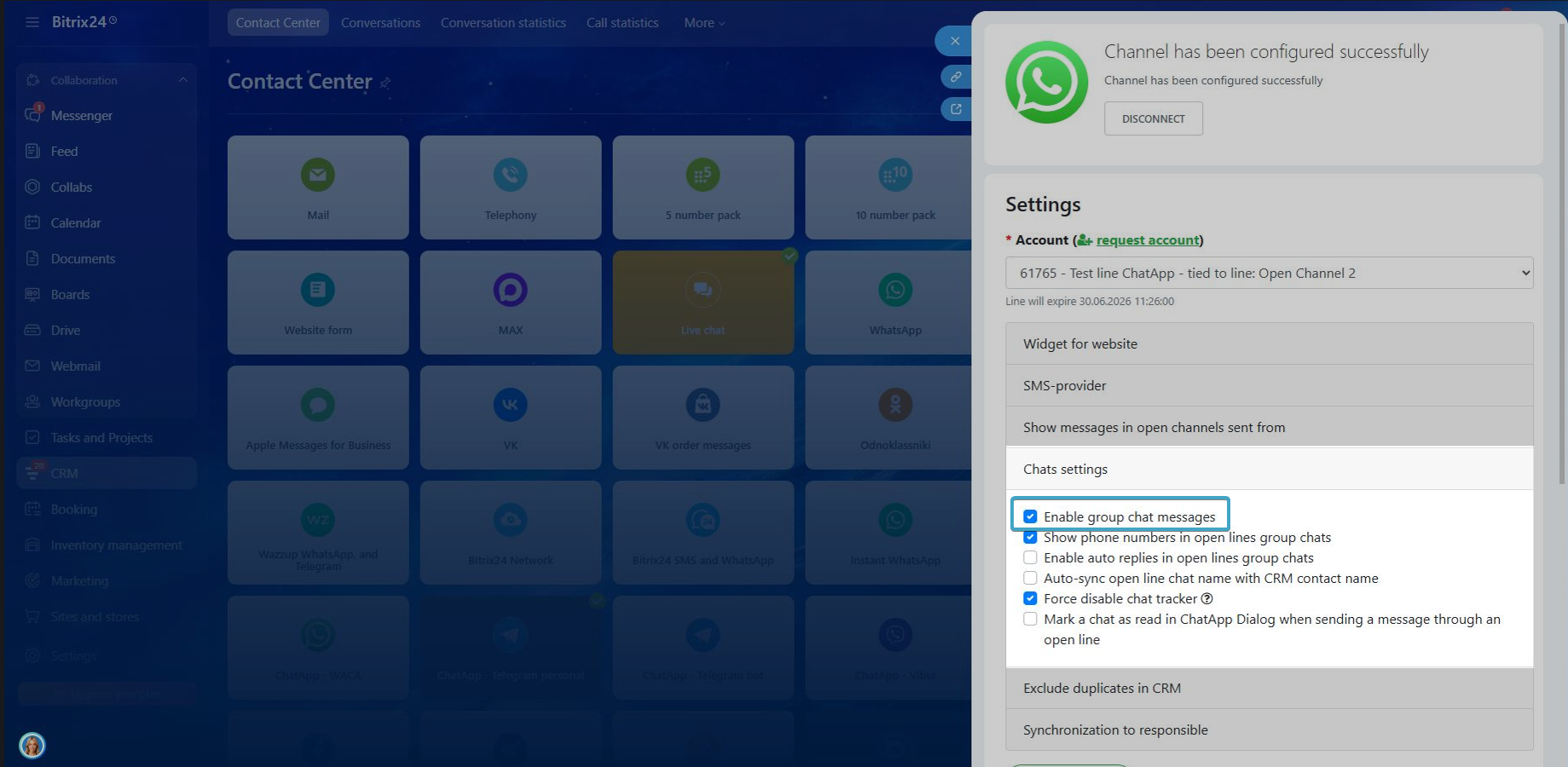
Step 1. Go to Contact Center → click the ChatApp connector (for the required channel) → Edit.
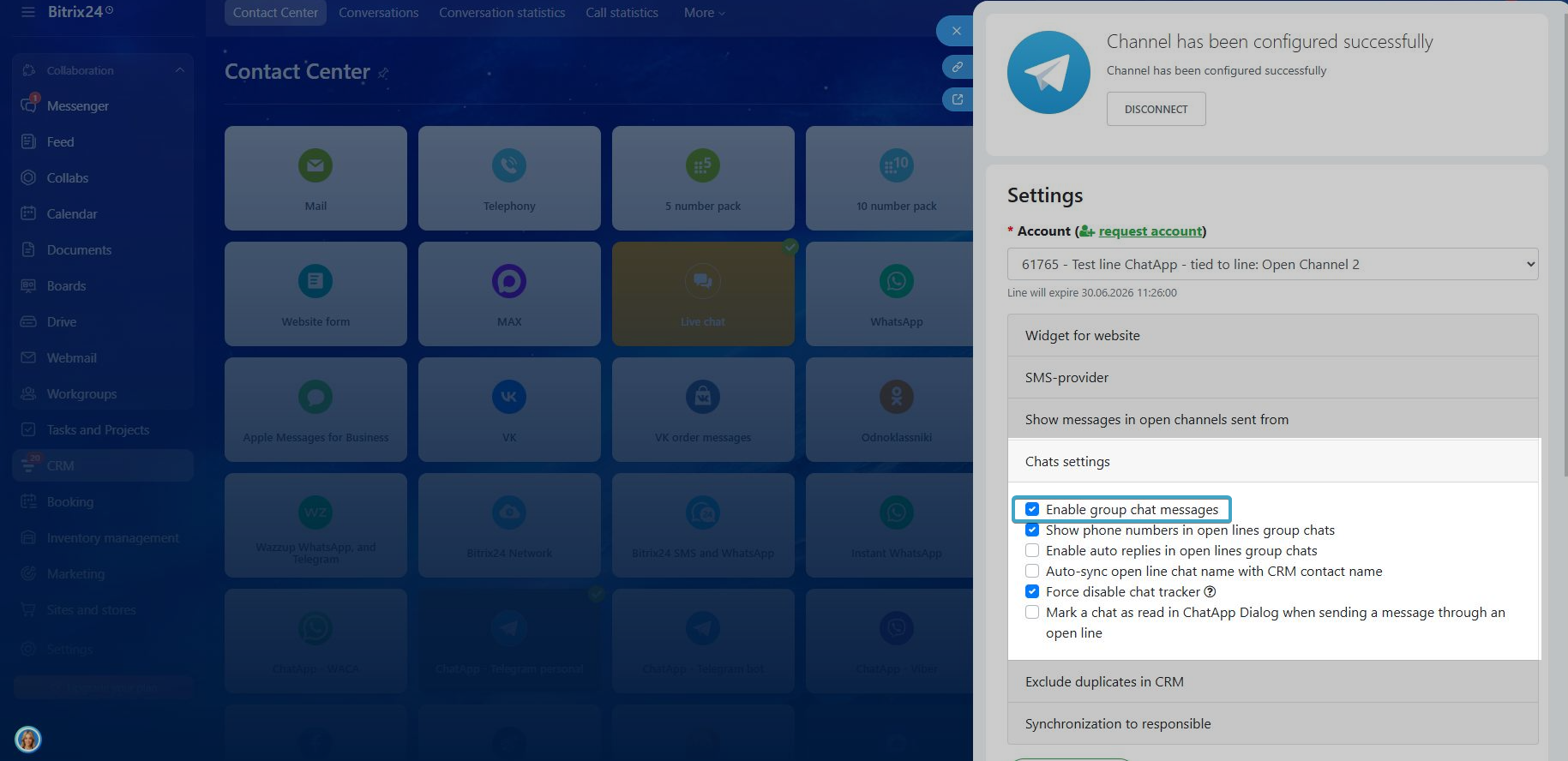
Step 2. In the connector settings, go to “Chat settings” → make sure the option “Messages from group chats” is enabled.
Telegram must be connected to the ChatApp line and
the ChatApp-Telegram connector must be connected in the Contact Center.
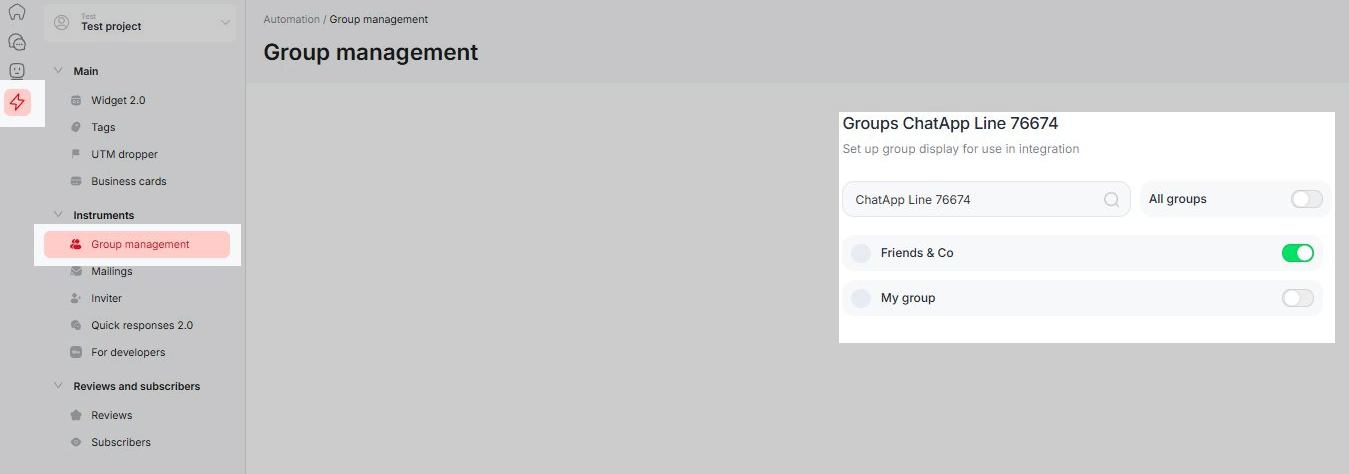
Step 1. In the ChatApp account, go to “Automation” → “Group Management” → select the line → make sure the group is enabled.
Step 2. In Contact Center → click the ChatApp-Telegram connector → Edit → Chat settings → enable the option “Messages from group chats”.