Company Verification in Meta Business Suite
Access to certain products and features may require company verification in Meta Business Suite.
Verification allows Meta to confirm that the business portfolio belongs to a legally registered company or organization.
After company verification, you:
- confirm that the company is registered as a legal entity;
- confirm your right to represent the company (via verification code or domain verification);
- gain access to:
- additional billing and spending options;
- advertising solutions;
- developer features;
- increase official WhatsApp limits:
- unverified company — up to 250 initiated conversations per day;
- verified company — up to 2,000 conversations per day (with the possibility of further increases).
Preparation for Verification
Before submitting an application, you must complete the company information.
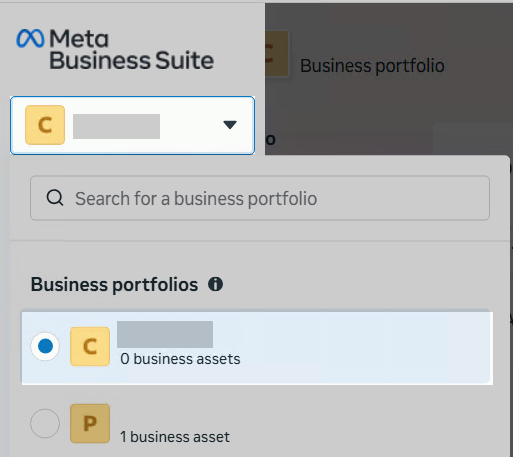
- On the Meta Business Suite homepage, click the company name banner.
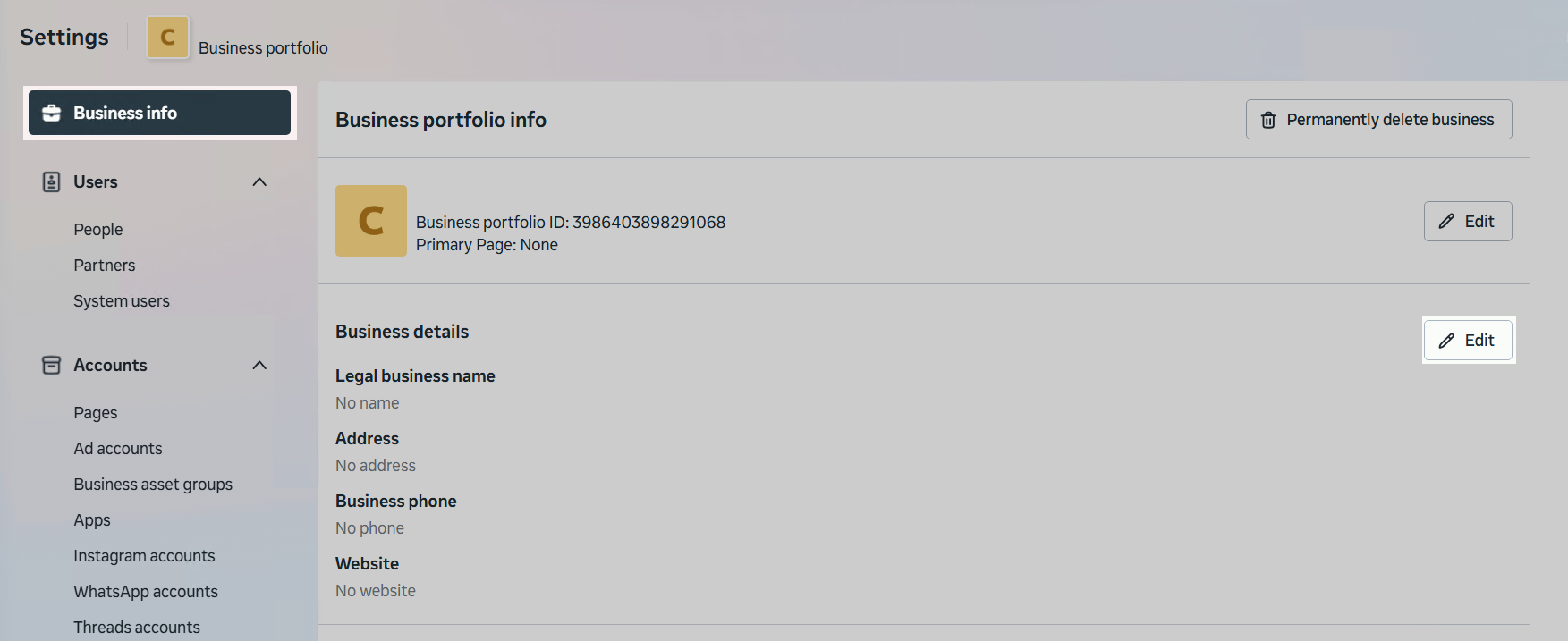
- In the left menu, open the «Business info» section.
- Click «Edit» and complete the company details. Detailed instructions are available in the article «Registering a Company on Facebook».
- Make sure that:
- the company has an employee with a verified email address;
- the employee has two-factor authentication (2FA) enabled.
See the instructions: «Adding an Employee in Facebook Business Manager».
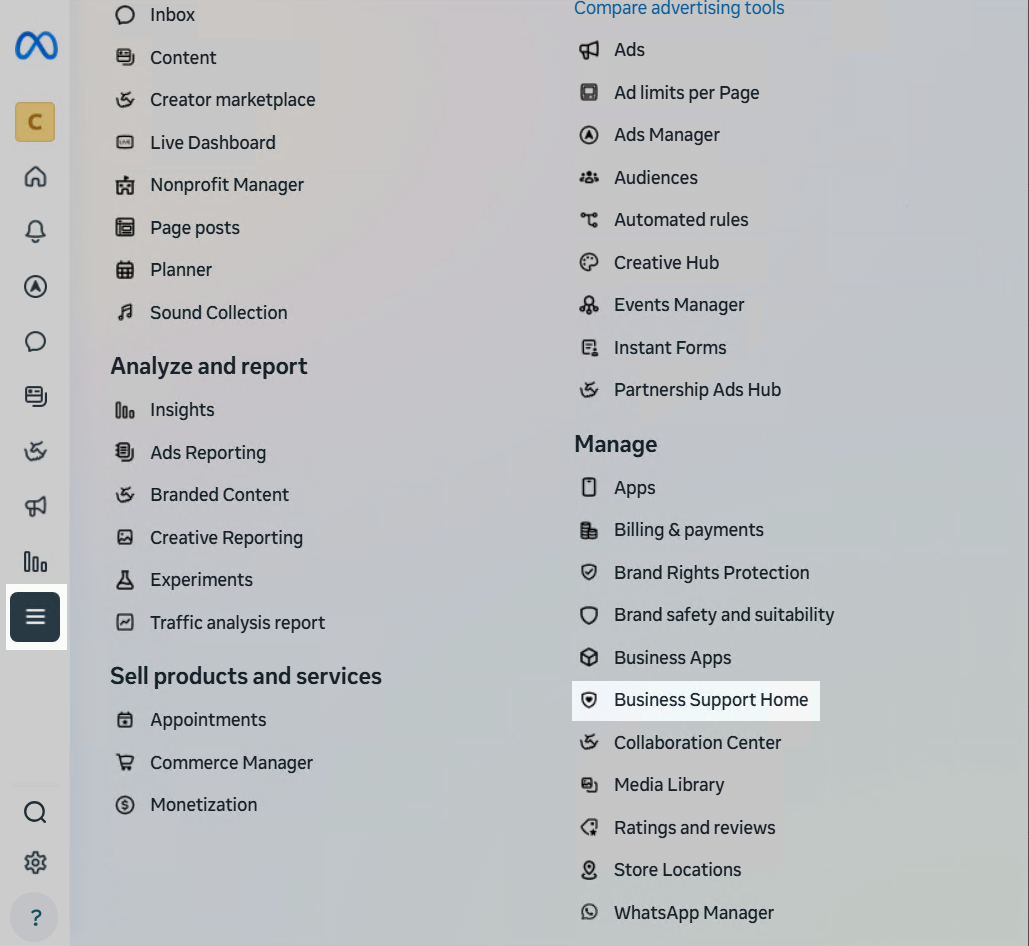
- Check for account restrictions:
- Go to All tools → Business Support Home;
- In the «Account overview» tab, check for restrictions;
- If restrictions exist, click «Request review».
- Go to All tools → Business Support Home;
Submitting a Company Verification Request
Step 1. Navigate to Verification
- In the «Settings» menu, select «Security Center».
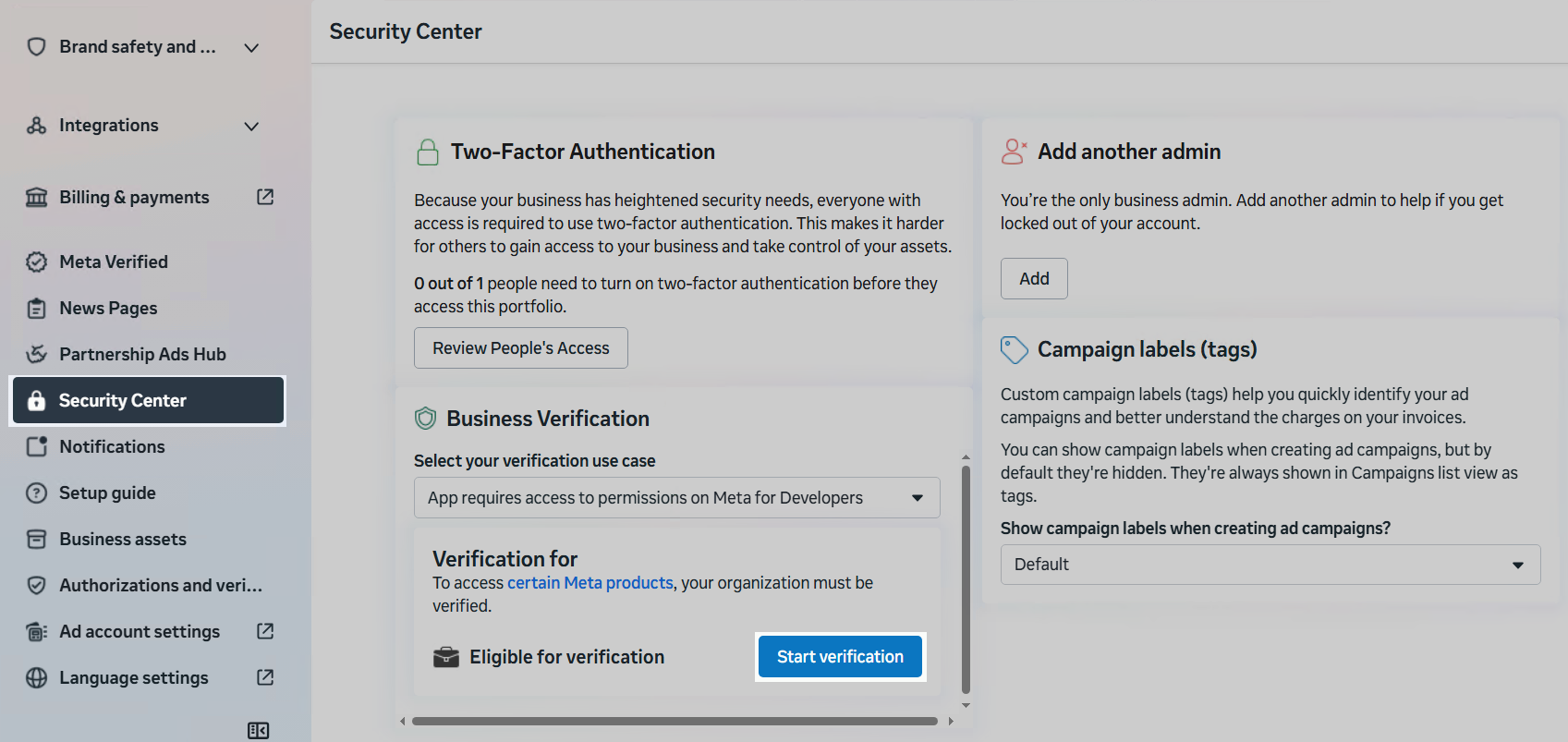
- If the «Start verification» button is active, you can proceed with company verification.
Step 2. Enter Company Details
- Enter the company name, company type, and add organization details.
- If your company is not listed or the information is incorrect, select «My company isn’t listed».
Step 3. Upload Documents
Confirm the company name by uploading one of the following documents:
- bank statement;
- company registration certificate or license;
- company tax return;
- certificate of incorporation or company charter.
Document requirements:
- scans must be made from original documents;
- documents must be in color and of high quality;
- the information in the documents, on the company website, and in Facebook Business Manager* must fully match.
Step 4. Choose a Verification Method
Select one of the following methods to confirm company details:
- email (the domain must match the website domain — recommended);
- phone call;
- SMS;
- WhatsApp message;
- domain verification
(requires administrator access to the DNS provider or website hosting).
If you choose email, phone, SMS, or WhatsApp, you will receive a verification code.
You may also complete domain verification (see separate instructions).
Step 5. Complete Verification
- Enter the received verification code.
- Wait for the review process to be completed.
After successful verification, the company status will change to «Verified».
After verification, do not modify company information.
Even minor changes (for example, changing the legal entity type) may result in account suspension.
Providing inaccurate or misleading information may lead to verification denial or sanctions from Meta.
If Verification Is Unavailable
If the «Company verification» button is inactive, you must first connect official WhatsApp.
This increases the company’s trust level and enables submission of a verification request.
