Select the reaction type Save data in CRM.
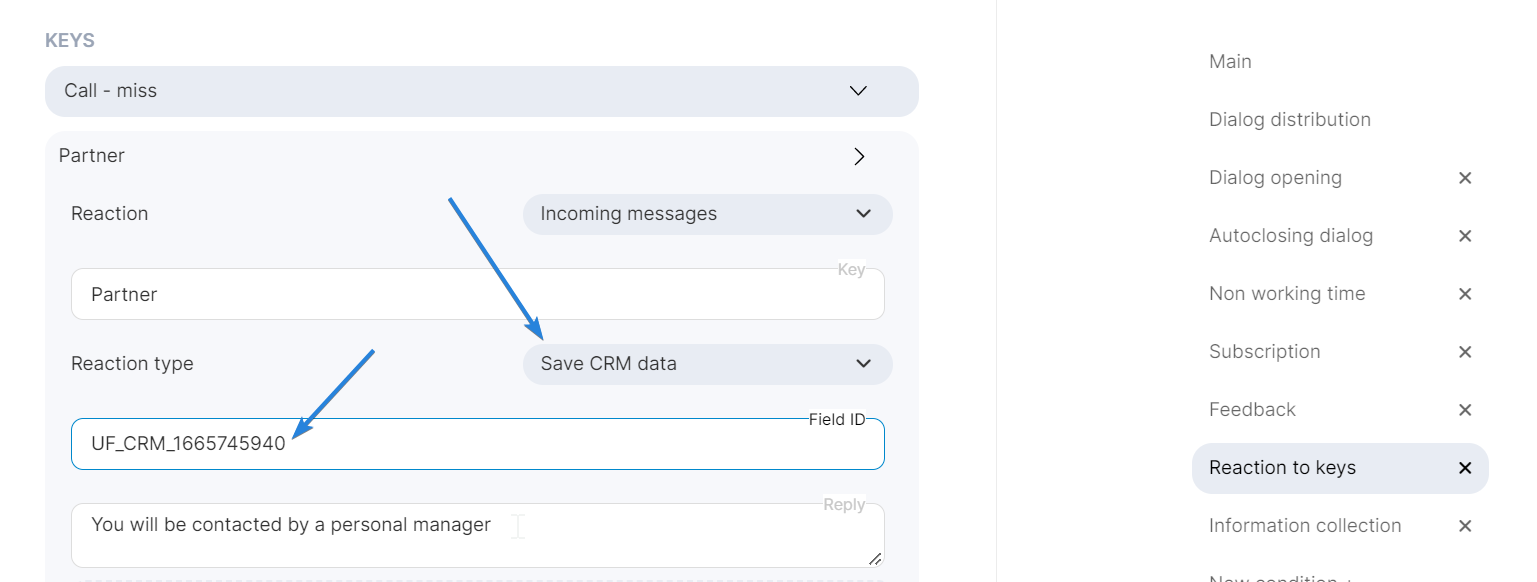
Enter the key for which the bot will act. For example, you want to record the delivery type selected by the customer in CRM, then you put the key – Delivery by courier.
Field ID in the CRM system – the field in which the message will be saved. The field ID must be taken to CRM.
Go to the Custom Fields in Bitrix24.

Add a new field or select from existing fields.

Select an existing field by clicking on its name.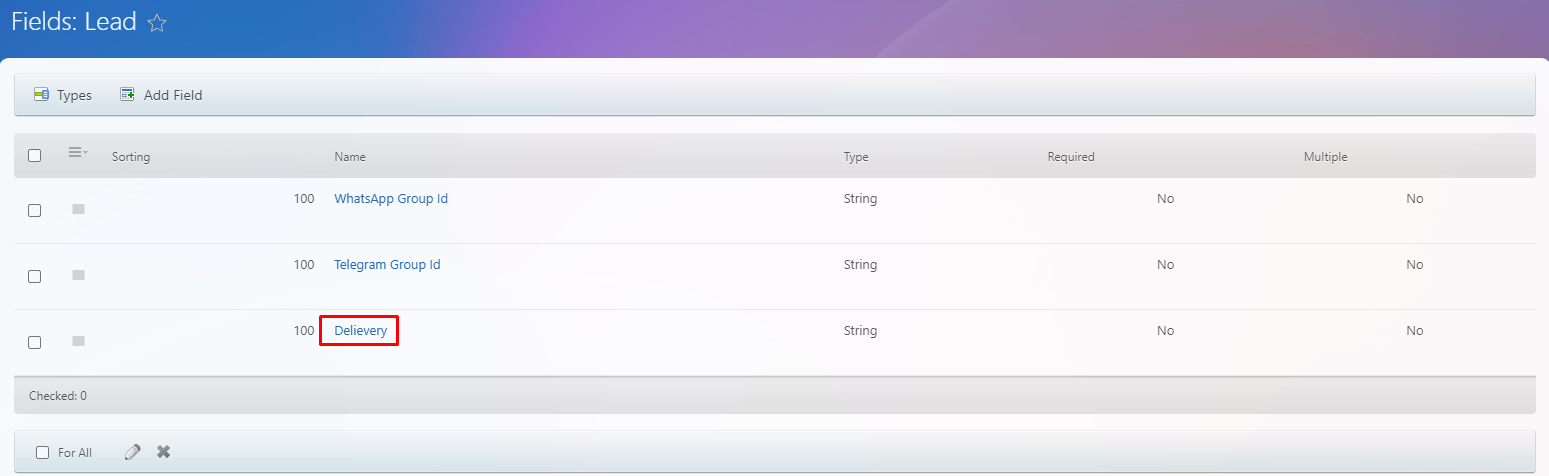

example: PHONE, EMAIL, UF_123123332
Standard field codes can be found here: lead, deal, contact, company
User field codes must be taken from the url when visiting the field editing page. For example: https://portal.bitrix24.ru/crm/configs/fields/CRM_LEAD/edit/UF_CRM_614D2FEF694EE/ – here UF_CRM_614D2FEF694EE – this is the desired id (code) of the field.
Only non-multiple string fields are supported for user-defined fields.
Field saving logic:
When information is received for saving from the bot, a special system message is sent to the OL chat (you cannot without it).
Then we get the linked entities to the chat at the moment (lead, deal, contact, company).
On the found entities, we try to establish the transmitted data.

Important: It is necessary to have a company in the “My Business” module, in the settings of which the bitrix portal must be connected to the company.

