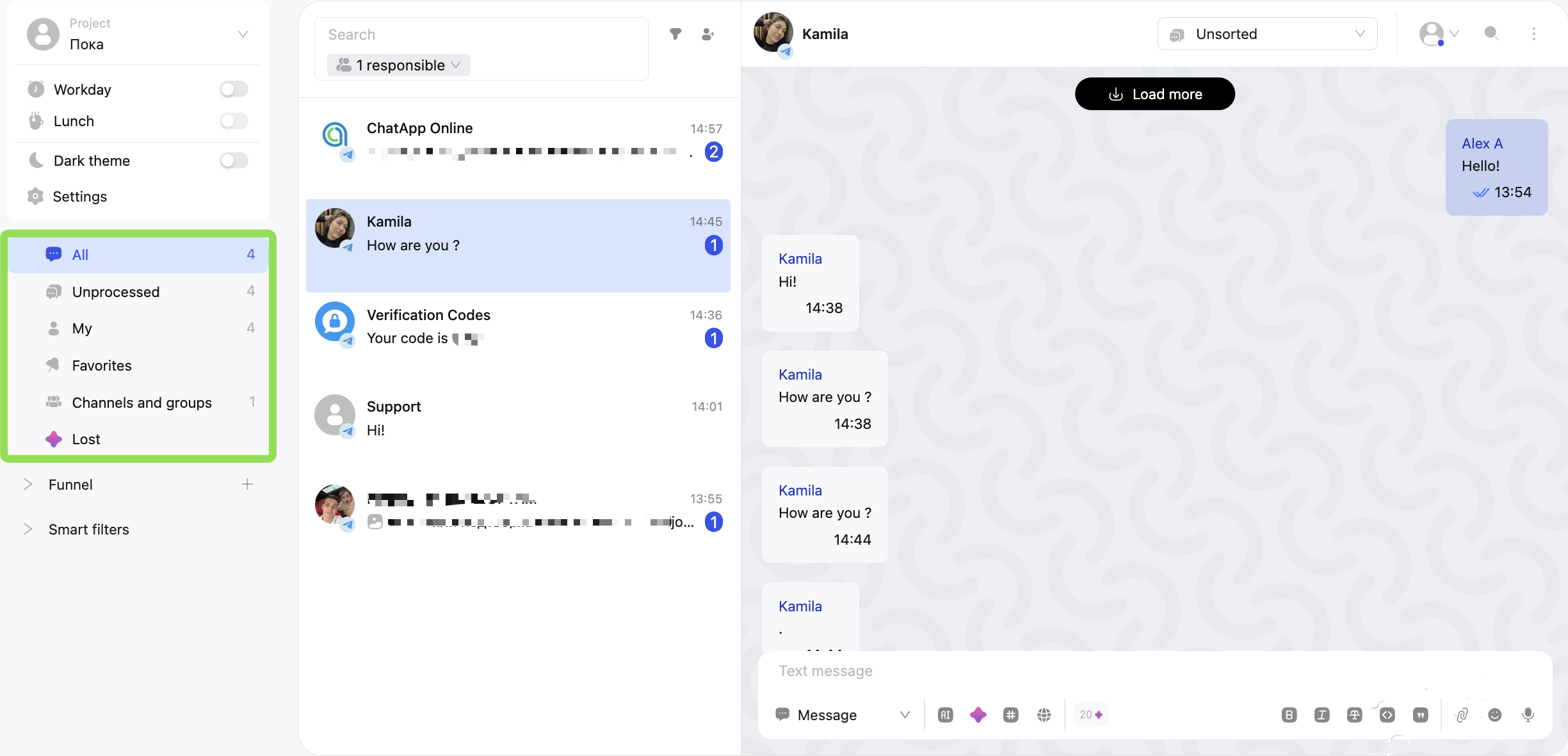
Search and filter by chat rooms
Search across chats
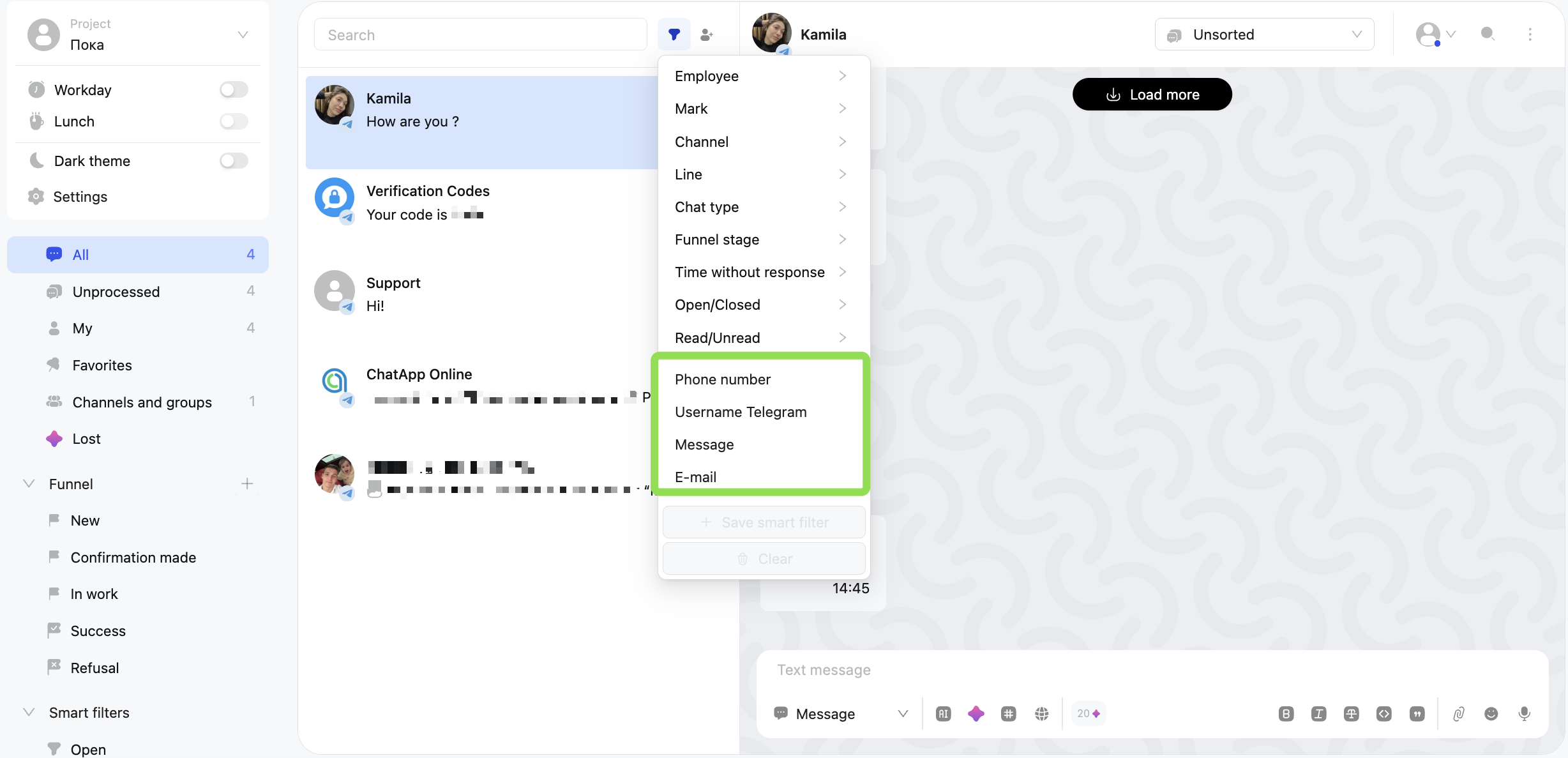
Click the filter button → choose the search parameter:
— email
— phone number
— Telegram username
— message (search by a word or phrase from the conversation)
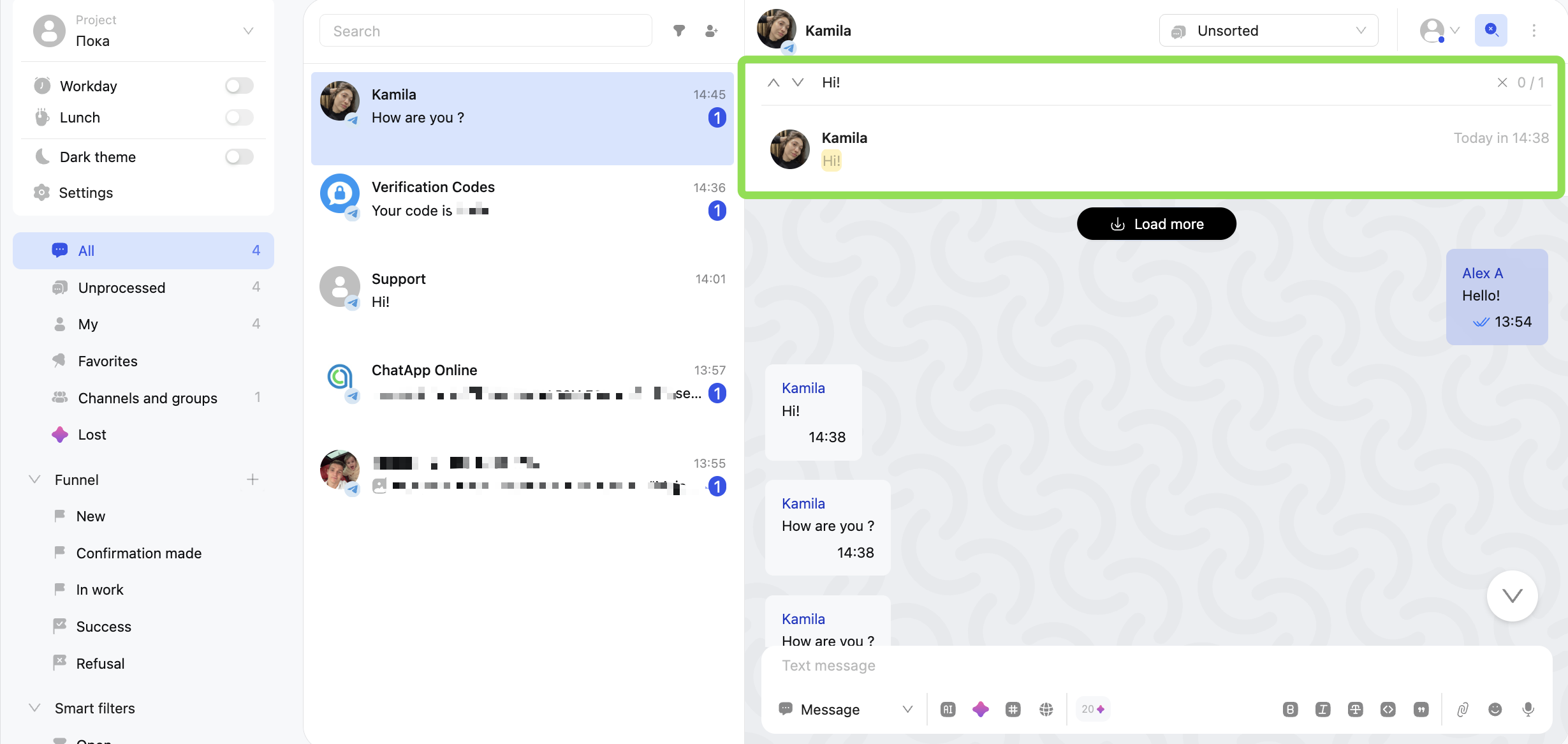
Search within a specific chat
Open the conversation, click the search icon → enter a word or phrase.
All messages containing it in the chat will be displayed.
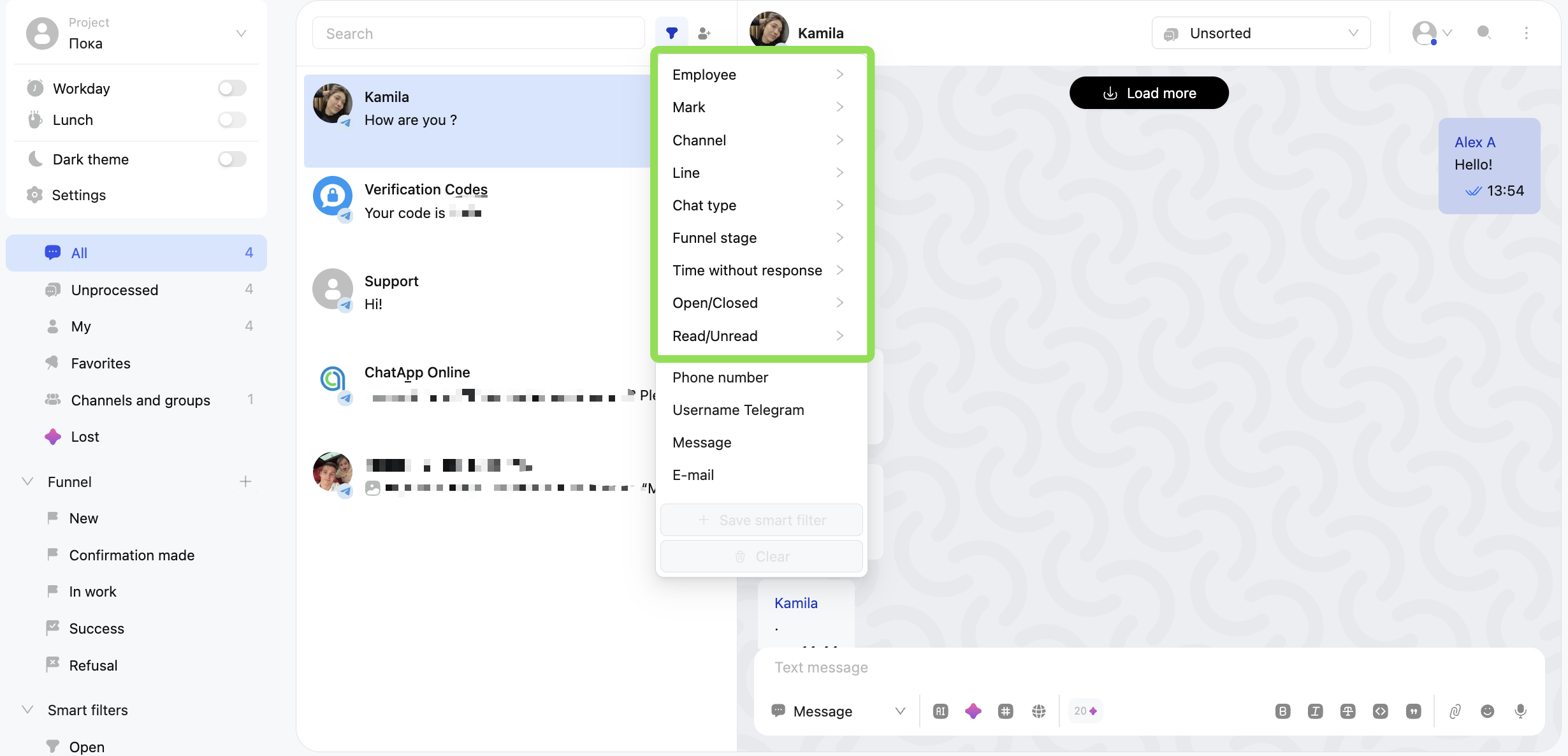
Filters
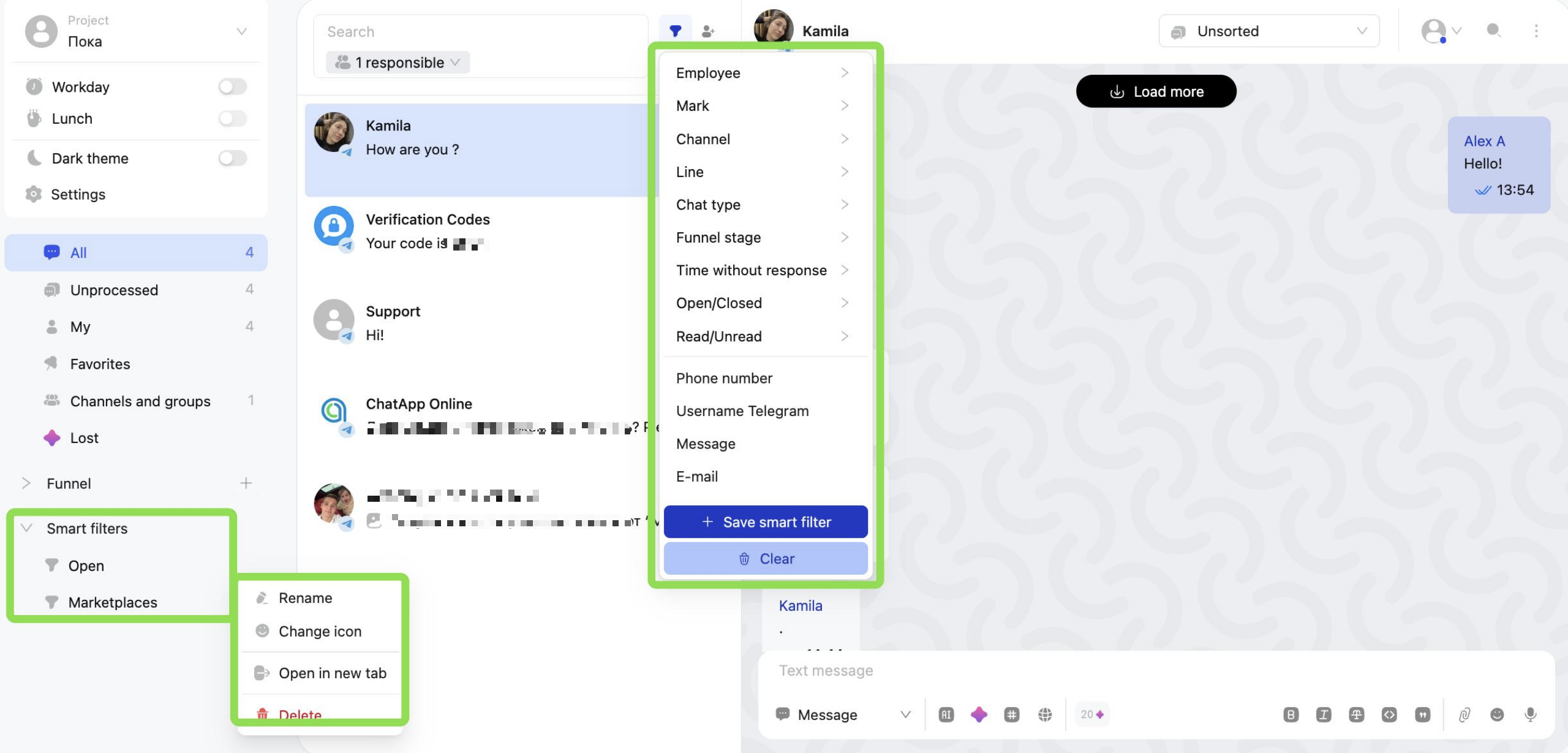
Click the filter button → select the required parameters.
(You can use one or several filters at the same time.)
Available filters:
• Employee — by role: responsible, assigner, co-executor, observer.
If “All” is selected, all chats involving that employee will be displayed.
• Tags — chats with the selected tag
• Channel — by messenger
• Line — by line
• Chat type — personal, bot, groups, channels, reviews, questions
• Pipeline stage — by the selected pipeline stage
• No response time — specify a period to display chats with no response during that time
• Open / Closed — active or completed chats
• Read / Unread — chats with notification counters
Smart filters
If you use the same filters regularly, you can save them.
Select the required filters and click “Save Smart Filter”, then enter a name — it will appear on the left under “Smart Filters.”
Select it to quickly open the required chat list.
A saved smart filter can be edited.
Click the three dots next to it to open the menu, where you can:
— rename it
— change its icon
— open it in a new tab
— delete the smart filter
Folders
Chats can also be viewed by folders — this is a quick way to segment them.
Folders are set by default and cannot be changed or added.
To create custom folders, we recommend using pipeline stages.
Available folders:
• All — displays all chats
• Unsorted — displays chats at the “Unsorted” stage
• Mine — displays chats where you are a participant
• Favorites — displays chats you have pinned
• Channels and Groups — displays group chats and channels
• Lost — displays chats where the client has been waiting for a response for more than 9 hours