

UTM Tag Collector
UTM-tag collector is a hyperlink that is placed on a website.
When clicking the link:
- the selected messenger opens;
- the user sends a message;
- the UTM tag is automatically recorded in the ChatApp personal account.
UTM tags allow you to determine the page of the website from which the user initiated contact or made a purchase decision. Customer journey analysis is used to optimize website structure and increase conversion.
UTM tag collection is possible:
- via Widget 2.0;
- via “UTM Tag Collector”.
Pre-filled text is supported for the following channels:
- WhatsApp;
- Official WhatsApp;
- Viber Bot;
- E-mail.
In Telegram Bot only the parameter {clientId} is passed. Text transmission is not supported.
Creating a UTM tag collector
- Open the ChatApp personal account.
- Go to the “Automation” section.
- Select “UTM Tag Collector”.
- Click “Create widget”.
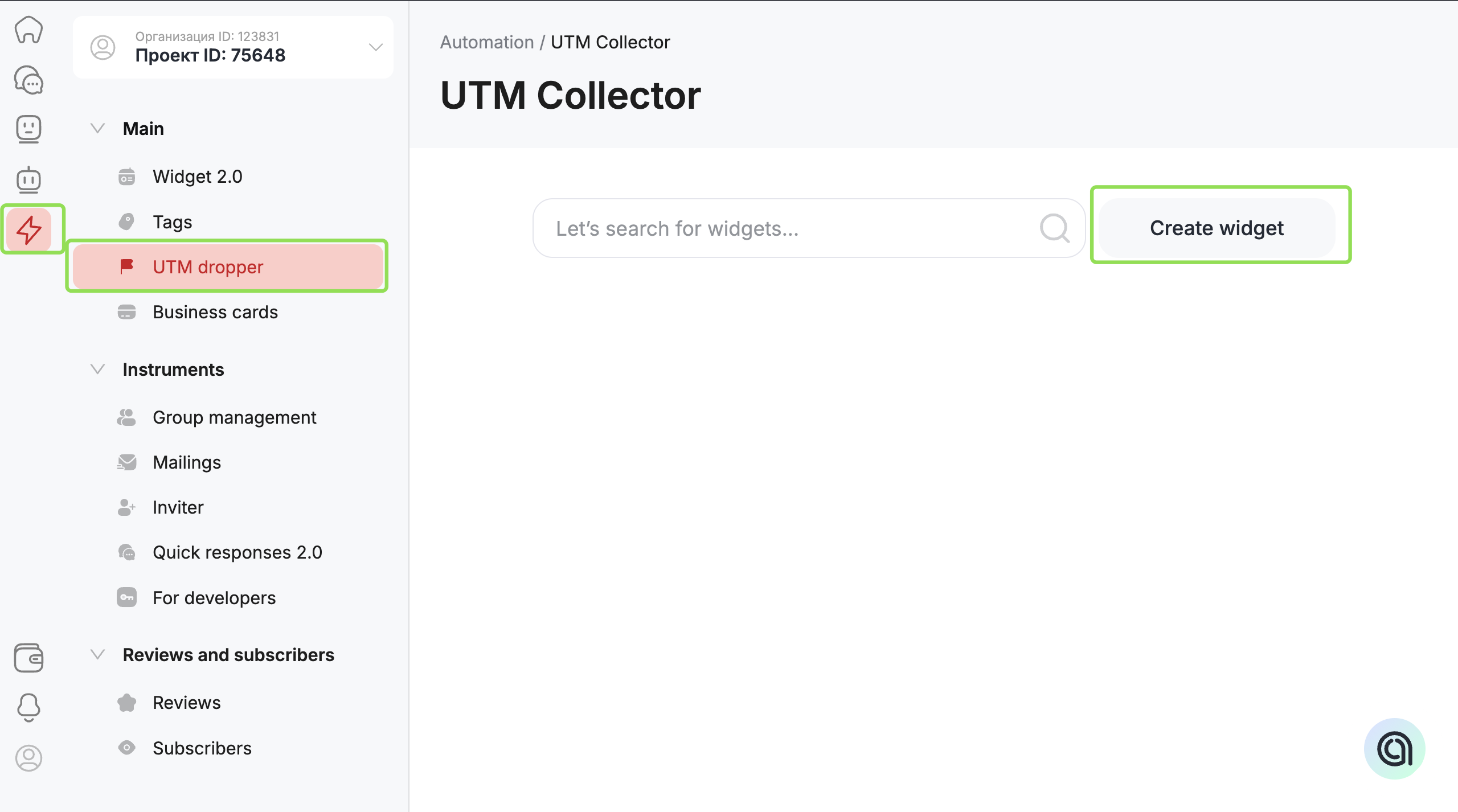
- Specify the widget name.
- Click “Add link”.
- In the opened window, select the communication channel.
- Enter the data for the selected channel:
- for Telegram Bot — Username;
- for Viber Bot — URI;
- for WhatsApp — phone number;
- for E-mail — email address.
9. Enter the message text.
10. Add the parameter {clientId} at the end of the message.
Without specifying this parameter, the link will not be saved.
11. Click “Save”.
12. Click “Save” on the widget page.
Note: in the “clientId” parameter, a capital letter “I” is used, not a lowercase “l”.
After saving, the following are generated:
- URL;
- HTML code;
- “Script tag”.
For correct operation, the “Script tag” must be installed.
Without the script, HTML and URL will not work.
- Copy the “Script tag”.
- Open the HTML editor of the website.
- Insert the code before the closing </body> tag.
- Copy the HTML code.
- Insert it into the required place on the page using the <a> tag.
The text between > and </a> is displayed as the link name.
Example:
<a href=”https://help.chatapp.online/utm-redirect?channel=WhatsApp&directionTo=55ХХХХХХХХХХ&text=Hello! My request number {clientId}” target=”_blank”>Click the link</a>
- Copy the URL.
- Insert the link into a button, text block, or interface element.
- Open the “Automation” section.
- Select the “Tags” subsection.
- Select the installed widget.
- Click “Download”.
The system will display a table with collected UTM tags.
Additionally:
- export the report in Excel format;
- select the required export period.
