Интеграция Facebook* работает только с бизнес-страницами. В ChatApp поступают сообщения из личных сообщений бизнес-страницы Facebook*. Сообщения, отправленные в личный профиль Facebook*, не передаются.
Обращения отображаются в Scenario Dialogs — пространстве для работы с чатами.
В ChatApp можно подключить неограниченное количество аккаунтов — каждая бизнес-страница Facebook* подключается как отдельный канал.
Подключение Facebook к ChatApp
Для подключения Facebook* в ChatApp необходимо авторизоваться в аккаунте. Если вы находитесь в России, используйте инструмент для смены IP-адреса.
Шаг 1. В личном кабинете откройте раздел «Линии» выберите линию с каналом Facebook*.
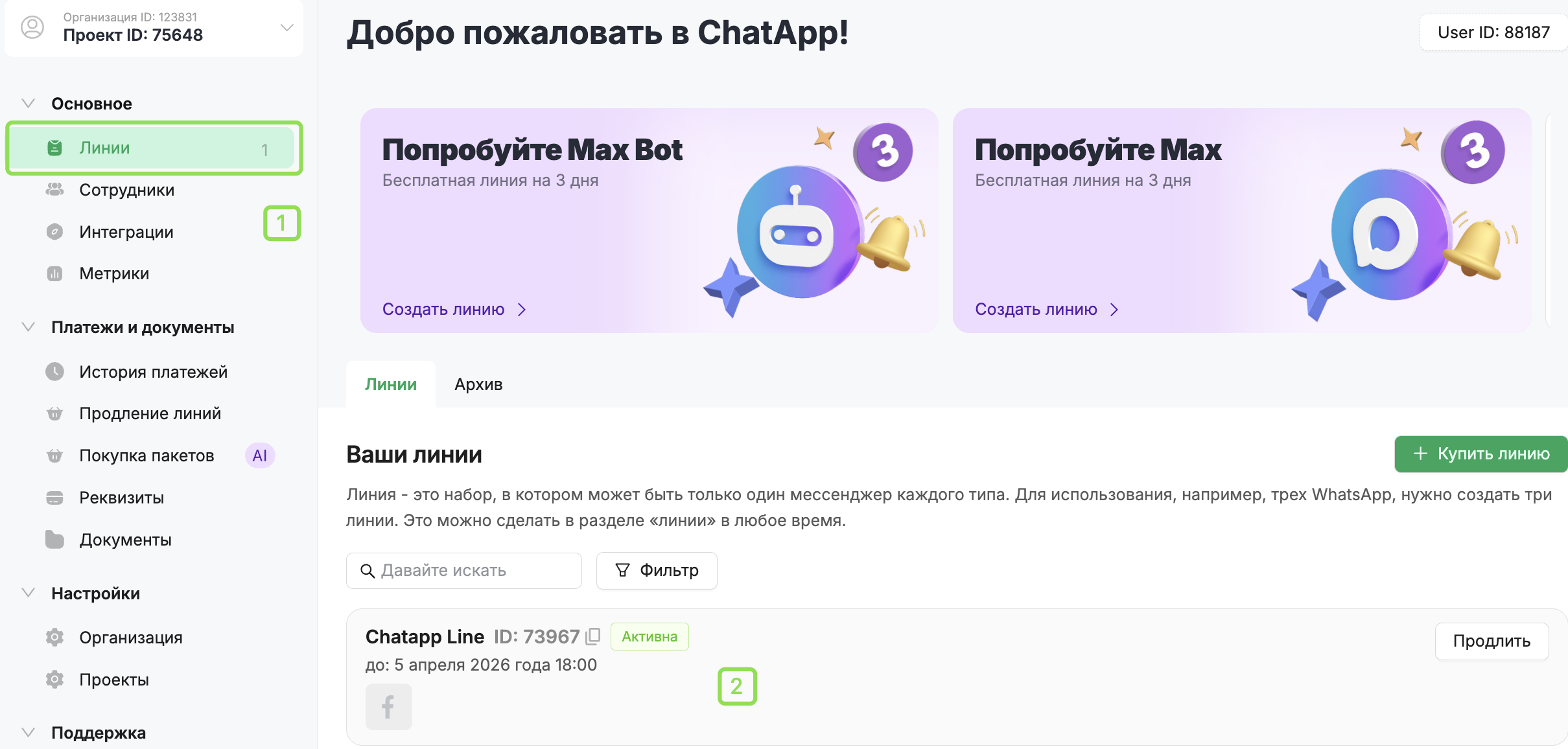
Шаг 2. В настройках линии нажмите «Привязать» напротив канала Facebook*.

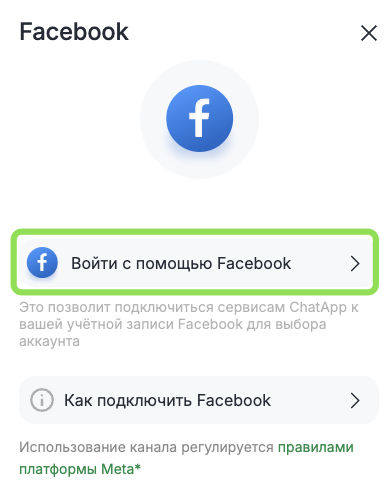
Шаг 3. Нажмите «Войти с помощью Facebook» и войдите в аккаунт в котором создана бизнес-страница.
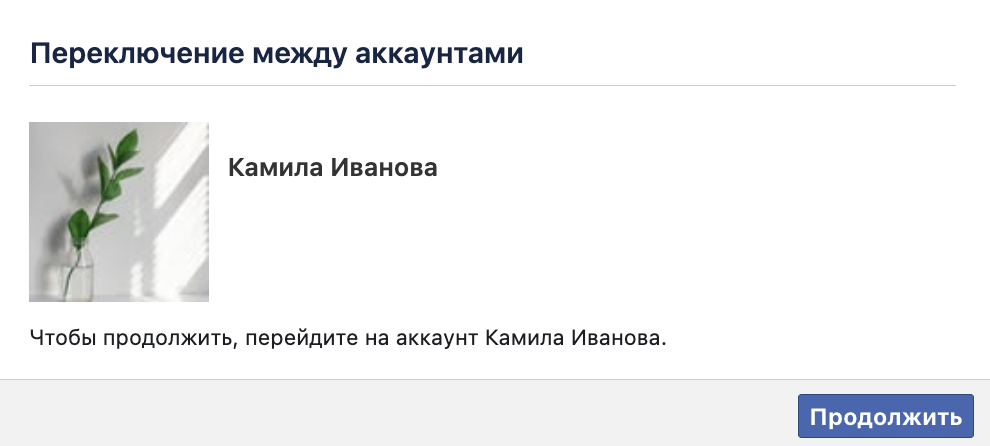
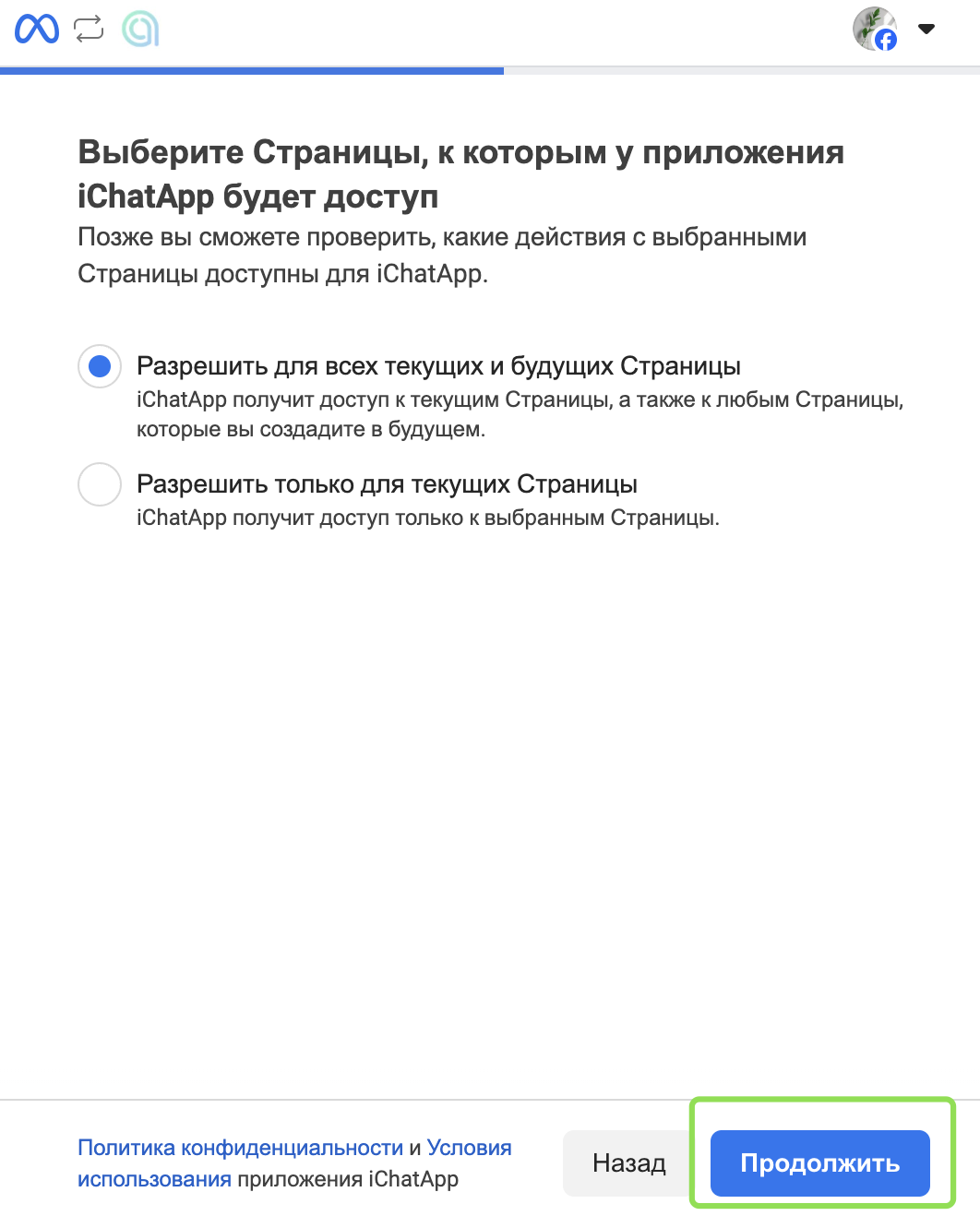
Шаг 4. Откроется два окна с запросом доступа. Выберите один из вариантов доступа:
- Разрешить доступ ко всем текущим и будущим страницам. (доп. настройки не требуются).
- Разрешить доступ к конкретным страницам — выберите связанные между собой: бизнес-страницу Facebook и бизнес-портфолио Facebook.
Если подключаете несколько аккаунтов Facebook*:
При каждом подключении к линии предоставляйте доступ ко всем страницам Facebook которые планируете использовать в ChatApp.
Например, если у вас есть две бизнес-страницы Facebook* каждый из которых привязан к своему бизнес-портфолио Facebook, то при подключении к линиям нужно предоставлять доступ сразу к обоим бизнес-страницам.
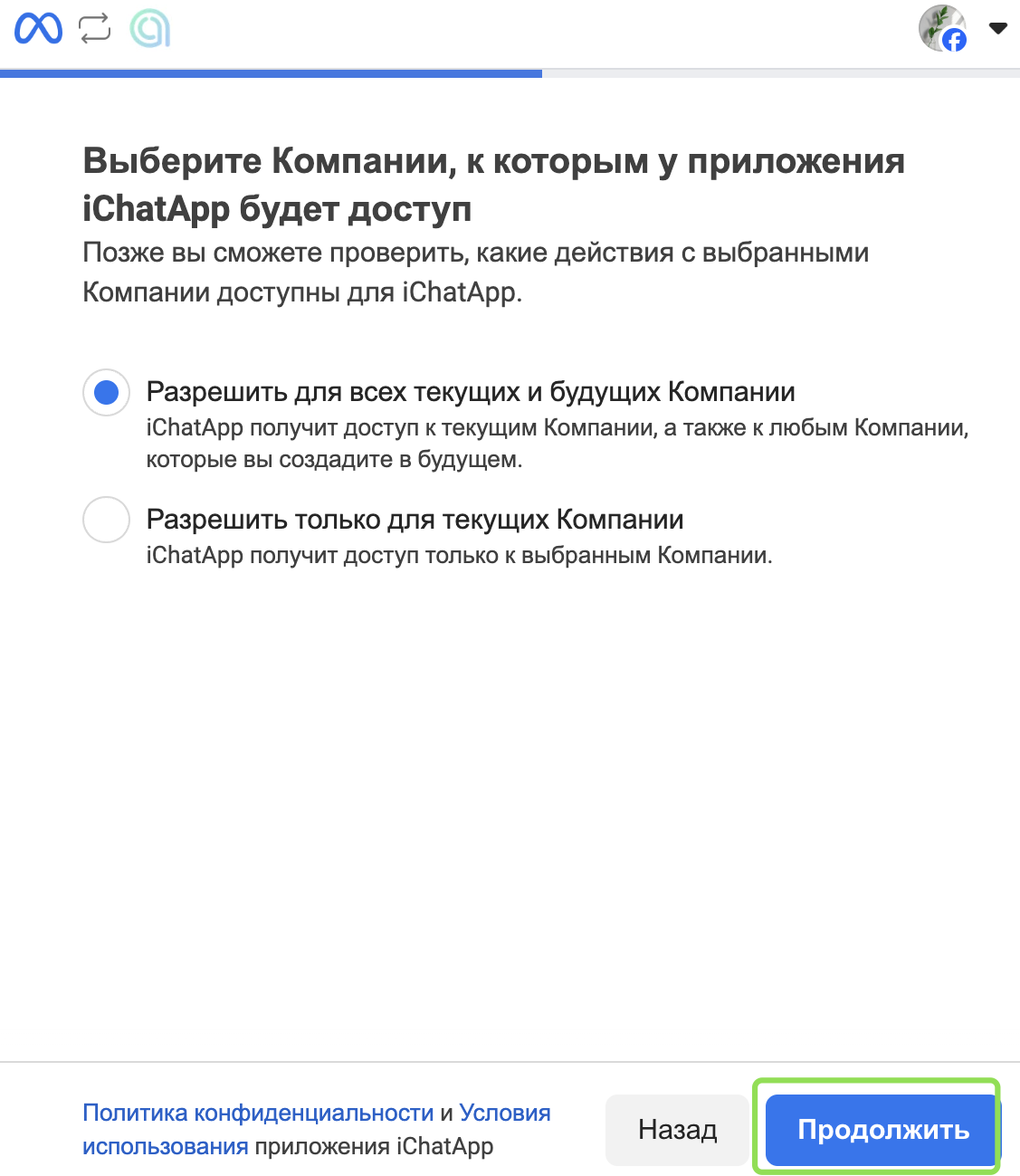
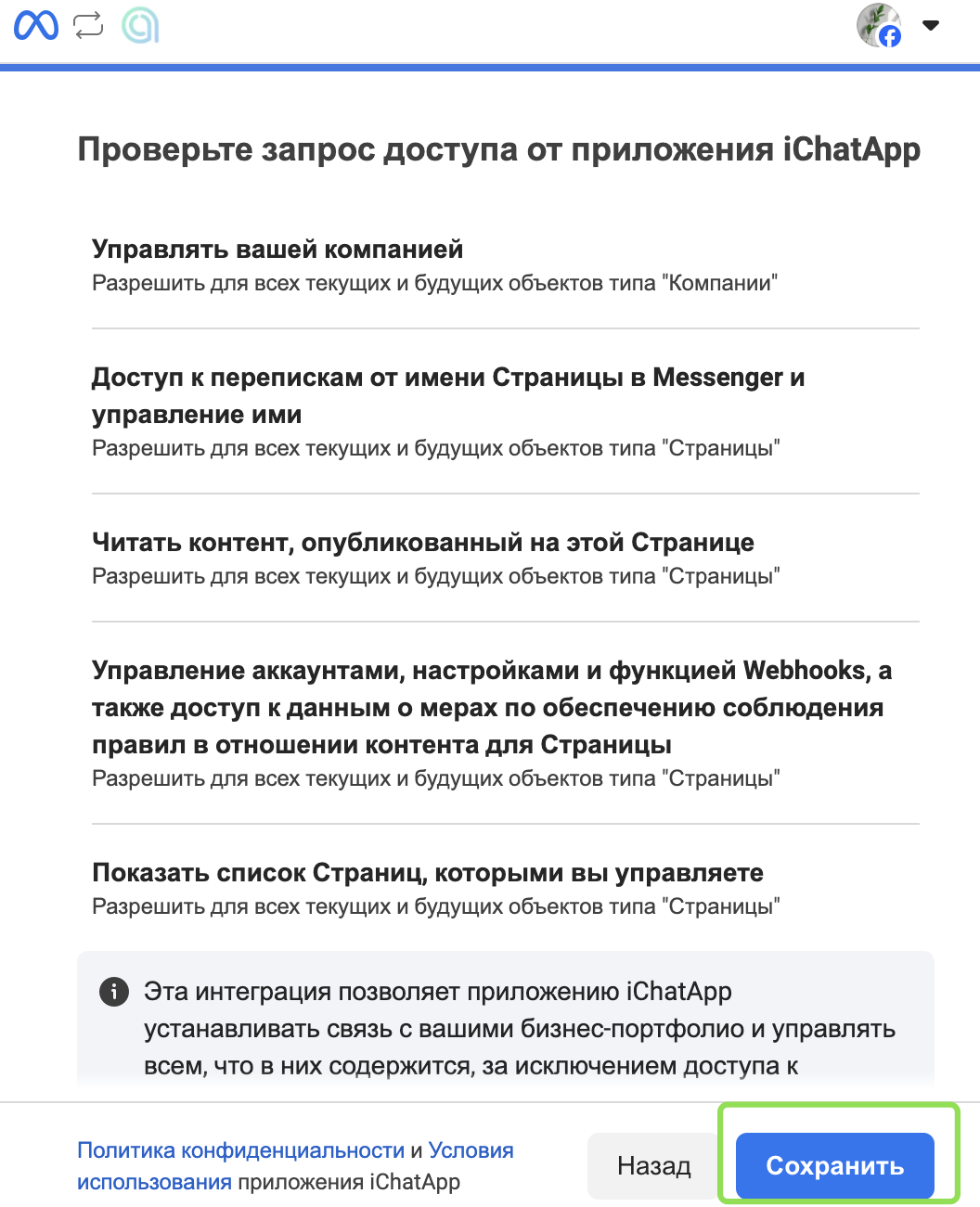
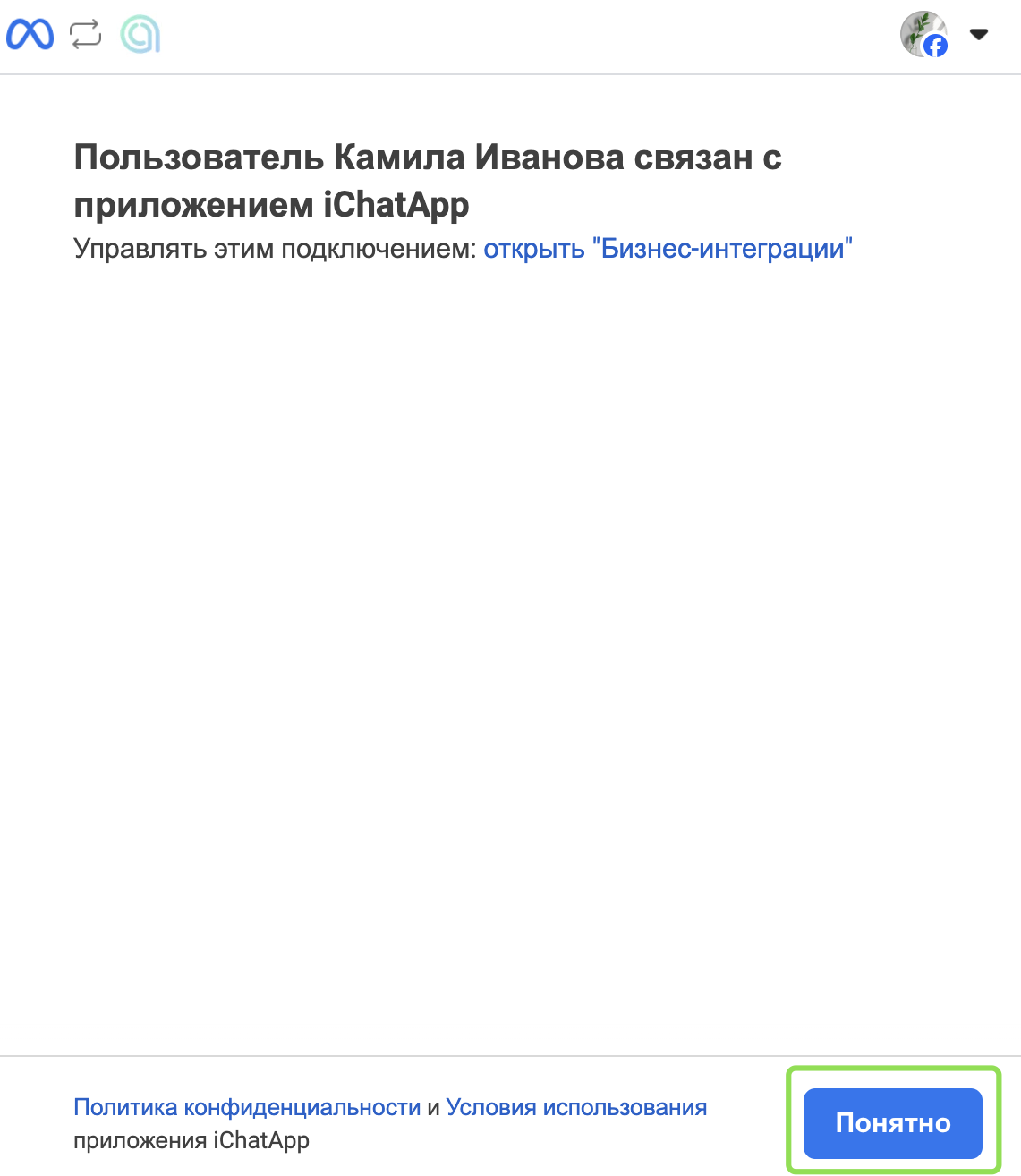
Шаг 5. После предоставления доступа выберите бизнес-страницу Facebook* и нажмите «Подключить».
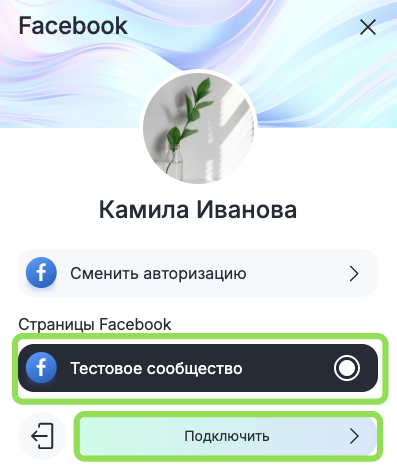
Готово! Бизнес-страница Facebook* подключена к линии.
1. Нельзя первым написать клиенту — диалог возможен только после того, как клиент сам написал вам.
2. Поддерживаемые форматы файлов в Facebook*:
• изображения: JPEG, GIF, HEIC, PNG — до 8 МБ
• аудио: AAC, M4A, WAV — до 25 МБ
• видео: MP4, MOV (рекомендуемые форматы)
* Facebook принадлежит Meta — организации, признанной экстремистской в РФ.
Подключите ChatApp к вашей CRM:
чтобы сделки создавались автоматически на новые сообщения, а переписка сохранялась и в CRM.
