Для подключения необходимо иметь доступ к Telegram-аккаунту, чтобы получить проверочный код. После подключения к линии новые сообщения из Telegram будут отображаться в Scenario Dialogs — пространстве для работы с чатами. Чтобы загрузить историю переписки с уже существующими чатами, выполните импорт истории чатов.
Если в Telegram включён облачный пароль, отключите его перед подключением к линии. После подключения облачный пароль можно включить.
Подключение Telegram к ChatApp
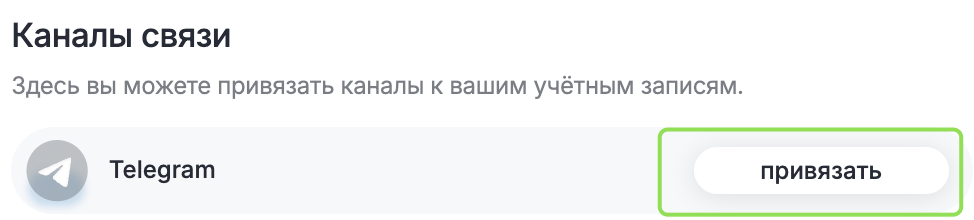
Шаг 1. В личном кабинете откройте раздел «Линии» и нажмите на линию с каналом Telegram — откроется окно настройки. Шаг 2. В настройках линии нажмите кнопку «Привязать» напротив канала Telegram. Шаг 3. Введите номер телефона подключаемого аккаунта. Шаг 4. Введите проверочный код из Telegram.
Не пересылайте код через тот же Telegram-аккаунт, на который код поступил — иначе система безопасности Telegram сделает его недействительным. Передайте код скриншотом или через другой мессенджер.
После успешного подключения у канала Telegram отобразится подключённый номер телефона.
Готово! При необходимости можно отключить номер в любой момент — нажмите на номер телефона → «Отключить авторизацию».
Подключение групп и каналов Telegram
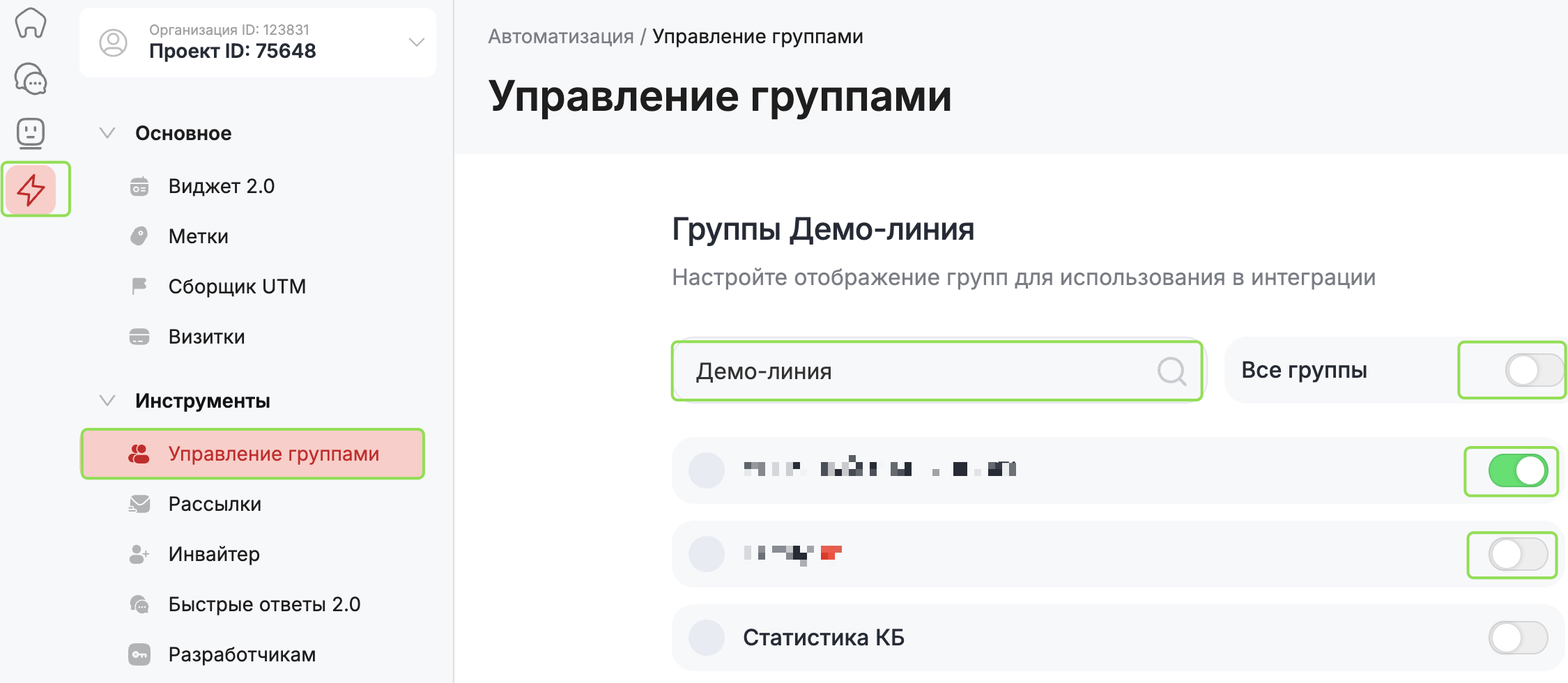
По умолчанию Telegram группы отключены. Для работы с группами и каналами включите их в разделе «Автоматизация» → «Инструменты» → «Управление группами». Здесь можно активировать все группы сразу или выбрать только нужные. Ненужные группы можно отключить — сообщения из них не будут поступать в ChatApp. Группа отобразится в Scenario Dialogs после первого входящего сообщения в группу.
Telegram-группы отключаются при каждой разавторизации аккаунта на линии. После повторной авторизации или перепривязки номера группы нужно включить заново.
Рекомендуем ознакомиться с правилами работы в Telegram — в инструкции.
Подключите ChatApp к вашей CRM:
чтобы сделки создавались на новые сообщения, а личные чаты и группы сохранялись и в CRM.