

Chat participants
The robot allows you to attach or detach operators in a Scenario Dialogs chat. Operators can be assigned as responsible, creator, co-executor, or observer, or removed from the chat.
To make the “Chat Participants” robot work, you must:
Step 1. Set up CRM integration with the project in the ChatApp personal account — according to the instructions.
Step 2. Invite or import employees from CRM into the project — according to the instructions.
Step 3. Synchronize employees between the CRM portal and the project in the ChatApp personal account — according to the instructions.
Without employee synchronization, the robot will not be able to add operators to the Scenario Dialogs chat.
How to add the ChatApp robot:
Step 1. Go to the “Robots” section in the required CRM funnel.
Step 2. On the stage where the robot should trigger, click “+”.
Step 3. In the left-hand list, scroll down and open the “Other robots” section.
Step 4. Select the robot [ChatApp for WhatsApp, Telegram, Viber] — “Chat Participants”.
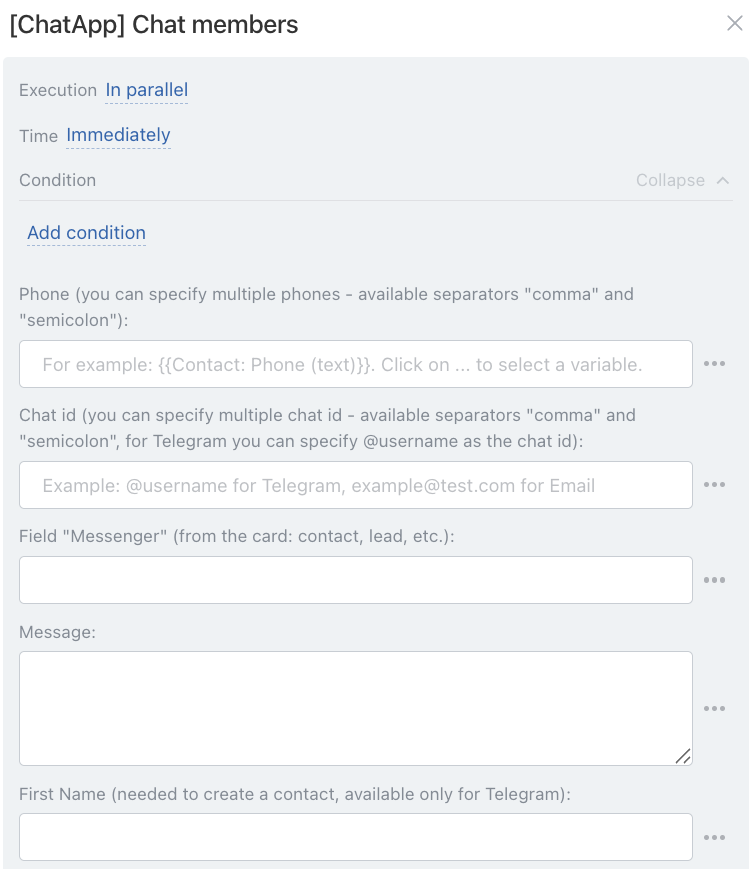
Sequentially — the order of robot execution at the stage:
• Independently of other robots — starts immediately (default).
• After the previous robot — starts only after previously configured robots on this stage have completed.
When — the robot trigger moment:
• Immediately — when the card moves to the stage (default).
• After time — delayed start (set interval).
Conditionally — additional conditions for robot execution.
If the condition is met — the robot will run. If not — the robot will not run.
The chat can be identified by phone number, username, chat ID, or via the “Messenger” field.
Use only one method.
By phone number:
Enter the number in the “Phone” field — manually or via variable.
• Manually — enter one or multiple numbers (comma or semicolon separated).
• Via variable — select from CRM card: click three dots → choose entity (Lead or Deal) → select the field containing the number.
If numbers are stored in different fields (“Mobile”, “Work”), use:
• for deal — {{Contact: Phone (text)}}
• for lead — {{Phone (text)}}
The “Phone (text)” variable pulls all available numbers from the CRM card.
If multiple numbers exist, each will be used. To target a specific one, select the correct field.
By Telegram username:
In the “Chat ID” field click three dots → choose entity (Lead or Deal) → select the field containing the username.
• for lead — {{E-mail (text)}}
• for deal — {{Contact: E-mail (text)}}
By chatID:
chatID is the identifier of the Scenario Dialogs chat.
Used when there is no phone or username but an active chat exists.
Step 1. Add the robot “Get chat ID from Messenger field” and place it before the main robot.
Step 2. Set “Sequentially → After previous robot”.
Step 3. In “Chat ID” select Robots → “Get chat ID from Messenger field” → choose variable chatID.
Via “Messenger” field:
Used when no contact data exists but an active Open Line chat is available.
Requirement: the “Messenger” field must be filled automatically:
• in leads — in the lead card
• in deals — in the linked contact card
It is created automatically when:
• a client writes in Open Lines
• or you start a conversation via Open Lines
Use:
• for lead — {{Messenger (text)}}
• for deal — {{Contact: Messenger (text)}}
Enter the message text.
To insert customer data, click the three dots on the right and select the required variables (e.g. order number).
Available only for phone-based Telegram.
For other channels, leave fields empty.
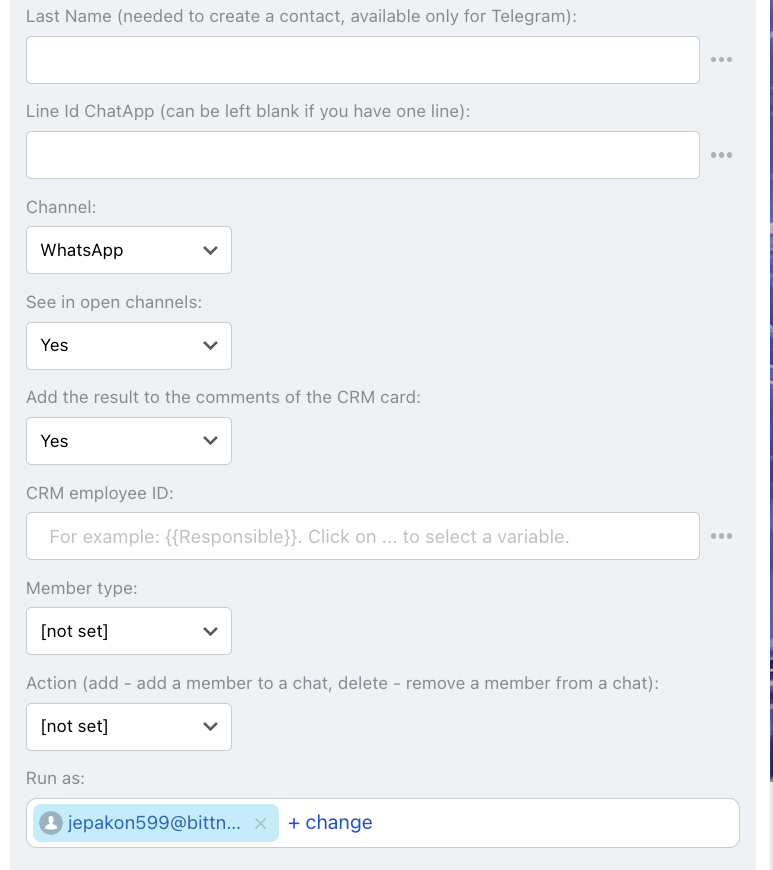
Enter first and last name if the number is not stored in CRM — a new contact will be created.
In the “Line ID” field specify the ChatApp line ID.
In the “Channel” field select the communication channel from the specified line.
Determines whether the message sent by the robot is shown in Open Line chat.
Default — enabled.
The robot execution result is displayed in the CRM card timeline.
In “CRM Employee ID”, click the three dots and select: Responsible for entity (lead/deal).
The variable {{Responsible}} will be inserted.
The robot will add the responsible employee to the Scenario Dialogs chat.
Participant role is selected in “Participant type”:
• producer — creator
• participant — co-executor
• responsible — responsible
• observer — observer
In “Action”, choose what to do:
• add operator to chat
• remove operator from chat
Operator permissions depend on role settings.
