

Delete group
The robot deletes a group or causes the business number to leave the group — depending on the messenger.
• In Telegram — the group is deleted completely.
• In WhatsApp — the business number leaves the group chat. If the business number was an administrator, admin rights are automatically transferred to another participant.
How to add the ChatApp robot:
Step 1. Go to the “Robots” section in the required CRM funnel.
Step 2. On the stage where the robot should trigger, click “+”.
Step 3. In the left-hand list, scroll down and open the “Other robots” section.
Step 4. Select the robot [ChatApp for WhatsApp, Telegram, Viber] — “Delete group”.
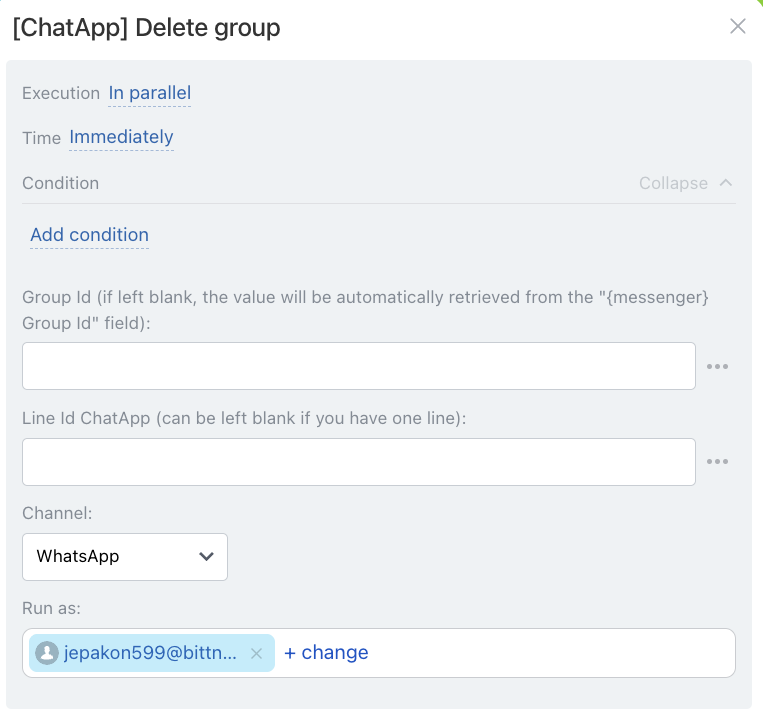
• Independently of other robots — starts immediately (default).
• After the previous robot — starts only after previously configured robots on this stage have completed.
When — the robot trigger moment:
• Immediately — when the card moves to the stage (default).
• After time — delayed start (set interval).
Conditionally — additional conditions for robot execution (if needed).
If the condition is met — the robot will run. If not — the robot will not run.
- To delete a specific group — enter the group ID from Scenario Dialogs.
Step 1. In Scenario Dialogs, open the required group chat → click the group name.
Step 2. In the left panel under the group name, the Chat ID is displayed. Copy this ID and paste it into the robot’s “Group ID” field.
- If each client has their own group — use the “Messenger” field variable.
In this case, the robot will delete the group whose ID is stored in the client’s “Messenger” field.
Variables:
• for lead — {{Messenger (text)}}
• for deal — {{Contact: Messenger (text)}}
In the “Channel” field select the communication channel from the line specified in the “Line ID” field.
