Profile and notification settings
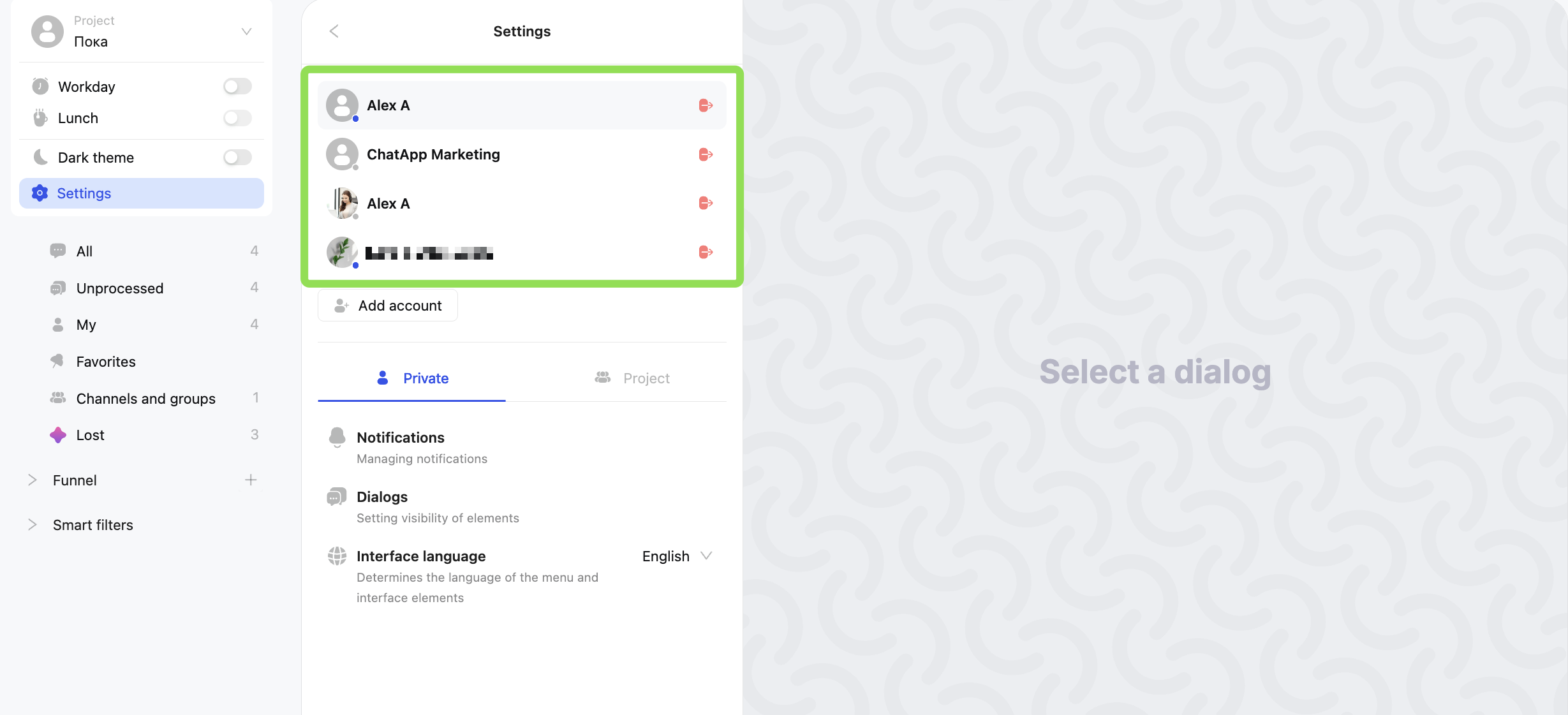
Scenario Dialogs supports adding and using multiple ChatApp accounts.
This is convenient if you work with different workspaces — you can quickly switch between them.
By default, notifications in Scenario Dialogs are disabled.
To configure notifications, go to Settings → Notifications
Here you can:
— enable or disable notifications
— enable or disable notification sounds
— choose which chats to receive notifications for:
• all dialogs — notifications for all chats you have access to
• only yours — chats where you are involved as the assignee, creator, etc.
How notifications work:
— if the Scenario Dialogs tab is open, notifications are displayed inside the interface
— if the tab is inactive, you will receive a sound alert and a browser push notification
Notifications will work only if:
— browser notifications are allowed for the Scenario Dialogs website
— browser notifications are enabled in your system settings (for example, Windows)
Go to: Settings → Dialogs
The section includes:
Last message text
Displays the text of the last message in the chat list.
Can be disabled for a more compact chat list.
Labels
Displays assigned dialog labels in the chat list.
Message counter
Shows the number of unread messages for a dialog.
Can be disabled if not needed.
Message time
Displays the time of the last message (incoming or outgoing) in the chat list.
Dialog assignee
Displays the icon of the person responsible for the dialog in the chat list.
Hovering over the icon shows their name, making it easy to see who is handling the chat.
Read status
Determines when the unread message counter disappears:
— on open — after viewing the dialog
— on send — after replying to the client
— never — the counter is never reset
Assign as responsible
If no assignee is assigned yet, the operator who opens the chat will automatically become responsible for it.
Client name in messages
Displays the client’s name in each of their messages inside the chat.
Operator name (internal)
Shows the name of the employee who sent the message inside Scenario Dialogs. The client does not see this name.
Operator name for the client
Displays the operator’s name to the client, so they can see who is messaging them.
Formatting menu
Displays formatting buttons in the message input field (bold, italic, etc.).
Even if disabled, formatting is still available via keyboard shortcuts.
System messages
Displays service events in the chat (for example: dialog assigned, transferred, closed).
Can be disabled to reduce clutter.
Deleted messages
Displays deleted messages marked as “Deleted”.
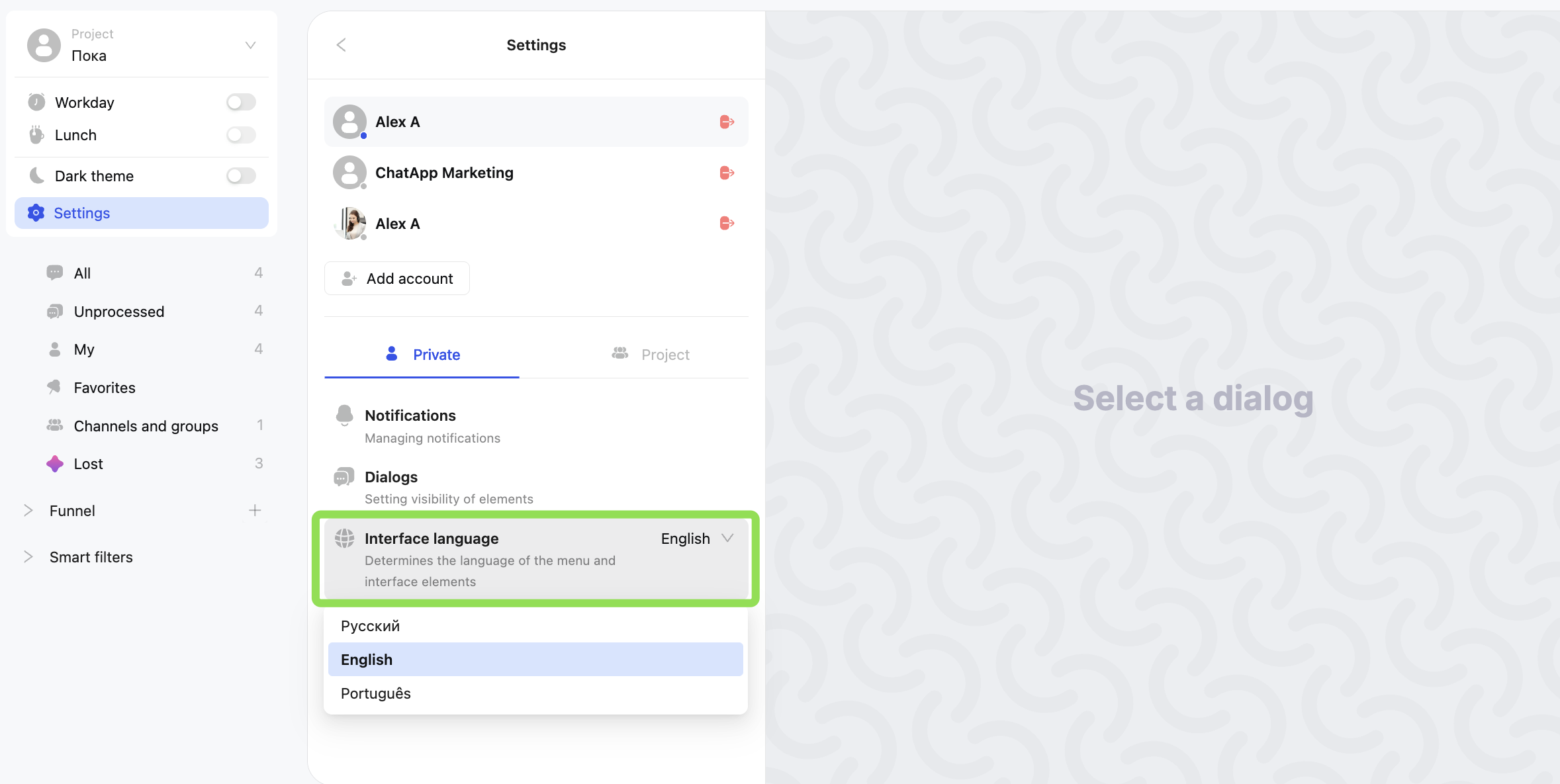
Go to Settings → Interface Language
Choose a language: Russian, English, or Portuguese.
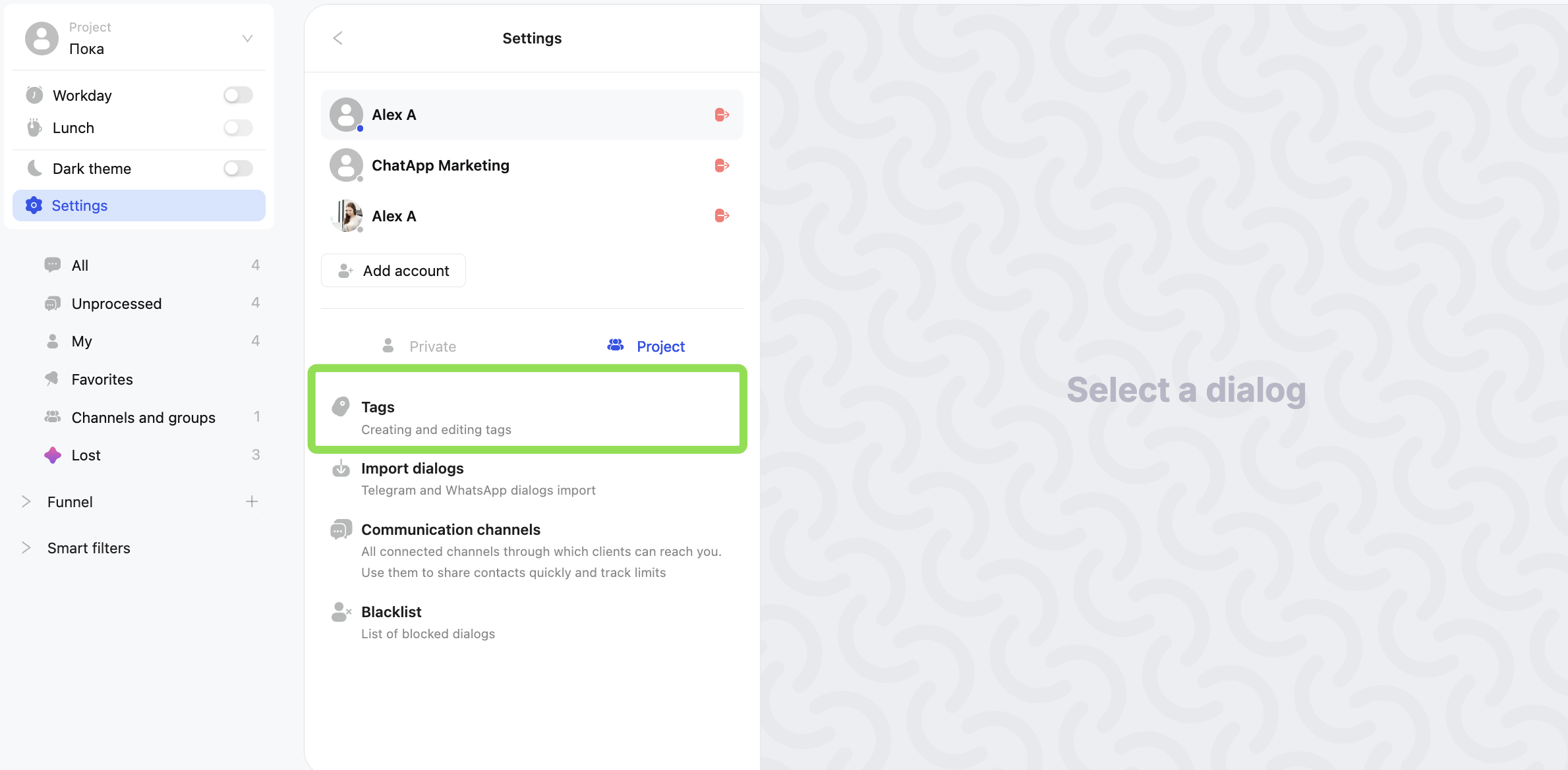
To create, edit, or delete labels, go to:
Settings → Dialogs → Labels
For more details on working with labels, see the article.
This setting is used to upload dialogs into Scenario Dialogs.
Supported only for Telegram (number-based) and WhatsApp (gray integration).
Instructions: How to upload dialogs to Scenario Dialogs.
A contact can be added to the blacklist in two ways:
— in the chat list: right-click the chat → Block
— in the client chat: click ⋮ → Block
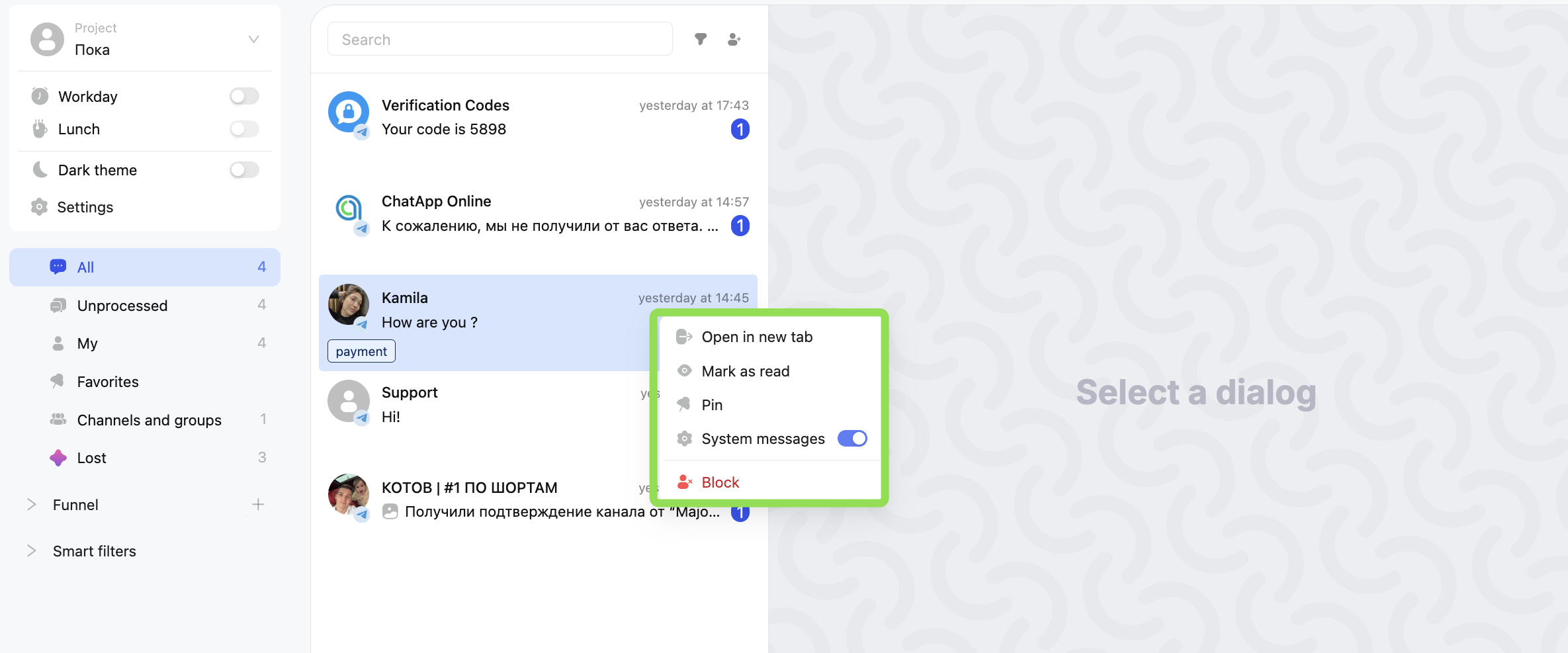
How to open the list of blocked contacts:
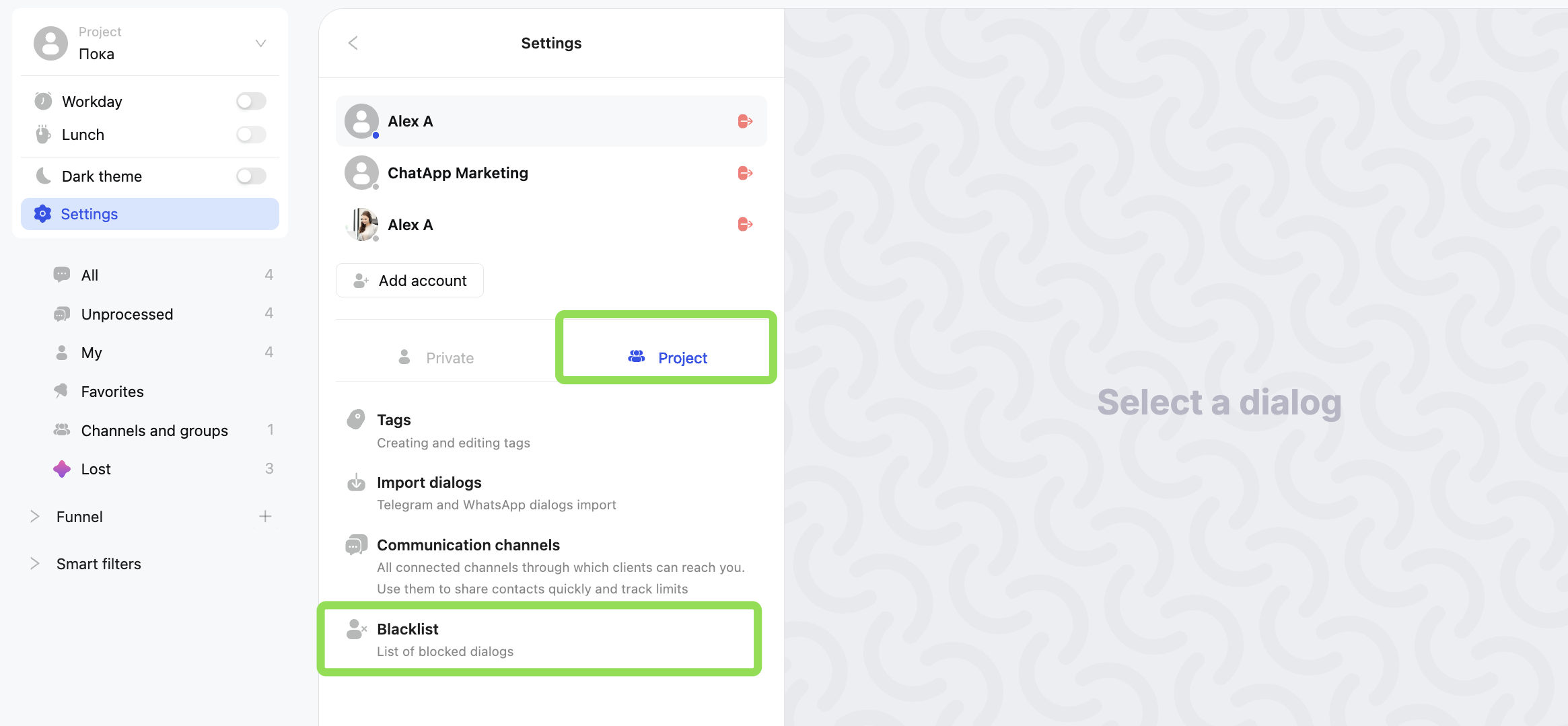
In Scenario Dialogs, go to Settings → Project → Blacklist
Here you can remove a contact from the blacklist.