

Send a WABA template message
The robot sends a template message via WhatsApp Business API using a pre-approved template.
How to add the ChatApp robot:
Step 1. Go to the “Robots” section in the required CRM funnel.
Step 2. On the stage where the robot should trigger, click “+”.
Step 3. In the left-hand list, scroll down and open the “Other robots” section.
Step 4. Select the robot [ChatApp for WhatsApp, Telegram, Viber] — “Send WABA template message”.
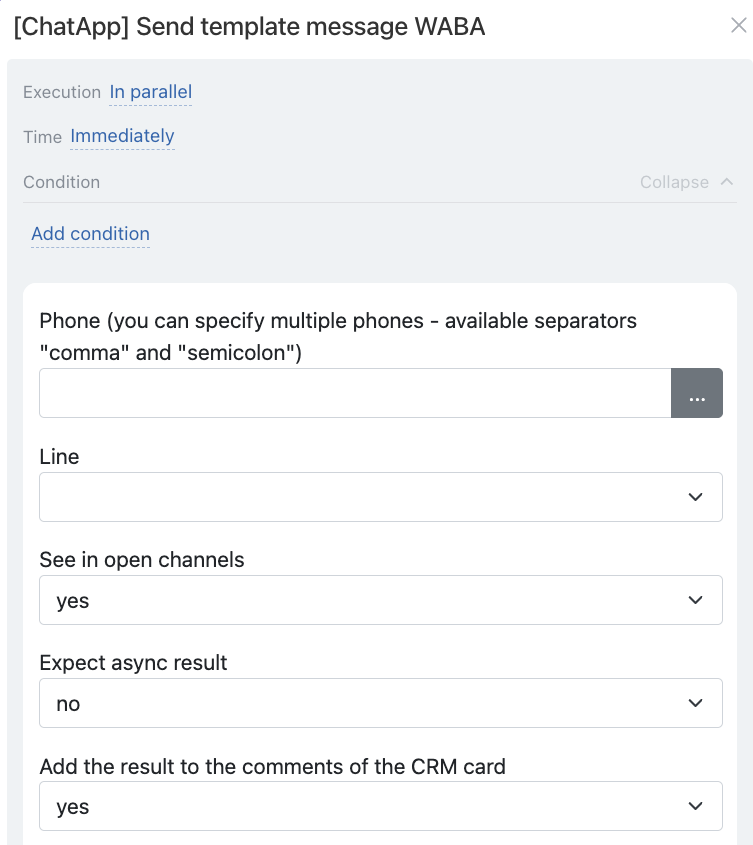
• Independently of other robots — starts immediately (default).
• After the previous robot — starts only after previously configured robots on this stage have completed.
When — the robot trigger moment:
• Immediately — when the card moves to the stage (default).
• After time — delayed start (set interval).
Conditionally — additional conditions for robot execution (if needed).
If the condition is met — the robot will run. If not — the robot will not run, подробнее.
• Manually — enter one or multiple numbers (separated by commas or semicolons).
• Via variable — the number is pulled from the CRM card: click the three dots on the right → choose entity (Lead or Deal) → select the field containing the number.
If numbers are stored in different fields (“Mobile”, “Work”), use:
• for deal — {{Contact: Phone (text)}}
• for lead — {{Phone (text)}}
The “Phone (text)” variable pulls all available numbers from the CRM card.
If multiple numbers are specified in the client card, the message will be sent to each number. To send to a specific number, select the exact field containing that number.
When enabled, the robot waits for the messenger response and returns the final delivery status. If delivered — success is returned; if not — an error with a reason. This may increase execution time.
To display the result in the CRM card timeline, set “Add result to CRM comments” to “Yes” or add the standard Bitrix24 robot “Add comment to item” after it.
