

Phone verification
The robot “Phone Check” is used to determine whether a client’s phone number is registered in the selected messenger.
The main purpose of the robot is to check the client’s phone number and determine through which channel a message can be sent. This allows automatically selecting the most suitable communication method with the client.
After the check, the robot returns a result:
• Yes (Y) — the number is registered in the selected messenger.
• No (N) — the number is not found in the messenger.
This result can be used in conditions of other robots. For example:
• if the client has WhatsApp — send a message via WhatsApp;
• if WhatsApp is not available — use another communication channel.
Thus, the “Phone Check” robot determines the available communication channel with the client, avoids sending messages to unavailable channels, and allows configuring different CRM communication scenarios depending on the check result.
If the WhatsApp Business API (WABA) channel is used, phone number checking is not available — this channel does not support number verification. Phone checking works only for WhatsApp, Telegram, and Max channels.
Step 1. Go to the “Robots” section in the required CRM funnel.
Step 2. On the stage where the robot should trigger, click “+”.
Step 3. In the left-hand list, scroll down and open the “Other robots” section.
Step 4. Select the robot [ChatApp for WhatsApp, Telegram, Viber] — “Phone Check”.
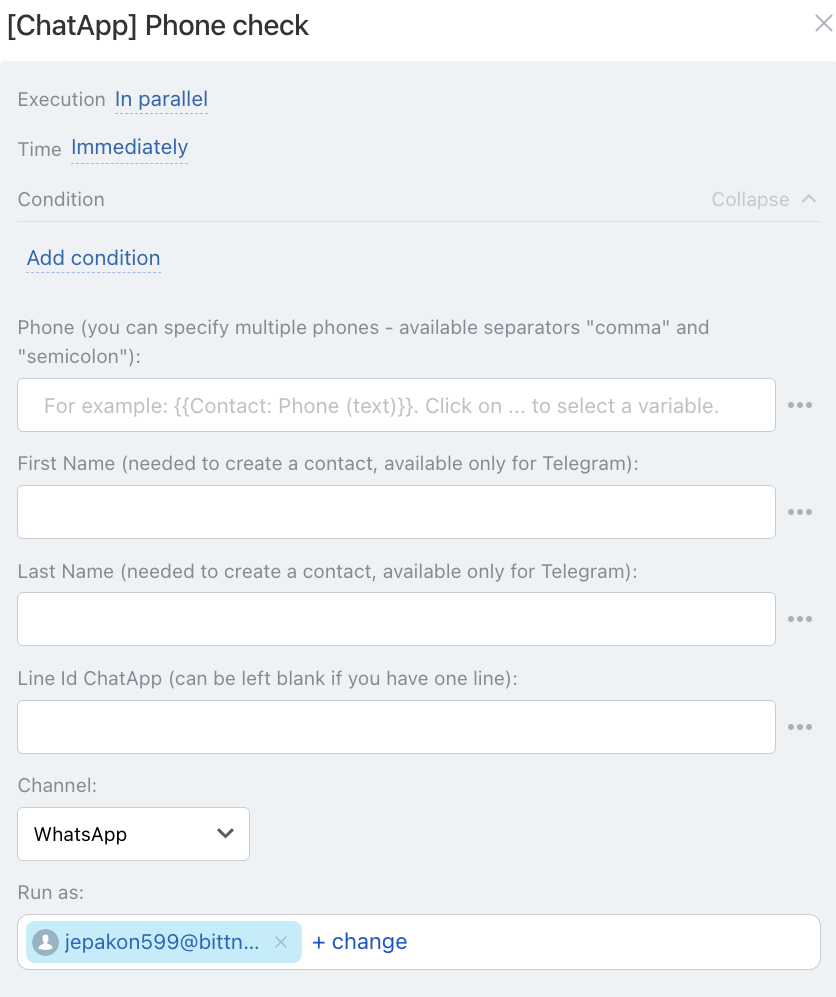
• Independently of other robots — starts immediately (default).
• After the previous robot — starts only after previously configured robots on this stage have completed.
When — the robot trigger moment:
• Immediately — when the card moves to the stage (default).
• After time — delayed start (set interval).
Conditionally — additional conditions for robot execution (if needed).
If the condition is met — the robot will run. If not — the robot will not run.
• Manually — enter one or more numbers separated by comma or semicolon.
• Via variable — the number is pulled from the CRM card: click the three dots → select entity (Lead or Deal) → choose the field where the number is stored.
If numbers are stored in different fields (“Mobile”, “Work”), use:
• for deal — {{Contact: Phone (text)}}
• for lead — {{Phone (text)}}
The “Phone (text)” variable pulls all available numbers from the card.
If multiple numbers exist, the message will be sent to each number. To send to a specific number — select the exact field containing it.
Enter first and last name if the number is not saved in CRM — a new contact will be created with these details.
If there is only one line, the field can be left empty.
Select the communication channel from the specified line.
The robot will send the message through the selected channel.
