

Chat tags
The robot assigns or removes a label for a client’s chat in Scenario Dialogs.
Labels are used for segmentation of dialogues, analytics, and further automation.
Before configuring the “Chat Labels” robot — create a label in Scenario Dialogs according to the instructions.
How to add the ChatApp robot:
Step 1. Go to the “Robots” section in the required CRM funnel.
Step 2. On the stage where the robot should trigger, click “+”.
Step 3. In the left-hand list, scroll down and open the “Other robots” section.
Step 4. Select the robot [ChatApp for WhatsApp, Telegram, Viber] — “Chat Labels”.
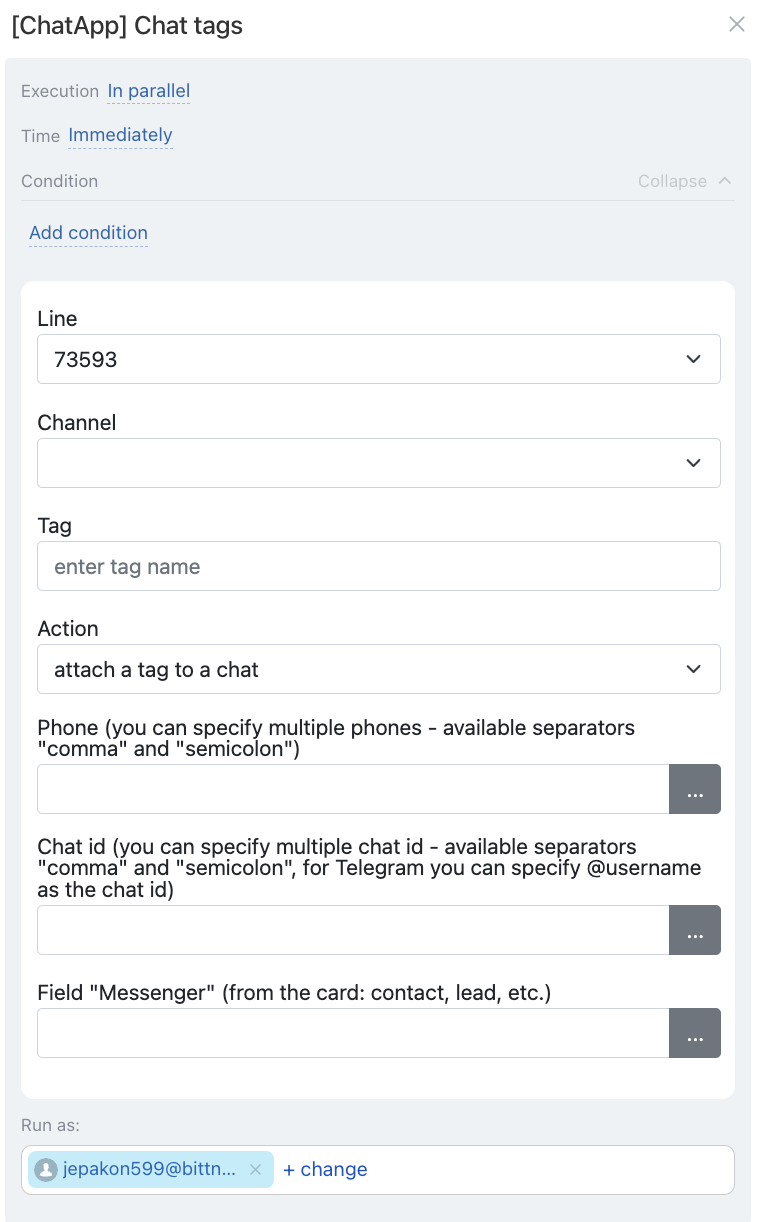
• Independently of other robots — starts immediately (default).
• After the previous robot — starts only after previously configured robots on this stage have been executed.
When — the robot trigger moment:
• Immediately — when the card moves to the stage (default).
• After time — delayed start (set interval).
Conditionally — additional conditions for robot execution (if needed).
If the condition is met — the robot will run. If not — the robot will not run.
In the “Channel” field, select the communication channel from the line specified in “Lines”.
In the selected channel, the robot will assign or remove a label from the client’s dialogue in Scenario Dialogs.
In the “Action” field — choose what to do with the label:
• Attach — add a label to the dialogue.
• Detach — remove a label from the dialogue.
Choose only one method — otherwise labels will be duplicated.
By phone number:
Enter the number in the “Phone” field — manually or via variable:
• Manually — enter one or more numbers (comma or semicolon separated).
• Via variable — number is pulled from the CRM card: click the three dots → select entity (Lead or Deal) → choose the field containing the number.
If numbers are stored in different fields (“Mobile”, “Work”), use:
• for deal — {{Contact: Phone (text)}}
• for lead — {{Phone (text)}}
The “Phone (text)” variable pulls all available numbers from the card.
If multiple numbers exist, the label will be applied to each.
By Telegram username:
In the “Chat ID” field click the three dots → select entity (Lead or Deal) → choose the field where the client’s username is stored:
• for lead — {{E-mail (text)}}
• for deal — {{Contact: E-mail (text)}}
By chatID:
chatID is a Scenario Dialogs chat identifier. It is used when there is no phone number or username, but there is an active chat in Scenario Dialogs.
Step 1. Add the ChatApp robot [WhatsApp, Telegram, Viber] “Get chat ID from Messenger field” and place it before the main robot.
Step 2. Set: Sequentially → After previous robot.
Step 3. In “Chat ID” click the three dots → Robots → [WhatsApp, Telegram, Viber] — “Get chat ID from Messenger field” → select chatID variable.
Via “Messenger” field:
The “Messenger” field is used when there is no contact data, but there is an active chat in Open Lines.
Required condition — the “Messenger” field must be filled in CRM:
• in leads — filled in the lead card;
• in deals — filled in the contact linked to the deal.
The field is not filled manually; it is created automatically if:
• the client wrote via Open Lines;
• or you contacted the client via Open Lines.
To attach or detach a label via this field, use:
• for lead — {{Messenger (text)}}
• for deal — {{Contact: Messenger (text)}}
