

Rename Open Lines chat
How to add the ChatApp robot:
Step 1. Go to the “Robots” section in the required CRM funnel.
Step 2. On the stage where the robot should trigger, click “+”.
Step 3. In the left-hand list, scroll down and open the “Other robots” section.
Step 4. Select the robot [ChatApp for WhatsApp, Telegram, Viber] — “Rename Open Line chat”.
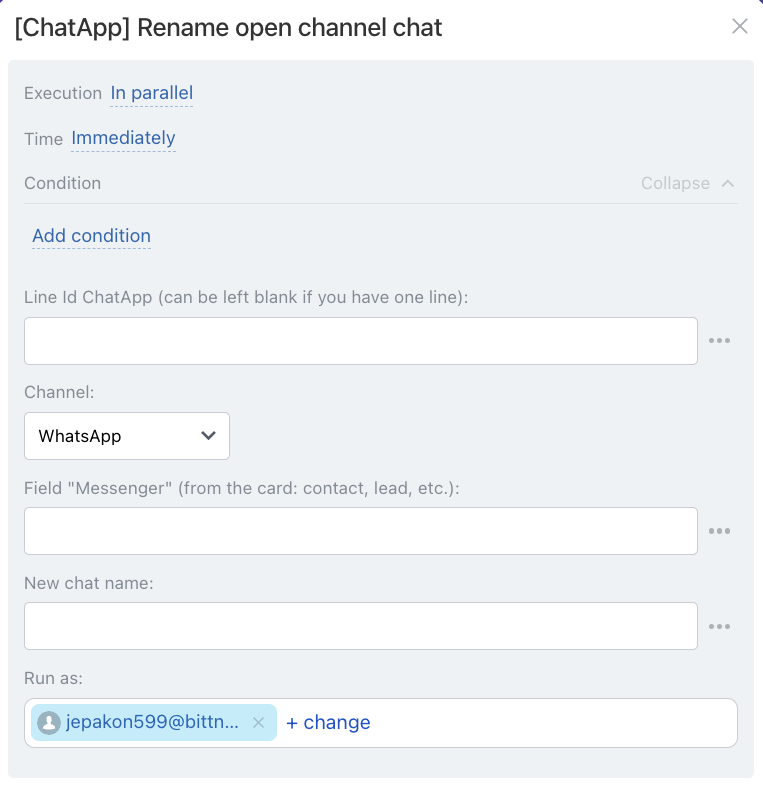
• Independently of other robots — starts immediately (default).
• After the previous robot — starts only after previously configured robots on this stage have completed.
When — the robot trigger moment:
• Immediately — when the card moves to the stage (default).
• After time — delayed start (set interval).
Conditionally — additional conditions for robot execution (if needed).
If the condition is met — the robot will run. If not — the robot will not run.
In the “Channel” field — select the communication channel from the line specified in the “Line ID” field.
• for lead — {{Messenger (text)}}
• for deal — {{Contact: Messenger (text)}}
The “Messenger” field contains chat data (chat identifier), which the system uses to determine which specific client chat should be renamed in Open Lines. The “Messenger” field is filled in automatically when a chat with the client is created in Open Lines.
