How to correspond
You can communicate with clients in amoCRM in two ways — choose the one that works best for your team.
1. Scenario Dialogs by ChatApp
A multichannel chat window where all messages from messengers connected in ChatApp are collected. Managers don’t need to switch between different windows — all communication is handled in one place.
More details about working with chats in Scenario Dialogs — in the article.
Through the left menu in amoCRM:
In your amoCRM account, click the ChatApp icon in the left menu — Scenario Dialogs will open with all existing chats.
If the ChatApp icon is not visible:
go to Settings → ChatApp settings → in the “Chat settings” section → enable the option “Show web chat icon”.
From a deal conversation:
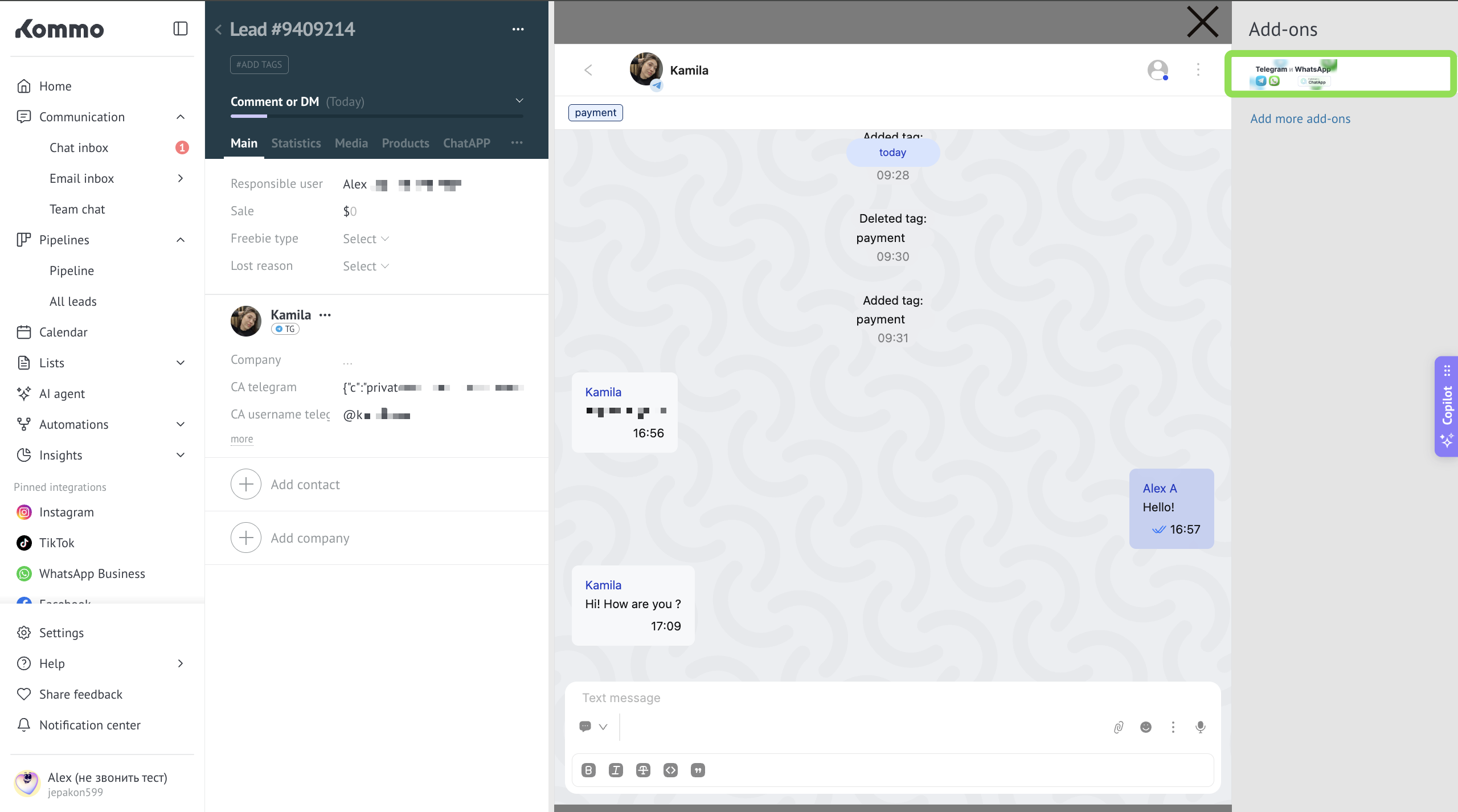
Open a deal or contact → click the ChatApp widget on the right.
Scenario Dialogs will open with a filter applied to the current client — the conversation with that client will be shown if it exists.
2. Conversations inside amoCRM deals or “imBox”.
Managers can work through the standard imBox interface or via conversations inside deals.
Through imBox — open the imBox section in the left menu; it shows all existing customer chats.
Through deals — open a deal: the chat with the client is available inside it. You can only write to the client from the deal — chats are not displayed in contacts or companies.
You can message a client first after creating a deal.
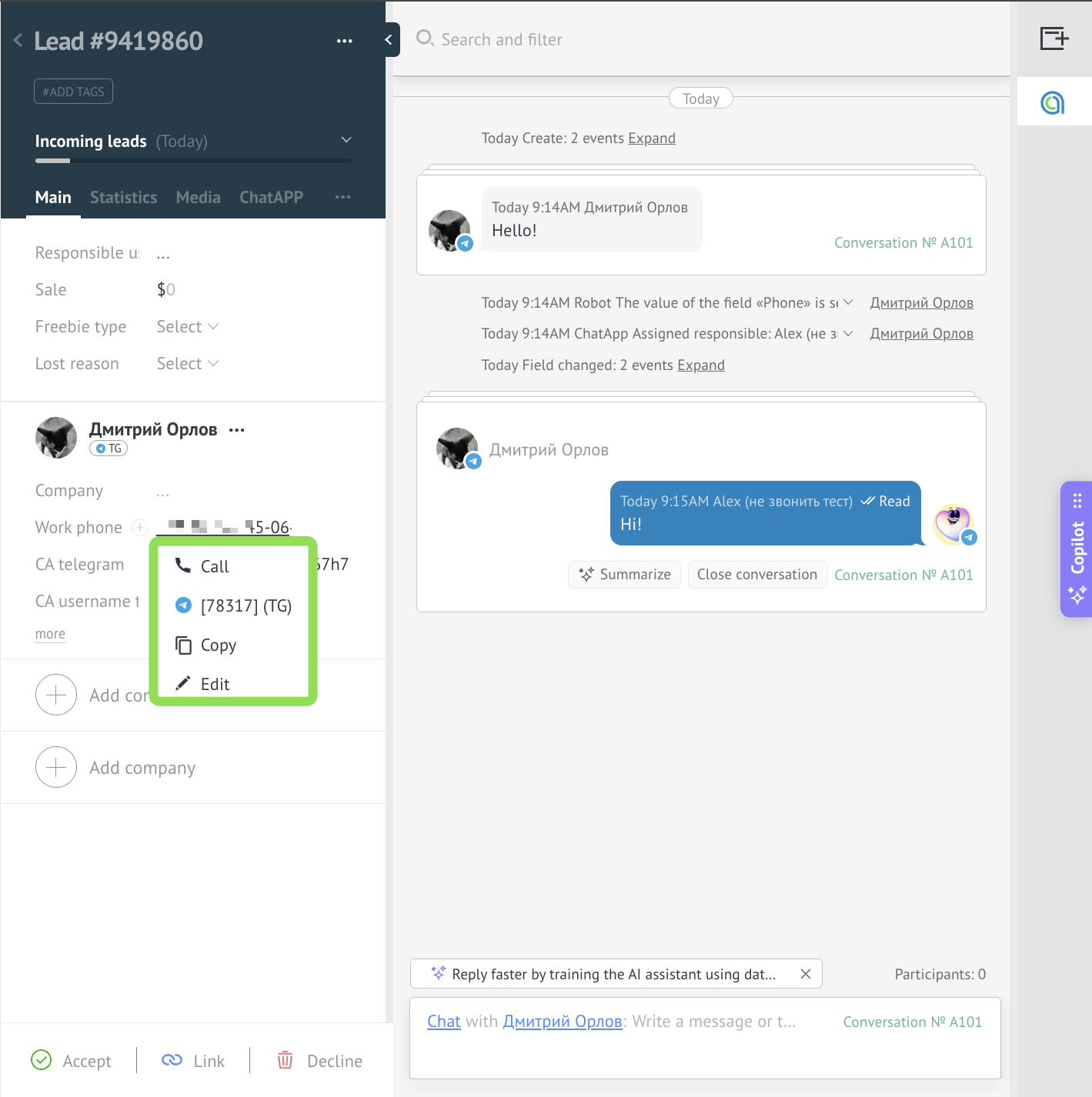
Step 1. Create a deal → open it → click the client’s phone number.
Step 2. A list of ChatApp channels connected in amoCRM will open — select the desired one.
- colored channel icon — number found, you can message the client.
- grey channel icon — channel is not connected or the number is not found in the messenger.
You can message a client by username in two ways:
From a deal.
If there is no chat — create a deal and enter the client’s username in the “Phone” field.
If a chat already exists — open the deal.
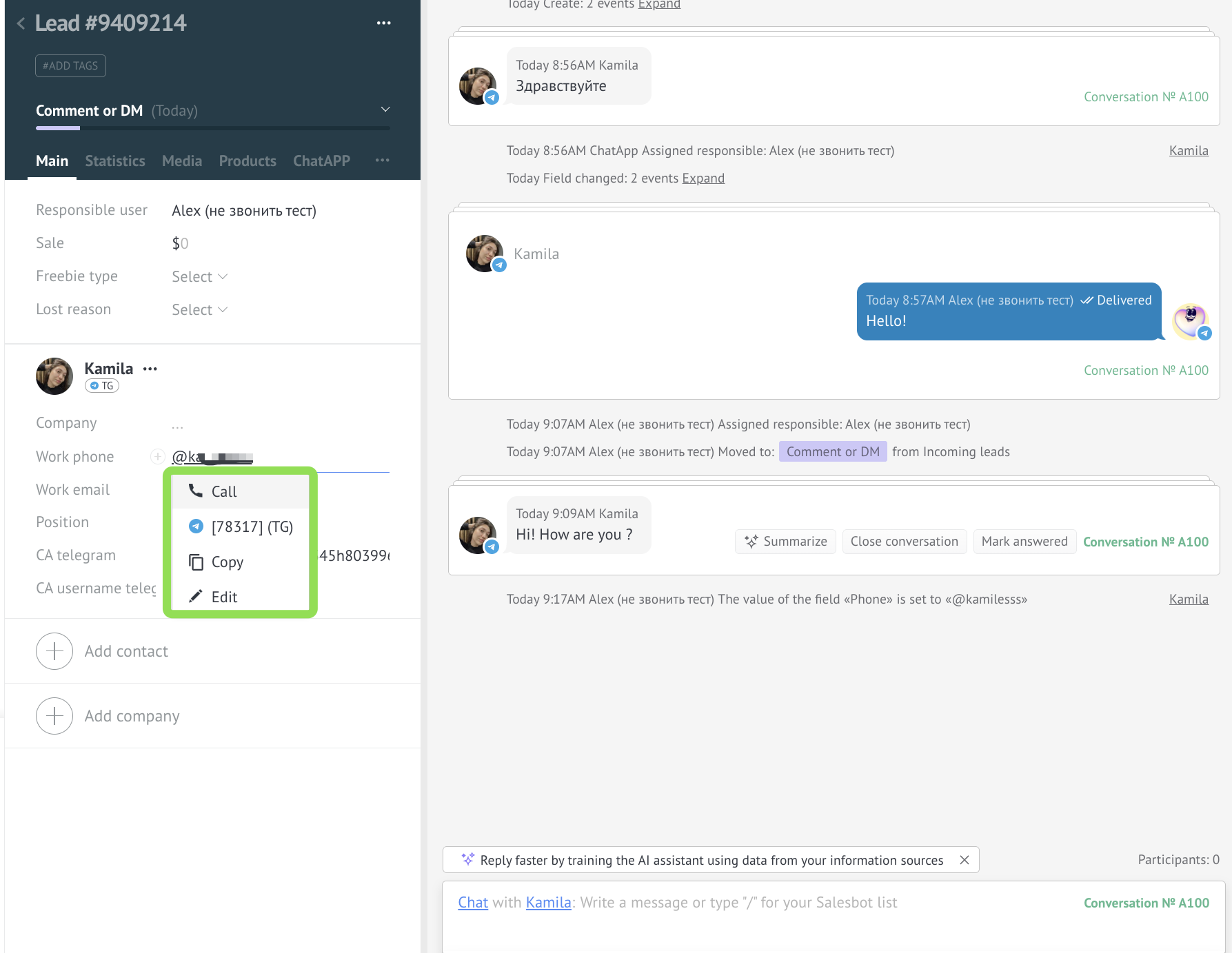
Step 1. Open the deal → click the username.
Step 2. A list of ChatApp channels connected in amoCRM will open — select Telegram.
- colored channel icon — username found, you can message the client.
- grey channel icon — channel is not connected or username is not found in Telegram.
In amoCRM, all client chats can be merged into a single deal conversation — regardless of which messenger the client used. Go to Settings → Chats and messengers → “Conversations” and enable:
“Create a conversation in a new deal only if the client has no active or closed deals.”
This way, all client messages will go into a single deal conversation without duplicates.
- if the number is not hidden in the messenger — conversations are merged into one deal.
- if the number is hidden — separate deals will be created.
If there are multiple channels in a conversation, you can message the client in one of the following ways:
Through the messenger icon — click the messenger icon under the client’s name → select “Message” → enter your text.
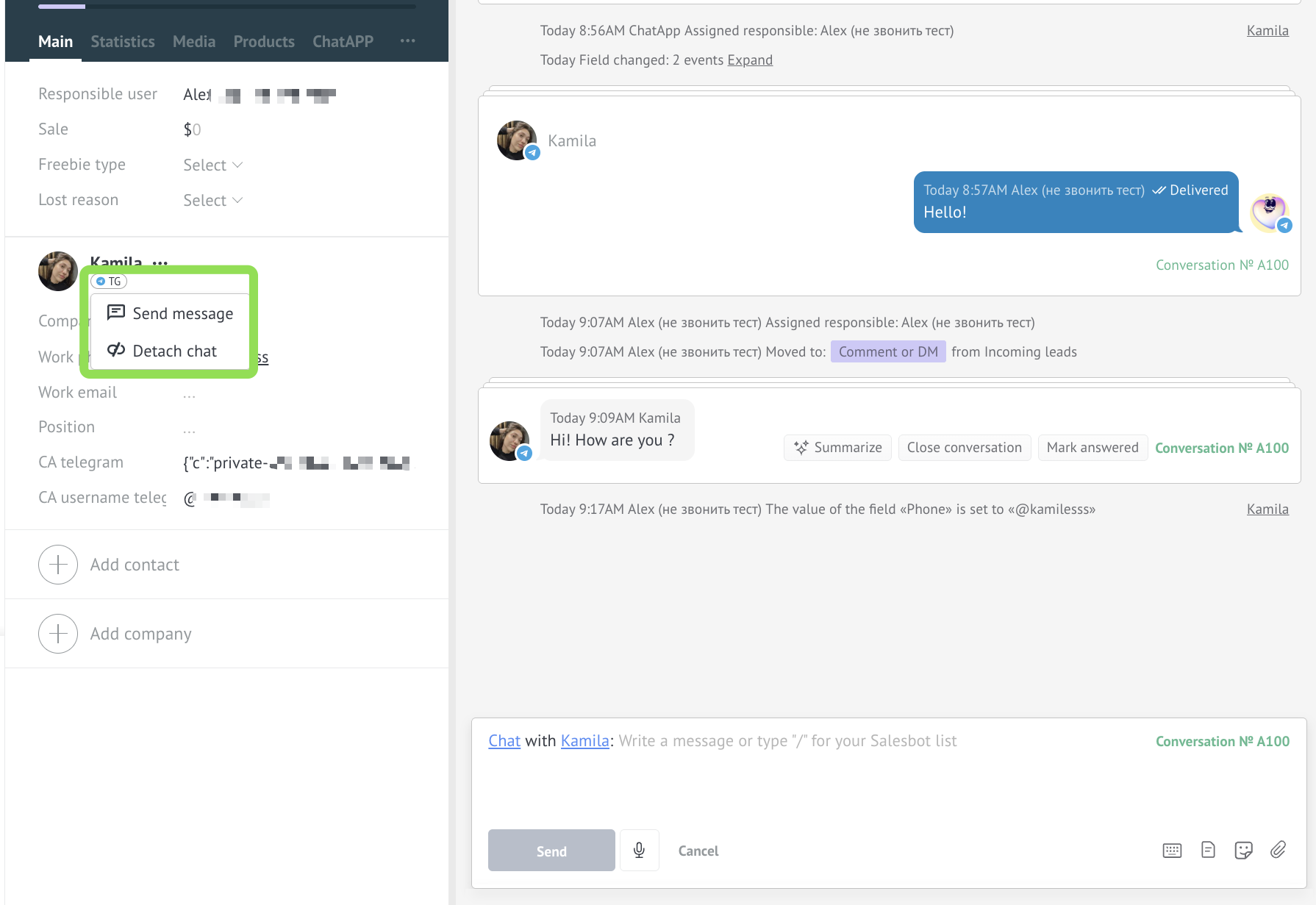
Through recipient selection — in the input field choose the recipient → select the required chat by icon or conversation number → enter your message.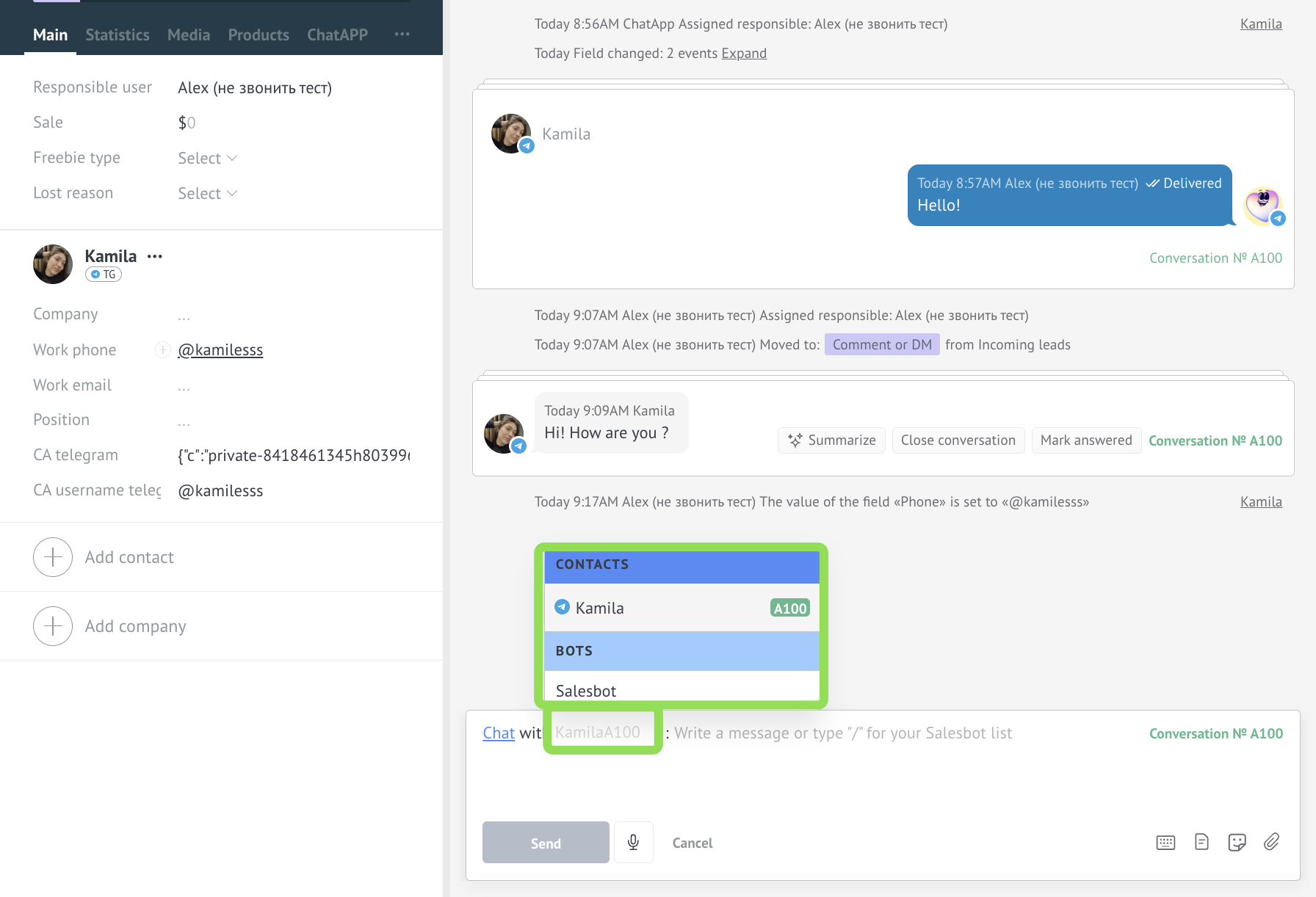
A group chat appears in amoCRM after the first incoming message from the group — only then can you write to it.
To open the chat: open the deal; the deal will show the group name linked to that chat, and you can start messaging.
If messages from the group are not arriving in amoCRM:
— the group channel must be connected to a line in ChatApp and configured in amoCRM;
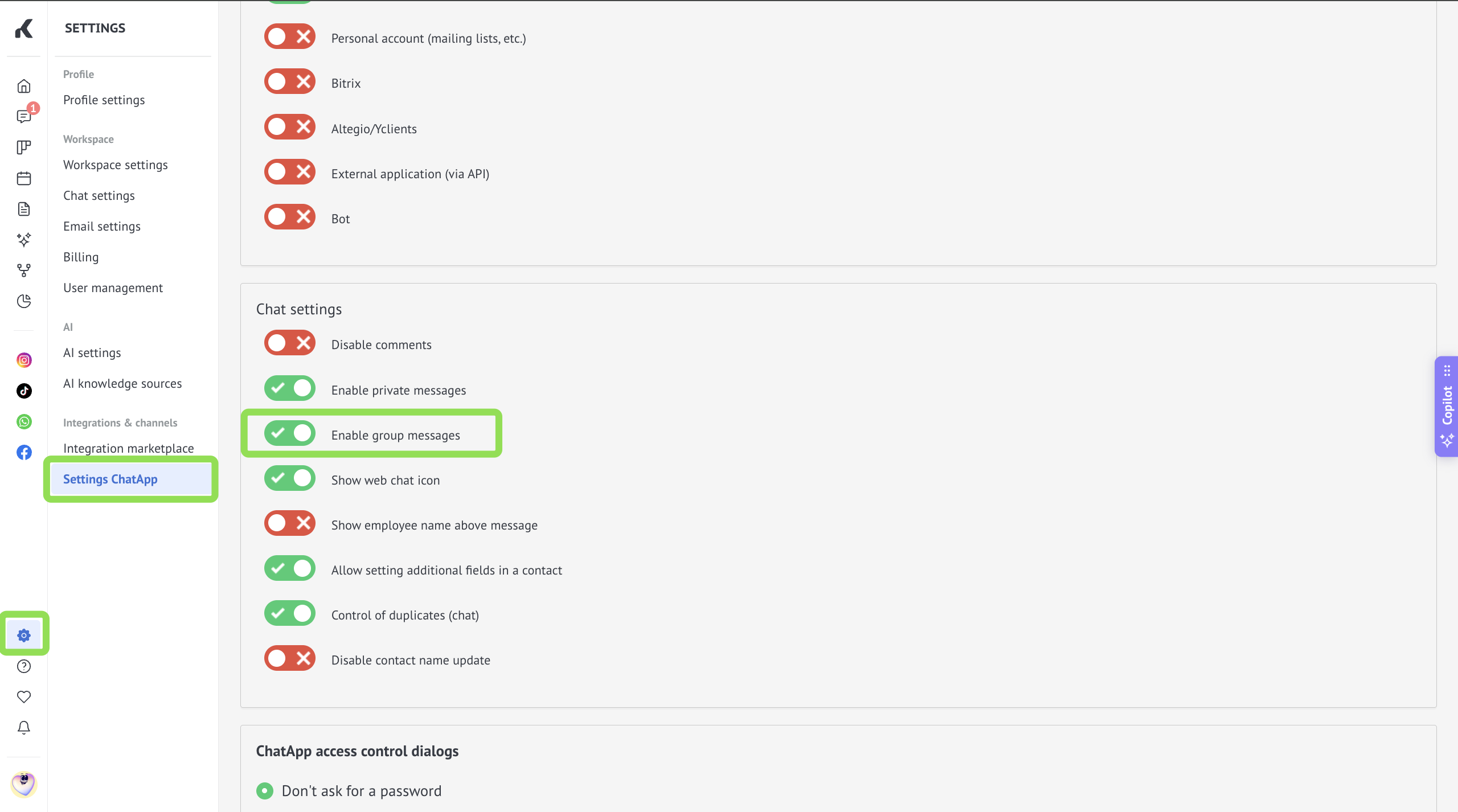
— in amoCRM go to “Settings” → “ChatApp settings” → “Chat settings” and enable “Enable group messages”.
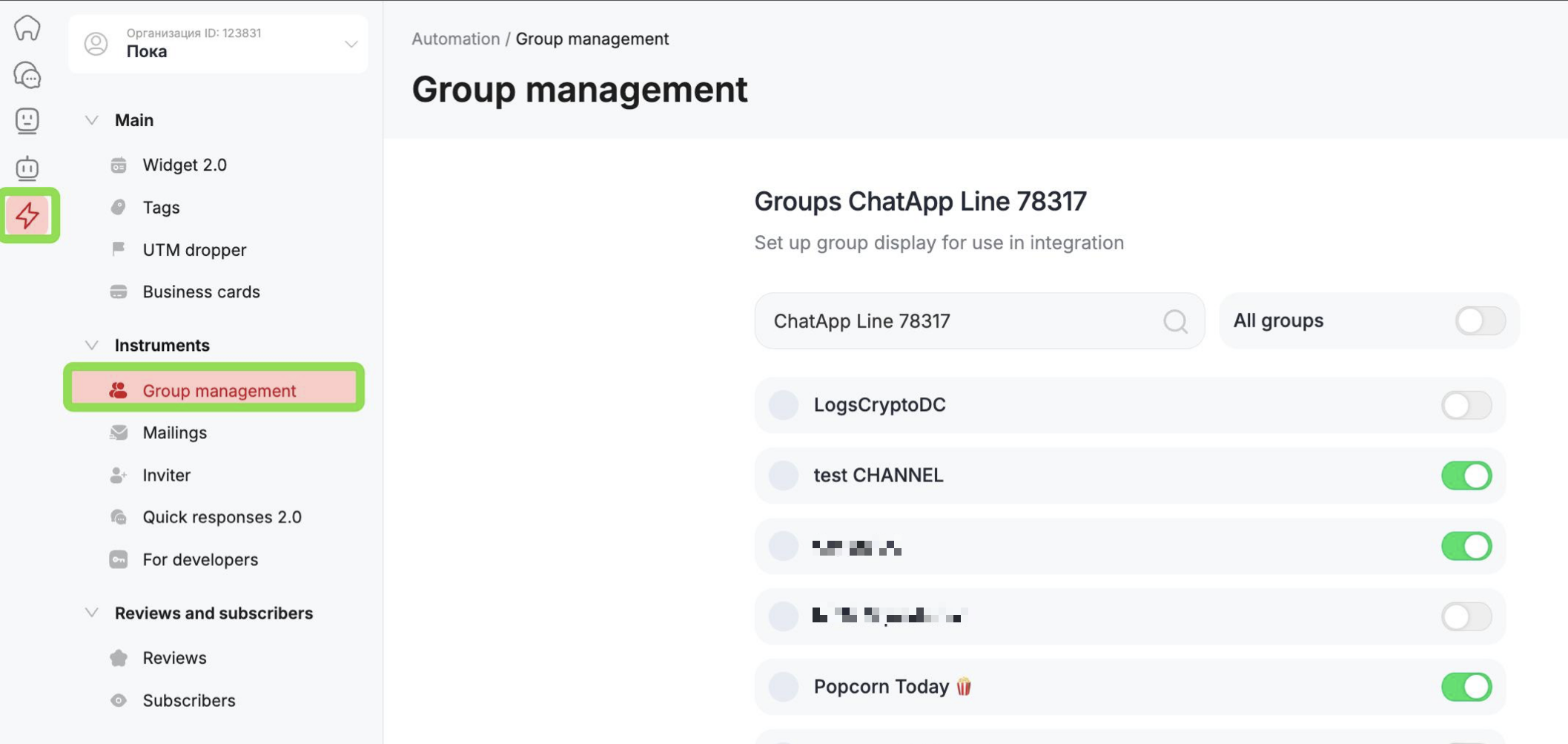
The Telegram channel must be connected to a line in ChatApp and configured in amoCRM.
Step 1. In the ChatApp dashboard, go to “Automation” → “Group management” → select the line and make sure the required group is enabled.
Step 2. In amoCRM go to “Settings” → “ChatApp settings” → “Chat settings” and enable “Enable group messages”.
Step 1. In ChatApp dashboard
Step 2. “ChatApp settings” in amoCRM
Open a deal with a client → in the message input field click the sheet icon → select a line → “choose template” → select the required template from the list.
If the template contains variables — fill them in and click “Insert”. The text will appear in the input field together with the template code — do not delete it, the client will not see the code. Click “Send”.
If the required template is not in the list — check it in the ChatApp dashboard: the template may not have passed moderation or may have been blocked.
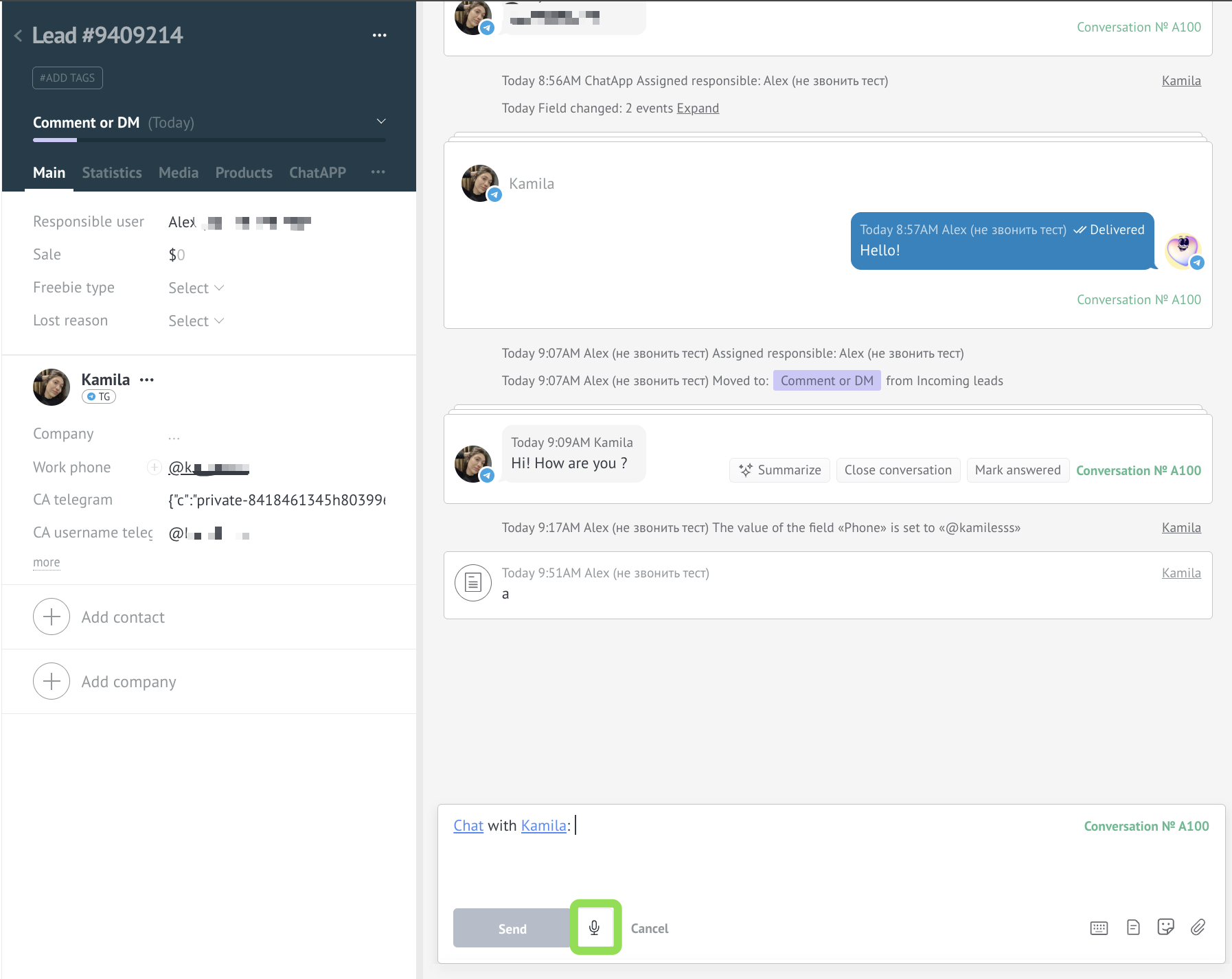
In amoCRM conversations you can send voice messages: open a deal → click the microphone icon → record your message (you can pause or re-record).
Voice messages are not supported in WhatsApp Business API and WhatsApp Cloud API.