

Настройки доступа ChatApp
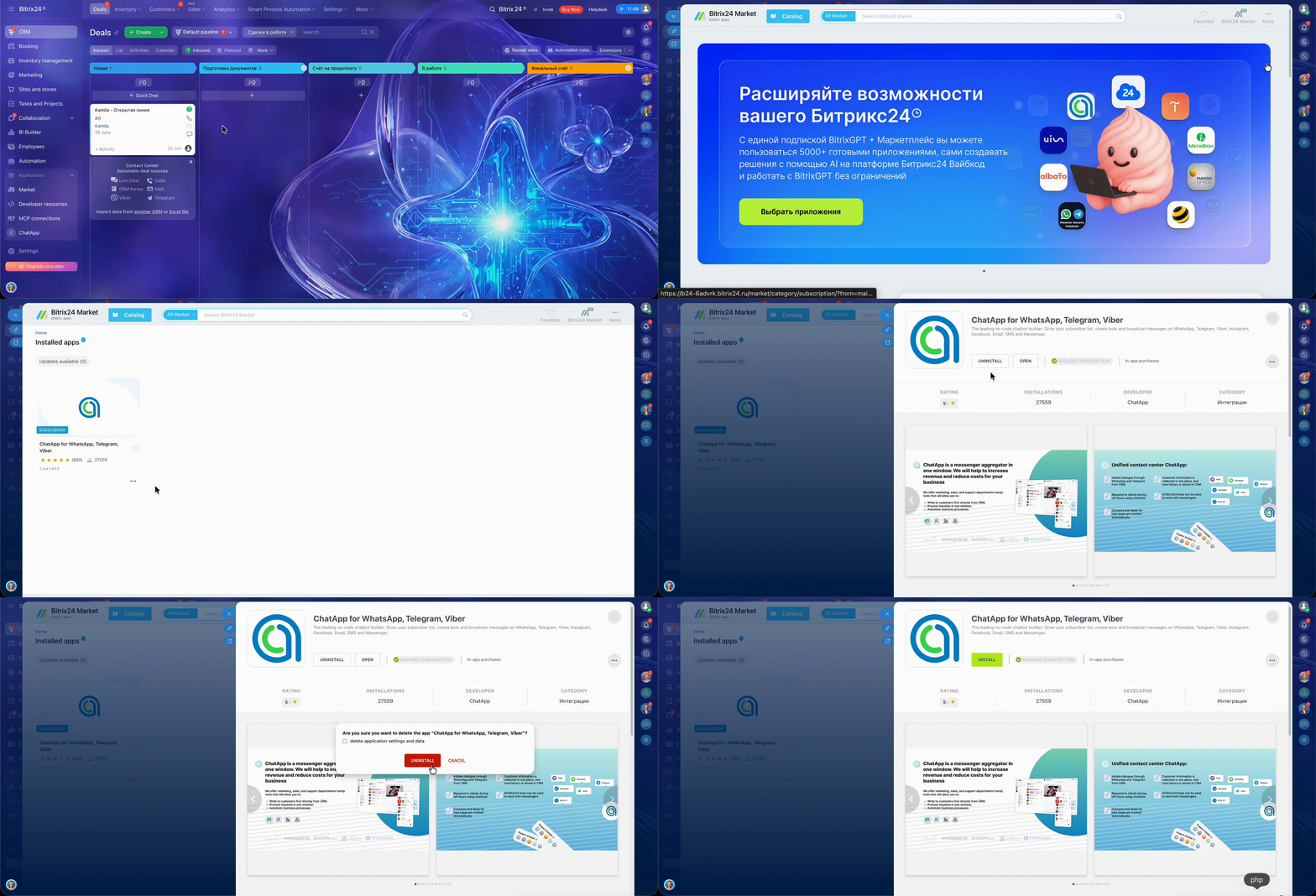
Step 1. In the left menu of Bitrix24, open the Marketplace section.
Step 2. In the upper-right corner, click More → Installed Applications.
Step 3. Open the ChatApp application and click Uninstall.
Step 4. A confirmation window will appear.
To keep your current settings, do not select the “Delete application settings and data” checkbox.
Step 5. On the application installation page, click Install to reinstall ChatApp. See the ChatApp application installation guide.
If the “Delete application settings and data” checkbox is selected, all ChatApp application data will be permanently deleted, including integration settings (connectors), automation rules (robots), and other application data. Deleted data cannot be restored.
How to configure access to the ChatApp application
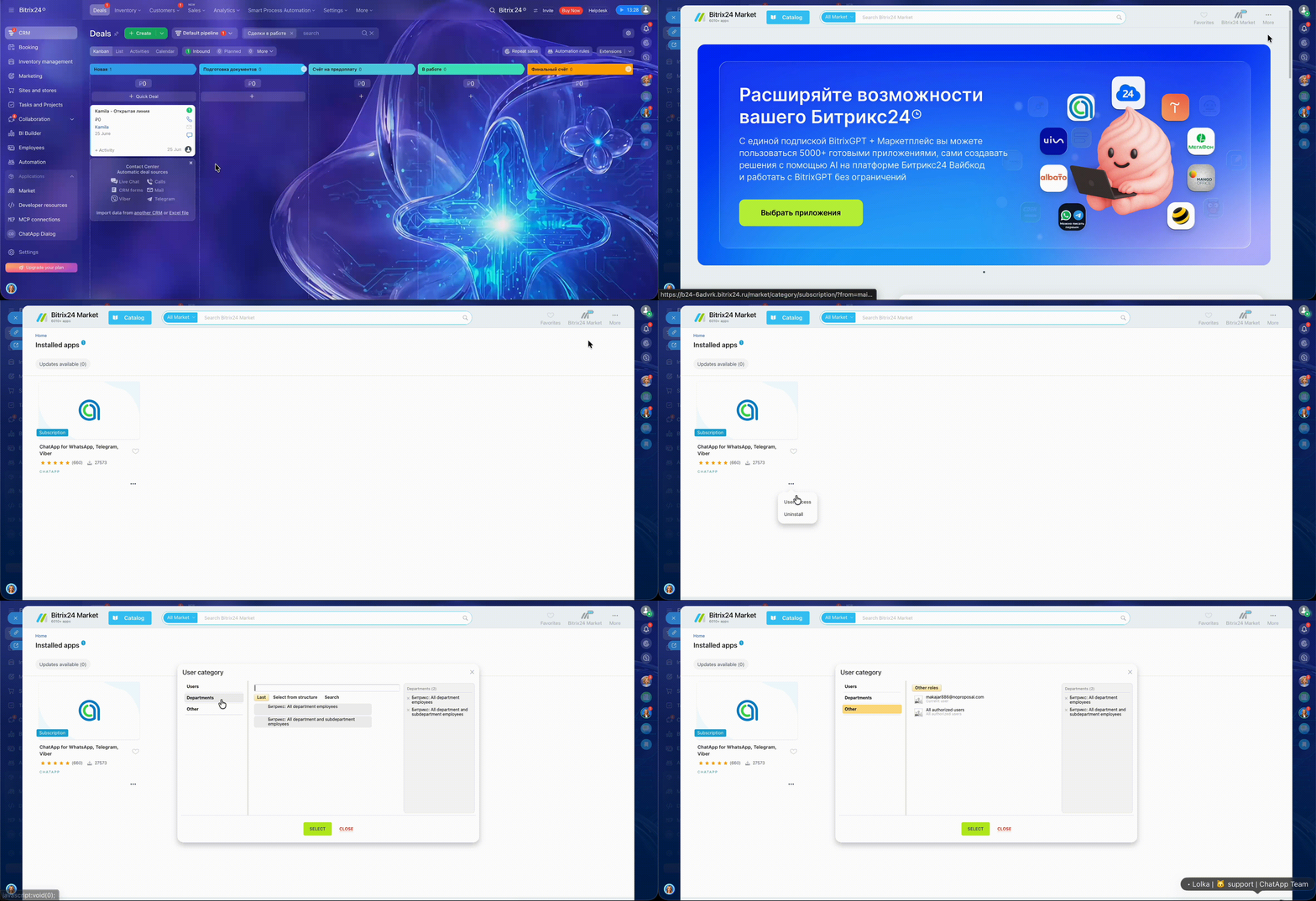
Step 1. In the left menu of Bitrix24, open the Marketplace section.
Step 2. In the upper-right corner, click More → Installed Applications.
Step 3. Find the ChatApp application, click the ⋯ menu, and select Access.
Step 4. Select the users or departments that should have access to the ChatApp application.
If no users are selected in the access list, the ChatApp application will be available to all portal users.
Configuring access to the ChatApp application does not replace Bitrix24 permission settings. To allow employees to work with the application, you must grant them access to Open Channels and add them to the Open Channels queue.
To restrict access to ChatApp Dialog:
Step 1. Open the ChatApp application from the left menu in Bitrix24.
Step 2. In the ChatApp Dialog section, enable the option “Require employees to enter a password to access ChatApp Dialog.”
After enabling this option, employees will be required to sign in using the login and password of their personal ChatApp account when opening ChatApp Dialog.
‼️This setting does not apply to Bitrix24 portal administrators.
To use this option:
Step 1. Link your Bitrix24 portal to your ChatApp project according to the instructions.
Step 2. Configure roles and invite employees to the ChatApp project according to the instructions.
Step 3. Configure employee synchronization according to the instructions.
Step 4. In the left menu of Bitrix24, open the ChatApp application and enable the “Authorize employees in ChatApp Dialog using personal accounts” option in the ChatApp Dialog section.
‼️If this option is disabled, employees will open ChatApp Dialog using the ChatApp project owner’s account.
When the “Allow only Responsible Open Channel employees to start conversations” option is enabled, only employees added to the Responsible list will be able to initiate conversations. All other employees will receive an access denied error when attempting to message a customer.
‼️Important: This restriction does not apply to Bitrix24 portal administrators.
Instructions for adding employees to the Responsible list of an Open Channel.
